How to Run a Copilot Readiness Assessment Before You Buy
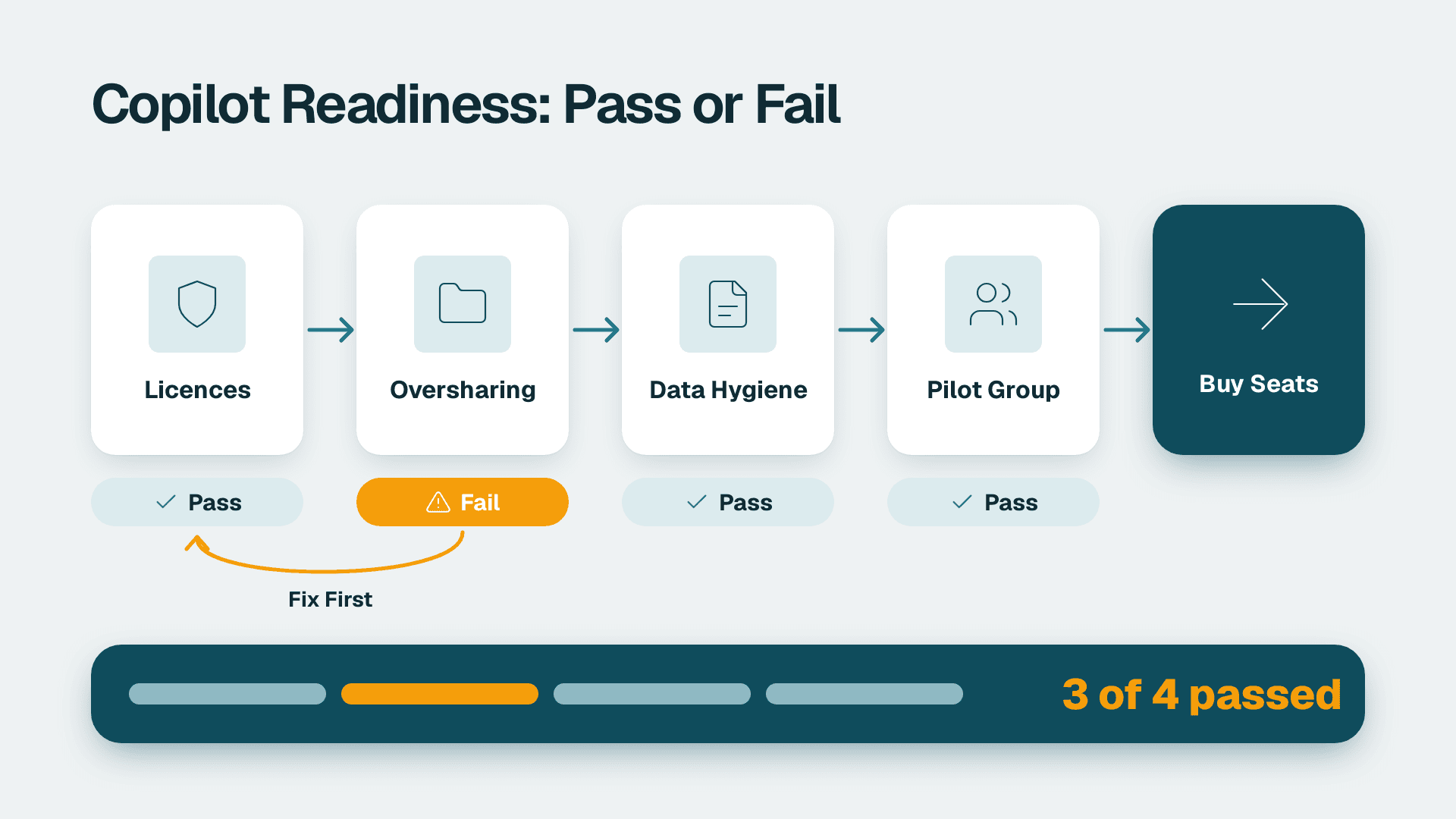
You can run a Copilot readiness assessment in one to two working days: confirm licences and update channels in the Microsoft 365 admin center, find overshared SharePoint content, clean the data Copilot will read, and pick a pilot group. Each step ends in a pass or fail, so you know whether to buy seats now or fix something first.
Key Takeaways
- Copilot shows people everything they can already open, so oversharing is the biggest readiness risk, not licensing.
- The built-in Copilot readiness report in the admin center covers licences, update channels and likely early users at no extra cost.
- Score every area pass or fail; one fail in permissions or identity should delay the rollout.
- Test Outlook with real pilot users, because the new and classic Outlook apps behave differently.
- Plan for a Microsoft 365 outage before Copilot makes email and meetings even more central.
What You'll Need
- A Global Administrator or Global Reader account, plus SharePoint Administrator access for Step 3. Reports are read-only, so Global Reader is enough for most of this.
- Access to the Microsoft 365 admin center (admin.microsoft.com) and the SharePoint admin center.
- Your current licence list: which base Microsoft 365 plan each user holds, and how many Copilot seats you plan to buy. For per-seat costs, see Microsoft 365 Copilot Subscription: Cost Per Seat and Per Year.
- A spreadsheet with one tab per step and a pass/fail column.
- Optional, for Step 6: a workstation with Python 3.8 or later and permission to register an app in your tenant.
- Two to five pilot candidates who will test Outlook, Word, Excel and Teams in Step 5.
If you would rather have this done for you, our fixed-price AI readiness audit covers the same ground. If you want to do it yourself, keep reading. For the wider framework behind these checks, read AI Readiness: What It Means and How to Test It Before Copilot.
Step 1: How Do You Check Copilot Prerequisites in the Admin Center?
Start with the Microsoft Copilot readiness report, which tells you which users are technically eligible. Microsoft documents it in its Copilot readiness report guide.
1. Sign in to the Microsoft 365 admin center.
2. In the left navigation select Reports, then Usage.
3. Under Reports select Microsoft Copilot, then Copilot.
4. Make sure the Readiness tab is selected. It is the first tab; Usage is the second.
What you should see: four summary charts named Total Prerequisite Licenses, Users on an eligible update channel, Assigned Licenses and Available Licenses. The readiness section reports on the past 28 days. If the report is empty, wait: it becomes available within 72 hours, and usage data can then lag by up to a further 72 hours.
Record these results:
| Check | Where | Pass condition |
|---|---|---|
| Prerequisite licences | **Total Prerequisite Licenses** chart | Covers every user you plan to give a seat |
| Update channel | **Users on an eligible update channel** chart | Planned users are on Current Channel or Monthly Enterprise Channel |
| Seat availability | **Available Licenses** chart | Enough free seats for the pilot |
| Power BI Copilot (only if relevant) | Fabric or Power BI admin portal | Paid Fabric capacity F2 or higher, or Power BI Premium P1 or higher |
The last row catches a common surprise. Copilot in Power BI and Fabric needs a paid Fabric capacity F2 or higher, or Power BI Premium P1 or higher. A Pro or Premium Per User licence alone is not enough, and trial capacities are excluded.
If users fail the update channel check
Users on an eligible channel are enrolled in Current Channel or Monthly Enterprise Channel for app updates. Anyone on a slower channel needs to be moved before you assign a seat. You change this in your Microsoft 365 Apps update policy, so ask whoever manages desktop deployment to move those devices first.
Pass/fail: pass only if every planned pilot user shows as licence-eligible and on an eligible channel.
Step 2: Which Users Should Get Copilot Seats First?
The same report tells you who is likely to benefit, which stops you handing seats out by seniority.
1. Stay on the Readiness tab and scroll to the user table.
2. Find the Suggested candidate for Copilot column. It flags the top 25% of nonlicensed users, based on their Microsoft 365 app usage over the prior month, and is refreshed weekly.
3. Check the activity columns. Over the past 30 days they show whether each person attended at least one Teams meeting, took part in a Teams chat, sent an email in Outlook, and collaborated on a document through OneDrive or SharePoint.
4. Select Export to download a .csv file you can sort and share.
What you should see: a table of users with yes/no activity flags. If names appear as anonymous strings, that is expected: user-specific details such as usernames and display names are hidden in usage reports by default. A Global Administrator can change that under Settings, then Org settings, then the Services tab, then Reports, but only do so if your privacy policy allows it.
Pick people who use all four workloads daily and who are willing to give feedback. Two or three of them should be outside IT. If you are unsure how to train them afterwards, Microsoft Copilot Training: Free, Paid and Champion Options compares the choices.
Pass/fail: pass if you have a named list of 5 to 15 pilot users with confirmed eligibility.
Step 3: How Do You Find SharePoint Oversharing Before Copilot Does?
Copilot only surfaces content a user can already access. The problem is that many companies have years of files shared with Everyone except external users or with broad company-wide links. A staff member who never found that payroll folder by browsing may find it in one Copilot prompt.
1. Open the SharePoint admin center (admin.microsoft.com, then Show all, then SharePoint).
2. Look under Reports for data access governance reports, such as the sharing links and oversharing views. Availability depends on your licensing, so check Microsoft's current SharePoint Advanced Management documentation for what your plan includes.
3. If those reports are not available to you, go to Sites, then Active sites, and review each site's Sharing setting and Permissions manually, starting with HR, Finance, Legal and Leadership sites.
4. For each risky site, list: site name, who has access, and whether any Anyone or organisation-wide links exist.
What you should see: a list of sites and files open to far more people than intended. Do not be alarmed if the first list is long; that is normal and is exactly why you run this check.
Fix in this order:
1. Remove organisation-wide links on sensitive sites and replace them with named groups.
2. Set sensitive sites to a stricter default sharing setting.
3. Remove former employees, old contractors and unused guest accounts from site membership.
4. Re-run the report and confirm the count of overshared items has dropped.
For the policy side of this work, AI Governance Strategy for Companies Without a Compliance Team gives a lightweight approach.
Pass/fail: pass if no HR, Finance, Legal or Leadership content is open to the whole organisation. Anything else is a fail until fixed.
Step 4: How Do You Check Data Hygiene for a Copilot Readiness Checklist?
Copilot answers from your files, emails and chats. Stale, duplicated and unlabelled content produces stale, duplicated answers.
1. Sample the content. Open the five busiest SharePoint sites and look at the document libraries. Note folders full of files named `final_v2` or `copy of`, and anything untouched for years.
2. Archive or delete the obvious clutter after confirming ownership with the site owner. Do this before the pilot starts, not after.
3. Check sensitivity labels. In the Microsoft Purview portal, open Information Protection, then Labels. Confirm at least a basic scheme exists, such as Public, Internal and Confidential, and that Confidential files carry a label.
4. Confirm auditing. In Purview, open Audit and confirm it is switched on. Purview Audit (Standard) keeps audit logs for 180 days, which is your window for reviewing what pilot users asked and accessed.
5. Name an owner for every site. A site with no owner has nobody to answer for its permissions.
What you should see: a short list of sites cleaned, a label scheme documented, and auditing confirmed. If the Purview portal says you lack permission, you need a Compliance Administrator role.
Pass/fail: pass if auditing is on, a label scheme exists, and your busiest sites have owners and no obvious junk.
Step 5: How Do You Test Copilot in Outlook, Word, Excel and Teams?
Now run the pilot users through real tasks. Outlook is usually the first place people look, and the first place licensing and app-version mistakes show up.
Check which Outlook each person uses
The new Outlook and classic Outlook do not always offer identical Copilot features, and some staff switch between them using the New Outlook toggle at the top right of the window. Ask each pilot user which one they use, then test in that one. Record any feature that differs so your guidance matches what people actually see.
Test the core Outlook tasks
1. Summarise a long thread. Open an email thread with at least ten replies and select the Summarize option at the top of the message (Copilot summary banner). You should see a short summary with key points. Check it against the thread yourself.
2. Prepare for a meeting. Open a calendar event, then select the Copilot option on the invitation to get a meeting prep summary built from related emails and files. Confirm it only references material the attendee may see.
3. Draft a reply. Select Reply, then Copilot in the compose toolbar, and enter a short instruction such as: Reply accepting the proposal and ask for the revised timeline. Check the draft is usable.
For a longer walkthrough of daily use, see How to Use Copilot in Outlook: 8 Steps for Teams.
Test Word, Excel and Teams
- Word: open a real report and ask Copilot to summarise it, then draft a section from a file in your OneDrive.
- Excel: open a clean table (headers in row 1, no merged cells). Copilot works best on tidy tables, which is a data hygiene check in itself.
- Teams: after a meeting where recording and transcription were on, open the meeting recap and ask Copilot for action items.
Why is Copilot not showing in Outlook?
If an icon is missing, work through this order:
1. In the admin center, go to Users, then Active users, select the person, then Licenses and apps. Confirm the Copilot licence is assigned and switched on.
2. Confirm the user is on an eligible update channel (Step 1).
3. Have the user sign out of Outlook fully and sign back in, then restart the app.
4. Confirm they are using a supported Outlook app and the work account tied to the licence, not a personal account.
5. Wait. Licence changes can take a while to appear.
Pass/fail: pass if at least 80% of pilot tasks produce a result the tester would send or use, and no result exposes content the tester should not see. The 80% figure is our working threshold, not a Microsoft standard; set your own.
Step 6: How Do You Run an Automated Copilot Readiness Assessment Across the Tenant?
This step is optional but valuable if you have a technical person available. Microsoft published the Automated Readiness Assessment (ARA), an open-source tool described in its ARA announcement.
It evaluates six service areas: Microsoft 365 licensing, Entra identity, Defender security, Purview compliance, Power Platform governance and Copilot Studio readiness. It queries Microsoft Graph, Defender for Endpoint, Exchange Online and Power Platform APIs, with over 200 feature evaluations, and it runs locally with read-only permissions so reports stay on your filesystem.
1. Confirm you have Python 3.8 or later and an account with the appropriate admin roles.
2. Clone the repository and install its dependencies, following the instructions in the announcement.
3. Run the service principal setup script to create the read-only app registration.
4. Run the assessment with the command below.
`python main.py`
What you should see: timestamped CSV and Excel reports with priority-ranked recommendations (High, Medium, Low) and links to Microsoft documentation. Missing prerequisite licences are called out, with Entra ID P2, Defender P2 and Purview compliance SKUs named as examples.
Treat every High item as a fail until you have either fixed it or consciously accepted the risk in writing. Because reports are timestamped, rerun the tool after fixes and compare runs to show progress.
Pass/fail: pass if there are no unresolved High items in identity, security or compliance.
Step 7: How Do You Score Readiness and Plan for an Outage?
Pull the results into one scorecard.
| Area | Result |
|---|---|
| Licences and update channels (Step 1) | Pass / Fail |
| Pilot group selected (Step 2) | Pass / Fail |
| SharePoint permissions (Step 3) | Pass / Fail |
| Data hygiene, labels, audit (Step 4) | Pass / Fail |
| Outlook, Word, Excel, Teams pilot (Step 5) | Pass / Fail |
| Automated assessment (Step 6, optional) | Pass / Fail / Skipped |
Decision rule: all passes means buy pilot seats now. A fail in Step 3 or Step 6 means fix first, then retest. A fail only in Step 2 or Step 5 means adjust the pilot, not the whole rollout. For a self-scoring view beyond Copilot, try AI Readiness Assessment for Small Business: A 45-Point Self-Score.
Write a one-page continuity plan
Copilot makes email, files and meetings the centre of daily work, so an outage hurts more. Before the pilot starts, write down:
1. Who checks the Microsoft 365 service health page and who tells staff.
2. Which alternative channel staff use to reach each other and customers during an outage.
3. Which critical contacts and documents are available offline or outside Microsoft 365.
4. Who owns customer communication for the first hour.
Keep it to one page and store a copy outside Microsoft 365.
Common Mistakes
- Buying seats before fixing permissions. Fix: complete Step 3 first; permissions problems become visible the day Copilot is switched on.
- Choosing pilot users by job title. Fix: use the Suggested candidate for Copilot column and the activity flags, then add people outside IT.
- Testing only in one Outlook app. Fix: test in whichever Outlook (new or classic) each user actually runs and document the differences.
- Assuming a Power BI Pro licence enables Copilot in Power BI. Fix: it needs paid Fabric capacity F2 or higher, or Premium P1 or higher.
- Skipping the written result. Fix: keep the pass/fail scorecard so you can show leadership why you proceeded or paused.
Troubleshooting
- The Readiness tab is empty or missing users. The report takes up to 72 hours to become available, usage data can lag by up to 72 hours, and past figures can change because the system re-checks the previous three days.
- Copilot icon missing for one user only. Most likely the licence is unassigned or the user is on a non-eligible update channel; check Licenses and apps and the channel, then sign out and in.
- ARA fails at sign-in or returns no data. Usually the service principal setup script did not complete or the admin roles are too narrow; rerun the setup and confirm the role assignments.
For a wider comparison if Copilot turns out not to fit, see Best Alternatives to Copilot for Business, Ranked (2026).
Ready to hand the checks to a specialist? Book our Copilot readiness assessment (fixed price, 5 days).
Sources
- Microsoft Copilot readiness report, Microsoft 365 admin
- Accelerating Microsoft 365 Copilot adoption with Automated Readiness Assessment
Facts and prices checked November 2026.
---
About Lets Viz: Lets Viz has been a data analytics and Microsoft consulting firm since 2020, serving finance, healthcare, SaaS, professional services, retail and manufacturing clients. We hold a 5.0 Clutch rating and help 20 to 500 person companies get measurable value from Power BI, Microsoft 365 and Copilot.