How to Use Copilot in Outlook: 8 Steps for Teams
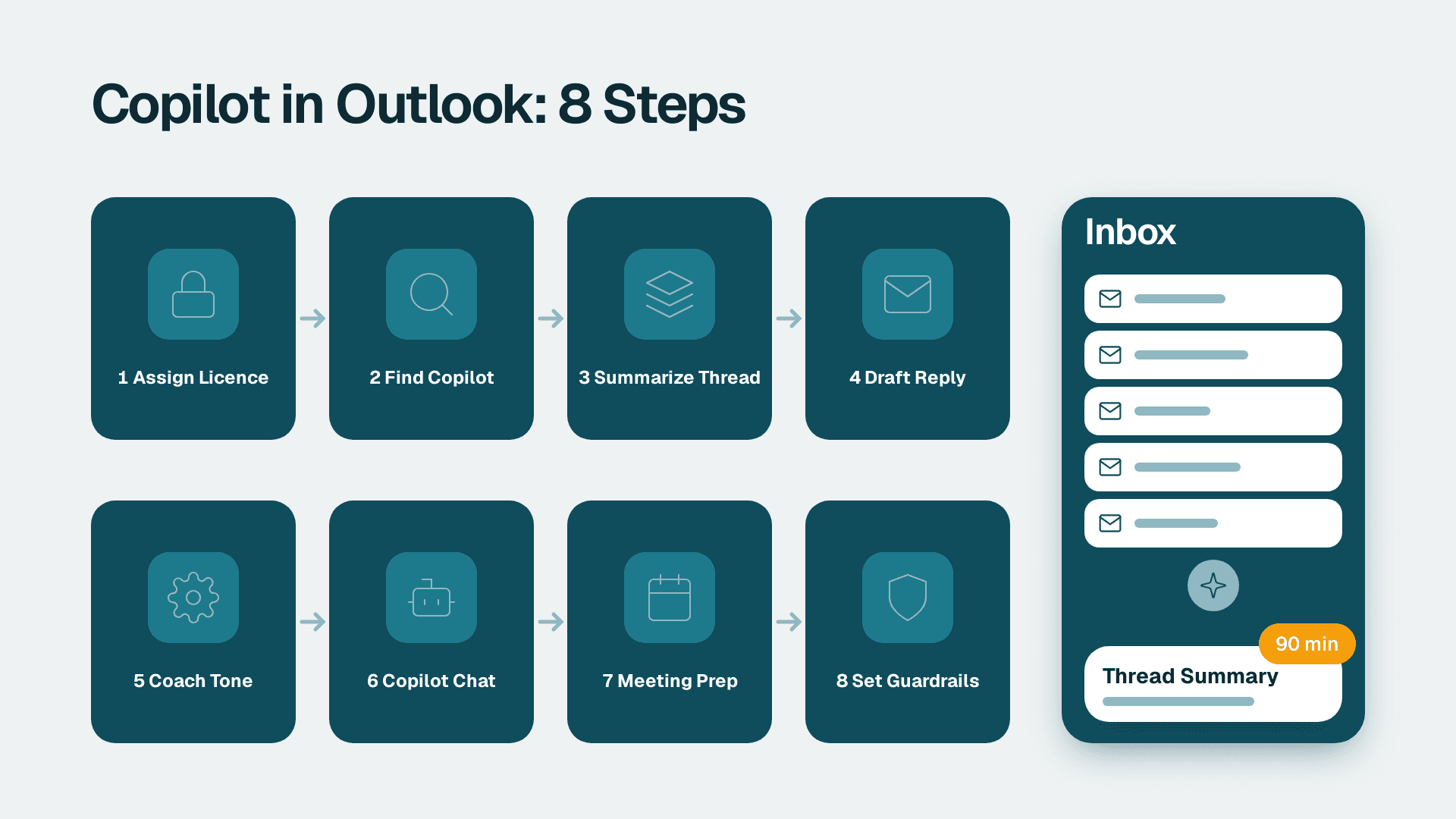
You can go from a licensed Microsoft 365 Copilot seat to a working Outlook routine in about 90 minutes: assign the licence, find the Copilot controls, then use them to summarize threads, draft replies, tighten tone and prepare for meetings. This guide walks through each step in order, then covers the mistakes and faults that trip up most first-time users.
What You'll Need
Check these before you start. Most failed rollouts stall on one of them, not on Outlook itself.
- A Microsoft 365 Copilot licence assigned to each user. This is an add-on to an eligible Microsoft 365 base plan, so a base licence alone is not enough. Check current eligibility and pricing on Microsoft's official Copilot licensing page for 2026, because tiers change.
- An Exchange Online mailbox. Copilot in Outlook works with mailboxes hosted in Exchange Online. Check Microsoft's documentation for how it treats other mailbox types.
- Admin access for the licence step: at least the Licence Administrator role, or Global Administrator, in the Microsoft 365 admin center.
- A supported Outlook client. The new Outlook for Windows, Outlook on the web and Outlook for Mac are the main places Copilot appears. Classic Outlook for Windows supports many features too, but menus can differ. Microsoft's Copilot in Outlook documentation lists what each client supports.
- Two or three real email threads you can practise on: one long thread with 10 or more replies, and one draft you would normally write yourself.
- A pilot group of 5 to 15 people, if you are rolling this out to a team rather than just yourself.
If you are still deciding whether to pay for seats, run through our Power BI Copilot readiness checklist first. It is written for Power BI, but the data access and permission checks apply to any Copilot rollout. A short ai readiness assessment for small business is worth doing before buying seats for everyone.
Step 1: Assign the Copilot licence
This is the step admins skip when they assume a trial or tenant-wide setting covers everyone.
1. Sign in to the Microsoft 365 admin center at admin.microsoft.com.
2. In the left navigation, select Billing, then Licenses.
3. Select the Microsoft 365 Copilot row.
4. Choose Assign licenses, search for the user, and tick their name.
5. Select Assign, then Save.
What you should see: the user's row appears in the licence list, and the Available licenses count for Copilot drops by one. The seat can take some time to reach the user's apps, so ask them to sign out of Outlook and back in before testing.
For a group, use group-based licensing: assign Copilot to a security group in Microsoft Entra ID rather than one user at a time. It makes leavers and joiners far easier to manage.
Step 2: Find Copilot in Outlook
Before using features, confirm the user can see the Copilot entry points.
1. Open Outlook (new Outlook for Windows or Outlook on the web is the easiest to start with).
2. Open any email from the inbox.
3. Look on the Home ribbon for the Copilot icon. In many builds it also appears in the message header area and in the compose window.
4. Select it once and read the panel that opens.
What you should see: a Copilot pane on the right with suggested prompts and a text box. On a long thread you may also see a Summarize by Copilot banner above the message.
If you see nothing, jump to the Troubleshooting section. The most common cause is a licence that has not synced or an Outlook client that is out of date.
Turn on the right client
If the user is on classic Outlook and cannot see Copilot, check File, then Office Account, then Update Options, and update to the latest channel your organisation allows. If your IT policy locks the update channel, test in Outlook on the web to prove the licence works, then ask IT to schedule the client update.
Step 3: Summarize a long email thread
This is the fastest win and the one to demonstrate first, because the value is obvious within seconds.
1. Open the long thread you chose earlier.
2. Select Summarize by Copilot in the banner at the top of the thread. If the banner is missing, select the Copilot icon on the Home ribbon and choose the summary prompt.
3. Wait a few seconds for the summary to appear.
4. Click the numbered references or citations in the summary to jump to the message each point came from.
What you should see: a short summary listing the key points, decisions and open questions, with references back to the original messages.
Now do the check most people skip: open the cited messages and confirm the summary matches. Copilot summarizes what is in the thread. It cannot know about a phone call that changed the plan, so if the thread is missing context, the summary will be too.
Ask follow-up questions
In the Copilot pane, type a targeted prompt about the same thread:
- `What decisions were made in this thread, and who owns each action?`
- `List any deadlines mentioned and the date each was first raised.`
- `What is still unanswered from the customer?`
Specific questions return far better results than a generic "summarize this".
Step 4: Draft a new email or reply with Copilot
Drafting is where staff save real time, but only if they give Copilot enough to work with.
1. Select New Email, or open a message and select Reply.
2. In the compose window, select the Copilot icon (look for Draft with Copilot in the message body or on the ribbon).
3. In the prompt box, type a specific instruction. For example:
- `Reply to this customer confirming we can deliver on 14 October. Apologise for the delay, keep it under 120 words, and ask them to confirm the delivery address.`
4. Optionally open the options menu and set Tone (for example Neutral, Casual, Formal, Direct) and Length (Short, Medium, Long).
5. Select Generate.
What you should see: a draft appears in the body, with controls to Keep it, Discard, Regenerate, and to adjust tone or length.
A good prompt includes four things: who the email is for, the outcome you want, the facts Copilot must include, and the length. A prompt missing the facts leads to a polished but empty email, and that is the most common reason staff say Copilot is "generic".
Add source material
You can reference files by typing a forward slash (`/`) in the prompt box and choosing a document from OneDrive or SharePoint that you have access to, where your client supports it. Ask Copilot to base the reply on that document. This is the cleanest way to answer a customer question from a price list or policy file without copy-pasting.
Always read the full draft before sending. Copilot can misstate a date, a price or a name. You remain the sender.
Step 5: Coach and rewrite your own draft
Once your team is comfortable generating drafts, show them how to improve what they have already written.
1. Write your email as normal in the compose window.
2. Select the Copilot icon and choose Coaching by Copilot (sometimes shown as a coaching or feedback option in the Copilot menu).
3. Read the feedback on tone, reader sentiment and clarity.
4. Edit the text, or select the rewrite option and choose a new tone.
What you should see: written suggestions, for instance that a message reads as abrupt or that the request is buried in the third paragraph.
This works well for sensitive messages such as late payment reminders, complaints and difficult internal feedback. Coaching depends on availability in your tenant and client, so confirm it in Microsoft's documentation if you do not see the option.
A practical rule for your team: use Copilot to draft the first version of routine mail, and use coaching on anything where tone matters. Do not use either for messages with legal or contractual weight without a human review.
Step 6: Use Copilot Chat to find and act on mailbox content
Summaries and drafts work on one message at a time. Chat is how you work across many.
1. Open the Copilot pane from the Home ribbon, or open Copilot Chat from the Microsoft 365 app.
2. Type a mailbox question, such as:
- `Summarize emails from the last 7 days that mention the Northwind renewal.`
- `What did finance ask me to approve this week?`
- `Find the latest version of the proposal Priya sent and list what changed.`
3. Review the answer and the linked source emails or files.
4. Ask a follow-up to refine it: `Only include items that need a reply from me.`
What you should see: a written answer with references you can click to open the source items.
Copilot only surfaces content that the signed-in user can already access. That is a strength, but it also means over-shared SharePoint sites and loose mailbox permissions become visible through search. Fix the permissions first, not after an awkward discovery. Our guide to 10 AI-generated reports audit questions for finance teams covers the same validate-before-you-trust habit, and it applies equally to what Copilot tells you about your inbox.
Step 7: Prepare for meetings from the calendar
Copilot in Outlook is not limited to mail. The calendar is a good place to save prep time.
1. Open Calendar in Outlook.
2. Select an upcoming meeting to open its details.
3. Select the Copilot icon and choose the option to prepare for the meeting, or type `Help me prepare for this meeting` in the pane.
4. Review the output, which may include related emails, files and previous discussions.
What you should see: a short briefing built from related messages and documents you have access to.
You can also draft the agenda itself. In a new meeting invitation, select Copilot and prompt: `Draft an agenda for a 30 minute pipeline review with three topics and time boxes.` Edit the result and send it.
After the meeting, if your organisation has transcription and Copilot in Teams enabled, the recap is where the value compounds: Outlook drafts the follow-up email, and Teams supplies the notes. Meeting recap features depend on recording or transcription being on, and on your tenant policies.
Step 8: Set guardrails and roll out to your team
A good personal setup is not a rollout. This step turns one user's success into a repeatable practice.
1. Pick a pilot group of 5 to 15 people across at least two functions, such as sales and operations.
2. Write three approved prompts per role, and store them in a shared page in SharePoint or a Teams channel. Examples: a customer follow-up prompt, a thread summary prompt, a weekly inbox catch-up prompt.
3. Set a review rule: nothing Copilot writes is sent without the sender reading it in full.
4. Check sensitivity labels. In the Microsoft Purview portal, confirm that your confidential labels are applied to sensitive documents, since Copilot respects the permissions and labels attached to content.
5. Confirm auditing. Microsoft Purview Audit (Standard) keeps audit logs for 180 days, so decide who reviews Copilot activity and how often within that window.
6. Measure after 30 days. Ask pilot users to note time spent on inbox triage and drafting before and after, and compare with a simple survey. Avoid inventing precise savings figures. Use your own numbers.
If you want an outside view before scaling to everyone, our Copilot readiness assessment (fixed price, 5 days) checks data access, permissions and licensing across your tenant, and our BI readiness self-assessment gives a quick internal baseline. Copilot also raises the question of whether analysts' roles change, which we cover in Will AI replace financial analysts? - useful reading before you brief your finance team.
Common Mistakes
- Writing vague prompts. "Reply to this email" returns a bland draft. Fix it by naming the outcome, the facts to include, the tone and a length limit in every prompt.
- Trusting a summary without opening the sources. A summary can miss context that lives on a call or in a chat. Fix it by clicking two or three citations on every important thread before acting.
- Licensing everyone at once. Seats sit unused when nobody has been shown the workflows. Fix it by starting with a pilot group, collecting the best prompts and expanding only after 30 days.
- Ignoring permissions clean-up. Copilot surfaces what a user can already access, so over-shared sites appear in answers. Fix it by reviewing SharePoint site sharing and mailbox delegation before turning on wider access.
- Sending without reading. Drafts can contain a wrong date or an invented detail. Fix it by making full read-through a written team rule, not a suggestion.
Troubleshooting
- The Copilot icon does not appear in Outlook. Most often the licence has not propagated or the client is out of date. Confirm the assignment in Billing, then Licenses, sign out and back in, and update Outlook. Test in Outlook on the web to separate a client problem from a licence problem.
- Copilot says it cannot find an email or file you know exists. The likely cause is permissions: the signed-in user may not have access, or the content sits in a mailbox or site that is not indexed for them. Open the item manually to confirm access, then retry with a more specific prompt.
- Summaries or drafts are inaccurate or generic. The prompt lacked facts, or the thread is missing context that was agreed elsewhere. Add the key facts to your prompt, point to a source document with `/`, and regenerate.
---
About Lets Viz: Lets Viz is a data analytics and Microsoft 365 consultancy that has worked with finance, healthcare, logistics and SaaS teams since 2020. We hold a 5.0 rating on Clutch and help small and mid-sized companies get real value from Power BI, Microsoft Fabric and Copilot. If you want a second pair of eyes before you roll Copilot out, book our Copilot readiness assessment (fixed price, 5 days).