Google Apps Script: What It Automates and Where It Stops
Google Apps Script is a free, cloud-based scripting platform built on JavaScript that lets you automate and connect Google Workspace apps such as Sheets, Gmail, Drive, Docs and Forms. You write code in a browser editor, Google runs it on its servers, and it suits small, repeatable workflows. It stops fitting when quotas, security review or maintenance load grow.
Key Takeaways
- Apps Script automates Sheets, Gmail, Drive, Docs and Forms with no software to install and no hosting bill.
- Installable triggers, not manual runs, are what turn a script into real automation.
- Most "wrong total" and reporting errors in Sheets are data-quality problems a short validation script can catch.
- Quotas, ownership risk and security review are the main limits, and they grow with the number of users.
- When a spreadsheet becomes the reporting system of record, a BI dashboard or a specialist build is usually the better next step.
What is Google Apps Script and how does it work?
Google Apps Script is a cloud-based scripting language for extending Google apps and building lightweight cloud applications, according to the beginner's guide from Ben Collins. It is based on the ECMAScript specification, like JavaScript, so anyone who has written JavaScript will find it familiar.
There is nothing to install. You need a web browser, an internet connection and a Google account, and Google hosts and runs the code on its own servers. Per spreadsheet.dev, the platform is free to use. People also search for it as "apps script", "apps script google" or "google script apps", but these all refer to the same product.
Two concepts matter from day one:
- Container-bound script: a script created from inside a Google Sheet, Doc or Form. It lives with that file and is the usual starting point.
- Standalone script: a script that exists on its own and can act on many files, send email or serve a small web app.
For teams that outgrow a do-it-yourself approach, there is a dedicated practice around Google Apps Script consulting, and the final sections of this guide explain when that makes sense.
What can Google Apps Script automate across Workspace?
Apps Script can automate recurring tasks and workflows, create custom functions in Sheets, and build add-ons for Sheets, Docs, Slides and Forms. It also includes pre-integrated Workspace APIs and native integrations with more than 100 Google services, such as YouTube, Google Analytics and BigQuery.
Google's own examples include a mail merge using Gmail and Sheets, an event registration flow across Sheets, Docs, Forms and Gmail, and sentiment analysis of open-ended feedback using Cloud Natural Language in Sheets. For ops, finance and marketing teams, the practical list is shorter and more mundane, which is exactly why it pays off.
| Team | Typical automation | Apps involved | Trigger style |
|---|---|---|---|
| Finance | Email a weekly invoice-aging summary to approvers | Sheets, Gmail | Time-driven |
| Finance | Flag rows where a total does not reconcile to a source | Sheets | On edit or time-driven |
| Ops | File form submissions into dated Drive folders | Forms, Drive, Sheets | On form submit |
| Ops | Create a Doc from a template for each new customer row | Sheets, Docs, Drive | On edit or menu click |
| Marketing | Pull campaign data into a master sheet each morning | Sheets, Analytics | Time-driven |
| Marketing | Send personalised follow-ups from a lead list | Sheets, Gmail | Menu click |
These are the kinds of Google Sheets automation examples for small business that deliver value fastest: one owner, one clear input, one predictable output. If your team is weighing wider options, the guide to AI automation for SMBs explains where scripted workflows end and AI-assisted ones begin.
Three jurisdictions, one pattern
The pattern looks similar everywhere. A US finance team might use a script to chase approvals by email, a UK or EU operations team might route supplier forms into a shared Drive, and a Canadian marketing team might consolidate campaign exports into one sheet. The tooling is identical. What changes is the data these scripts touch, which is covered in the security section below.
How do you start with Apps Script in Google Sheets?
Open the editor from a spreadsheet by choosing Extensions > Apps Script. A new project opens with a single file, `code.gs`, and a default function called `myFunction()`. Because it was created from inside the sheet, it is a container-bound script.
A sensible first project follows these steps:
1. Name the function clearly. The convention is camelCase starting with a lowercase letter, for example `helloWorld()`.
2. Run it once. On first run, Apps Script shows a Review Permissions window. For an unverified app you may see an "app isn't verified" screen. Click Advanced, then "Go to [project name] (unsafe)", then Allow. This is normal for your own scripts, but it is also a prompt to check exactly which permissions you are granting.
3. Add a custom menu. Define an `onOpen()` function that calls `SpreadsheetApp.getUi()` and `createMenu(...).addItem(...).addToUi()`. The menu appears only after the spreadsheet is reopened or `onOpen()` is run manually.
4. Test on a copy. Never first-run a script that sends email or edits data on your live file.
A minimal menu looks like this:
```
function onOpen() {
SpreadsheetApp.getUi()
.createMenu('Finance tools')
.addItem('Check totals', 'checkTotals')
.addToUi();
}
```
Google points beginners to the Solutions Gallery, its documentation, codelabs on the Workspace developer center, the community and Stack Overflow. For most small automations, those are enough.
How do installable triggers work in Apps Script?
A trigger runs a function automatically when something happens, such as a form submission, an edit or a clock time. Simple triggers like `onOpen()` run without setup but have limited permissions, so anything needing authorisation, such as sending email on a schedule, requires an installable trigger.
This is the part of Google Apps Script installable triggers explained that trips people up most. A script that you run by hand is a macro. A script with a trigger is automation.
| Trigger type | Set up how | Can use services needing authorisation | Common use |
|---|---|---|---|
| Simple (`onOpen`, `onEdit`) | Just name the function | Limited | Menus, light formatting |
| Installable time-driven | Triggers panel in the editor | Yes | Daily or weekly reports |
| Installable on edit | Triggers panel | Yes | Validation, notifications |
| Installable on form submit | Triggers panel | Yes | Routing responses, alerts |
Two practical cautions apply. First, an installable trigger runs under the account of the person who created it, so if that person leaves and their account is suspended, the automation can silently stop. Second, time-driven triggers can fail without anyone noticing unless the script reports its own errors, so add a failure email to a shared mailbox.
Why is my Google Sheets sum total not correct?
The most common causes of a Google Sheets sum total that is not correct are numbers stored as text, hidden or filtered rows, stray spaces or currency symbols inside cells, and ranges that do not include newly added rows. A short script can detect the first and last of these before anyone reads the number.
Work through the manual checks first:
- Text numbers: values left-aligned in a numeric column are usually text. `SUM` ignores them silently.
- Hidden rows: `SUM` still counts hidden rows, while `SUBTOTAL` can be set to ignore them, so two totals can legitimately disagree.
- Fixed ranges: a total over `B2:B100` misses row 101.
- Merged or imported cells: pasted exports often carry non-breaking spaces that defeat numeric parsing.
Then automate the check. A validation script can loop through a column, count cells that are not true numbers, and write the count to a status cell or email it to the sheet owner. That turns a recurring finance argument into a visible, early warning. If the disagreement is between a dashboard and the ledger rather than inside one sheet, the seven-step reconciliation for Power BI reports and the general ledger covers the wider method.
How do you convert dates to epiweek in Google Sheets?
An epiweek (epidemiological week) is a standard week numbering used in public-health and some operational reporting, and it generally starts on Sunday. Sheets has built-in week functions, but they follow different conventions, so the safest approach is to pick one rule, document it and apply it everywhere.
The practical issue is the year boundary. Dates in late December or early January can belong to a different week-year than their calendar year, and the built-in functions do not all agree on where that line falls. A team that reports weekly across a year-end will see totals shift between weeks if two people use two functions.
There are two sound options:
1. Helper column with a documented formula. Fine for a single sheet that one person owns.
2. A custom function in Apps Script. You write one function, for example `EPIWEEK(date)`, and call it from any cell. The rule then lives in one place, so a correction is made once, not in fifty sheets.
The second option is a good illustration of when scripting earns its keep: not because the logic is hard, but because it centralises a business rule. Test the function on the last and first days of several years before trusting it, and record the week-start convention next to the code.
What are the limits of Google Apps Script?
Apps Script is restricted by quotas and by application review processes for certain types of apps, and it may not suit use cases that involve no Google Workspace app at all. Quotas cap how much a script can do in a day or in a single run, and the exact figures depend on account type, so check Google's current documentation rather than relying on a number from a blog post.
In practice, teams meet limits in a predictable order:
- Run-time and volume limits: a script that processes a few hundred rows works fine, but one that loops through tens of thousands of rows, or sends large volumes of email, can stop partway.
- Ownership risk: the script belongs to a person, not a team. Departures, role changes and suspended accounts break things.
- Maintenance debt: nobody reviews the code, there is no version history discipline and one edit to a column order breaks a hidden dependency.
- No monitoring: failures are silent unless you build alerting.
- Concurrency: many people editing at once can produce race conditions in scripts that write back to the sheet.
None of these is a reason to avoid Apps Script. They are reasons to decide deliberately who owns each script, what happens when it fails, and when it should be replaced.
Is Google Apps Script secure and compliant?
Apps Script is as secure as the permissions you grant and the data you point it at. The risk is rarely the platform itself, and more often an over-broad permission, a script shared with the wrong people, or personal data copied into a sheet that nobody governs.
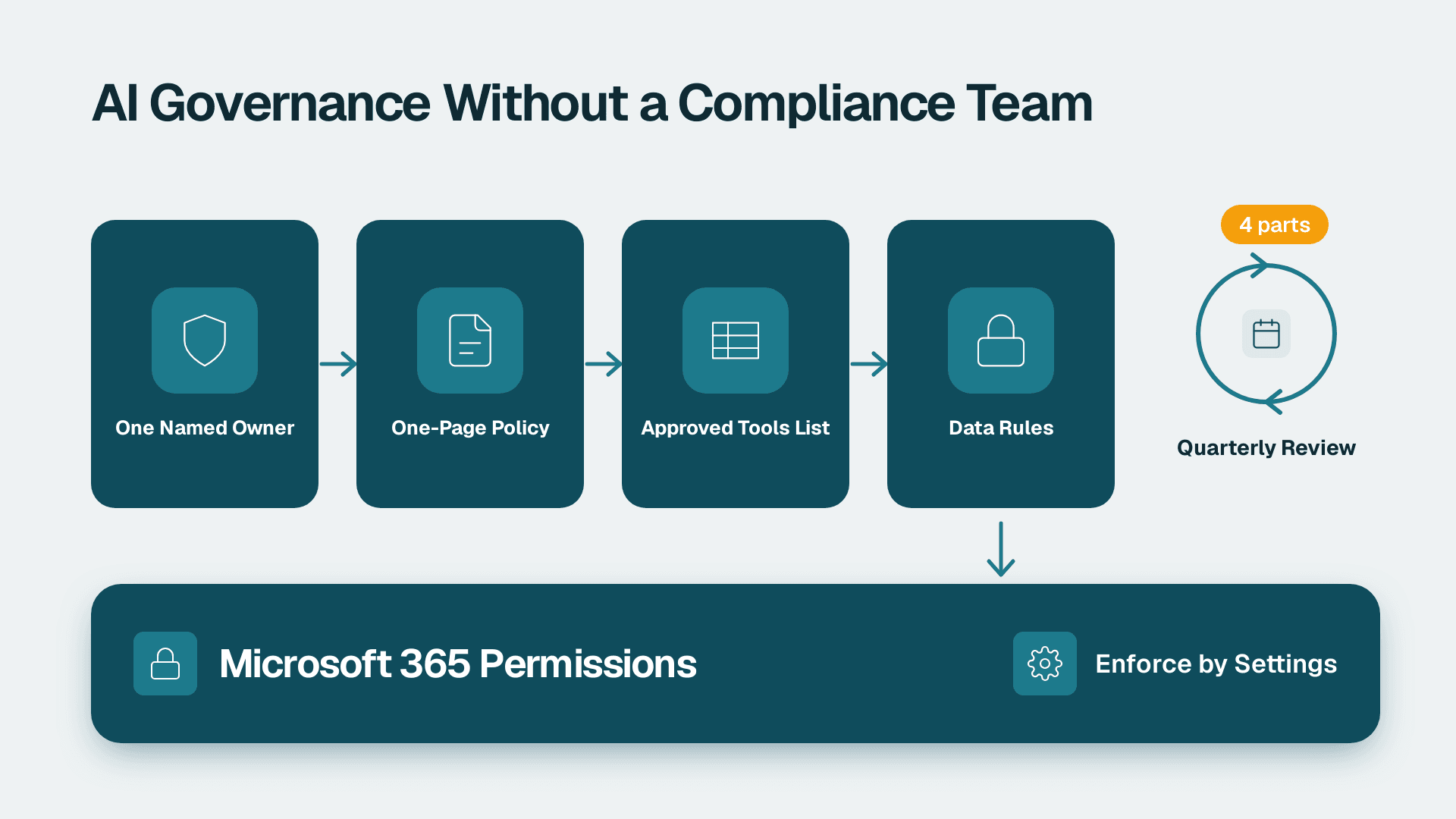
A short governance checklist helps:
- Least privilege: review the permission screen on first run and avoid scripts that ask for access to all of Drive when they need one folder.
- Named owners: keep a register of production scripts, their owners and what data they touch.
- Shared ownership: where possible, create scripts under a service or shared account that survives staff changes, and confirm that approach with your IT policy.
- Data minimisation: do not copy sensitive records into sheets just because it is convenient.
Compliance expectations differ by region. A US finance or healthcare-adjacent team may need to show access controls and change records for SOC 2, and HIPAA applies if protected health information is involved. UK and EU organisations should consider GDPR obligations such as lawful basis, retention and data-subject requests for any personal data a script processes. Canadian organisations are subject to PIPEDA principles, including accountability and safeguards. Treat these as prompts to ask questions with your compliance lead, not as a checklist this article can complete for you.
If a month-end process runs through scripts, the audit trail matters too. The guide to month-end close review notes and audit trail shows what evidence reviewers expect to see.
When should you move from Google Sheets to a BI dashboard?
Move when the spreadsheet stops being a working file and becomes the system of record for decisions. Signs include many viewers who do not edit, reports that take manual effort to assemble each week, numbers that different teams cannot agree on, and refresh jobs that now depend on one person's script.
A simple way to decide:
| Situation | Stay with Sheets and Apps Script | Consider a BI dashboard |
|---|---|---|
| Users | A few editors, one owner | Many viewers across teams |
| Data volume | Thousands of rows | Large or multi-source data |
| Refresh | Daily script is enough | Governed, scheduled, monitored refresh |
| Logic | Simple rules in a few cells | Shared definitions used in many reports |
| Access control | Sheet sharing is enough | Row-level or role-based access needed |
Apps Script is often the bridge. It can tidy and consolidate data on a schedule, while a reporting layer handles presentation. If you are already comparing tools, the guides to how to copy and customise a Looker Studio template and building a KPI dashboard that leadership actually uses are practical next reads. For a Microsoft-based reporting layer, Power BI Pro vs PPU vs Fabric explains the licensing, including that Power BI Pro is $14 per user per month and Premium Per User is $24 per user per month at list price since 1 April 2025.
When should you hire a consultant instead of building it yourself?
Build it yourself when the task is small, owned by one person and low-risk. Bring in a specialist when the script touches money, personal data or customer communication, when more than a handful of people depend on it, or when failures have started to cost time.
Use this as a rough test:
- The author has left or is about to. Nobody understands the code, and rewriting without documentation is slower than a structured handover.
- Quotas are being hit. The fix may be architectural, such as batching, moving heavy work elsewhere or redesigning the data flow.
- A compliance question has arisen. You need a review of permissions, data flows and logging.
- The sheet has become the reporting layer. The right answer may be a pipeline and dashboard, not a bigger script. The guide to building an AI automated reporting pipeline shows what that looks like.
- Scripts need to be supported. Someone must own monitoring, change control and documentation.
A useful middle path is a short review: inventory the scripts you already have, rank them by risk, and fix the three that would hurt most if they stopped tomorrow. That costs far less than a rebuild and gives you a clear picture of what to keep, what to retire and what to hand to a specialist.
If you want a certified team to review or build your Workspace automations, see Google Apps Script consulting.
---
About Lets Viz: Lets Viz is a data analytics and automation consultancy that has delivered Google Workspace, Power BI and reporting projects since 2020 for US healthcare, UK fintech, Canadian manufacturing and global SaaS teams. We hold a 5.0 Clutch rating, and our work focuses on practical, well-governed automation that teams can maintain after handover.
Sources
- Google Apps Script: A Beginner's Guide
- Google Apps Script product page (Google Workspace)
- What is Apps Script? (spreadsheet.dev)
Facts and prices checked October 2026.