How to Build a KPI Dashboard Leadership Actually Uses
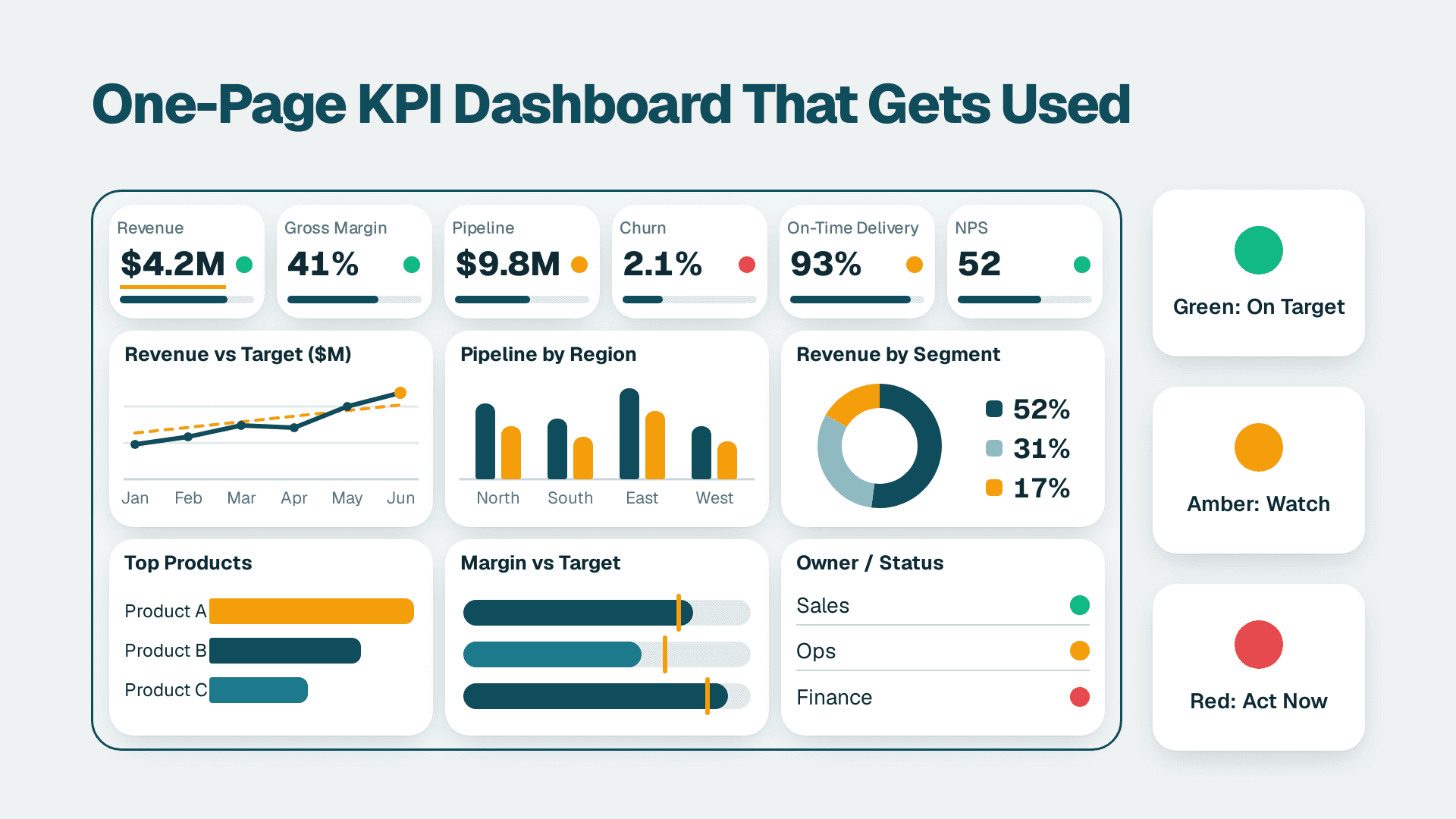
A KPI dashboard is one screen that shows a small set of key performance indicators against targets, so leadership can see what needs action without opening a spreadsheet. You can build a first working version in one to two weeks: pick 8 to 10 KPIs, define each one, set targets and thresholds, wire up the data, and agree a monthly review.
Key Takeaways
- Start from the decisions leadership makes, not from the data you happen to have.
- Limit a kpi business dashboard to 8 to 10 KPIs, each with one definition, one owner and one target.
- Thresholds (green, amber, red) turn a number into a signal; a number without a target is just a number.
- Reconcile every figure to the general ledger before launch, or trust will not survive the first meeting.
- A dashboard is only used if it is wired into a recurring meeting.
What You'll Need
- Audience and sponsor: a named executive (CFO or CEO) who will use the dashboard in a recurring meeting.
- Source access: read access to your billing or subscription system, general ledger or ERP, and CRM. Finance-side extracts are usually enough to start.
- Power BI Desktop (free) to build the report, and a Power BI Pro licence ($14 per user/month) for each person who publishes or views shared content. Premium Per User is $24 per user/month if you need those capabilities. Prices are list prices since 1 April 2025.
- A KPI definitions sheet: a simple table with name, formula, source, owner and target. You will create it in Step 2.
- Two hours with finance and one other function (sales or customer success) to agree definitions.
- Optional: if you want a team to build and maintain this for you, see our Power BI for SaaS finance teams service. The steps below work without it.
Step 1: What Is a KPI Dashboard For? Define the Audience and Decisions
Before opening any tool, write down who will look at the dashboard and which decisions it should support. A kpi dashboard displays key performance indicators in interactive charts and graphs for quick review; KPIs themselves are quantifiable measures of performance over time for specific strategic objectives. That definition is only useful once you attach it to a person and a decision.
Dashboards generally fall into four types: executive, operational, tactical and analytical. For this guide:
- An executive dashboard monitors long-term strategy and is used mainly by senior management. This is what a CFO needs.
- An operational dashboard is a snapshot of how things are right now, not progress toward a goal.
- A tactical dashboard tracks progress toward a goal for a team or project, and interactivity matters there.
1. Open a blank document and write the audience: for example, CFO, CEO and VP Sales.
2. Under it, list the three to five recurring decisions they make. Examples: whether to hire ahead of plan, whether to extend runway, which segment to invest in.
3. Write the reporting cadence next to each decision (weekly, monthly, quarterly).
What you should see: a half-page brief where every decision has an owner and a cadence. If a decision has no cadence, it probably does not belong on this dashboard.
Step 2: How Do You Pick the Right KPI for a Dashboard? Shortlist 8 to 10
The goal is a kpi in dashboard form that answers a decision from Step 1. Focus only on KPIs tied to your objective; everything else goes on a drill-through page. Distinguish quantitative KPIs (revenue, order totals) from qualitative ones (customer satisfaction levels), and expect most finance KPIs to be quantitative.
1. Create a new sheet named KPI Definitions with columns: KPI, Formula, Source system, Owner, Frequency, Target.
2. For each decision from Step 1, pick one or two KPIs that move it. Use the table below as a starting point for a SaaS finance example.
3. Write the formula in full. 'Churn' is not a definition; 'MRR lost from cancelled and downgraded customers in the month divided by opening MRR' is.
| KPI | Formula (plain English) | Decision it supports |
|---|---|---|
| **MRR** | Sum of monthly recurring subscription value at month end | Overall growth pace |
| **Net revenue retention** | (Opening MRR + expansion - contraction - churn) / Opening MRR, for opening customers only | Invest in expansion or retention |
| **Gross margin** | (Revenue - cost of revenue) / Revenue | Pricing and hosting cost decisions |
| **Burn rate** | Net cash outflow per month | Hiring pace |
| **Cash runway** | Cash balance / average monthly burn | Funding timeline |
| **CAC payback** | Sales and marketing spend / gross-margin-adjusted new MRR, in months | Spend allocation |
| **Days sales outstanding** | Receivables / revenue x days in period | Collections effort |
Financial health dashboards commonly include profit and loss, current ratio, operating cash flow, burn rate and vendor expenses, so this list sits comfortably within normal practice. For more layout inspiration, see financial dashboard examples for better decision-making.
What you should see: a definitions sheet with 8 to 10 rows, each with an owner. If two people disagree on a formula, resolve it now, not after the build.
Step 3: How Do You Set Targets and Thresholds on a KPI Dashboard?
A target says where you want to be. A threshold says when to react. Without both, a dashboard kpi is decoration.
1. In the Target column of your definitions sheet, enter the figure from the current budget or board plan. Do not invent new targets for the dashboard; reuse the plan so there is one version of the truth.
2. Add two columns: Amber trigger and Red trigger.
3. Set the amber trigger at the point where you would ask a question, and the red trigger where you would change course.
4. Add a column Direction with 'higher is better' or 'lower is better', because burn rate and DSO are the reverse of MRR.
5. Add a column Action if red with a named person and a first response.
Here is a hypothetical illustration of the format (the numbers are examples, not benchmarks):
| KPI | Target | Amber | Red | Direction |
|---|---|---|---|---|
| Net revenue retention | 110% | below 105% | below 100% | Higher is better |
| Gross margin | 78% | below 75% | below 70% | Higher is better |
| Cash runway | 24 months | below 18 | below 12 | Higher is better |
| DSO | 40 days | above 45 | above 55 | Lower is better |
What you should see: every KPI has a target, two triggers, a direction and an action owner. Have the CFO sign the sheet; that signature is what makes red mean something.
Step 4: Prepare and Reconcile the Data Behind the KPI Business Dashboard
A dashboard and kpi set that disagrees with the ledger loses credibility on first contact. Reconcile before you design anything.
1. For each KPI, list the source tables or exports in the Source system column.
2. Open Power BI Desktop and select Home > Get data. Choose your connector (SQL database, Excel workbook, or your ERP connector) and load the tables.
3. Select Transform data to open Power Query. Remove unused columns, set data types (dates as Date, amounts as Decimal number), and filter out test or internal accounts.
4. Create a Date table (Modeling > New table) and mark it as the date table. Relate it to every fact table on the date column.
5. Compare the totals for the last closed month against the general ledger. If they differ, work through the 7-step reconciliation for Power BI reports that disagree with the general ledger before moving on.
KPI dashboards that integrate with ERP systems can visualize real-time business data, but only if the underlying fields are clean. If your data quality is uncertain, run through the ERP data quality check first.
What you should see: a model where last month's revenue, cash and receivables tie to the ledger within a tolerance you have agreed (many teams use zero for revenue, a small rounding allowance elsewhere).
Can You Build a KPI Dashboard in Excel or Google Sheets?
Yes, and many teams should start there. In Excel, put the data on one sheet, build a PivotTable (Insert > PivotTable), then add Insert > PivotChart and Conditional Formatting > Icon Sets for red/amber/green. Use the same definitions sheet from Step 2.
Know when to stop. If you are asking 'when to move from Google Sheets to a BI dashboard', the signals are: several people maintain copies, the refresh is manual, a google sheets sum total not correct problem keeps surfacing (often numbers stored as text, or hidden rows in a range), or leadership wants drill-down. At that point connect the workbook using Excel to Power BI with automatic refresh and keep the spreadsheet as the input, not the report.
Step 5: How Do I Create a KPI Dashboard in Power BI?
Build measures first, then visuals.
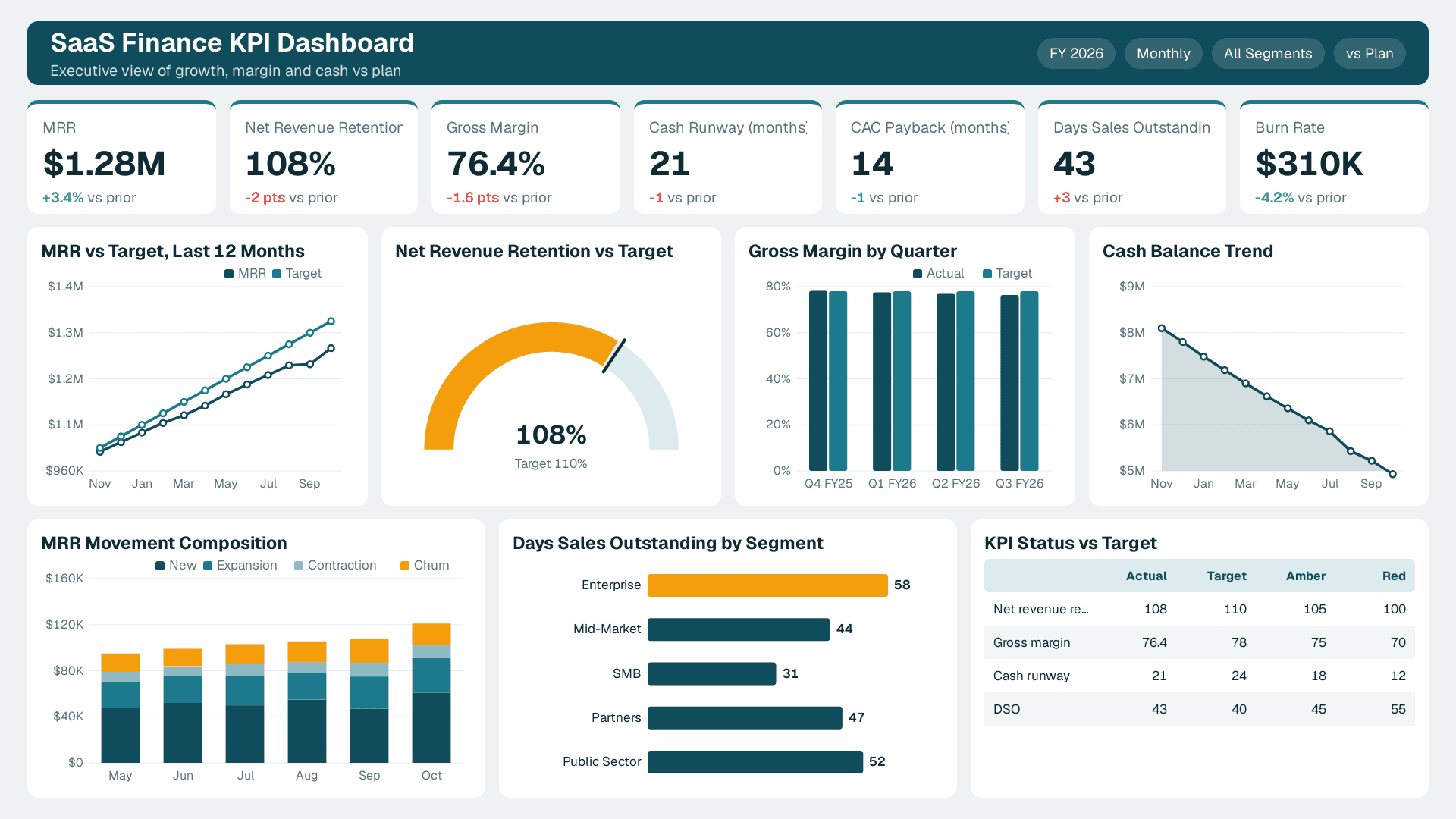
Create the measures
1. Select Modeling > New measure and enter each KPI as a DAX measure. For example:
- `MRR = SUM(Subscriptions[MonthlyValue])`
- `NRR = DIVIDE([Ending MRR from Opening Customers], [Opening MRR])`
2. Add a target measure for each KPI, reading from a small Targets table you load from your definitions sheet: `NRR Target = MAX(Targets[NRR])`
3. Add a status measure that returns the colour logic from Step 3:
- `NRR Status = SWITCH(TRUE(), [NRR] >= 1.10, "Green", [NRR] >= 1.05, "Amber", "Red")`
If you need a multi-column lookup to attach targets by segment, the DAX LOOKUPVALUE guide covers the syntax.
Add the visuals
1. In the Visualizations pane, choose the Card or KPI visual. For the KPI visual, drag the measure into Value, the date into Trend axis, and the target measure into Target goals.
2. To colour by status, select the visual, open Format > Visual > Callout value > Font colour, click fx, set Format style to Rules or Field value, and point it at the status measure (map text to colours with a helper measure that returns hex codes).
3. Add one Line chart per KPI for the trend over the last 12 months, with the target as a second line.
What you should see: each KPI tile shows the current value, the target, a trend and a coloured status. Change the date slicer to a past month and confirm the status flips correctly.
Which software is best for a KPI dashboard?
Choose on three criteria: it connects to your ERP and billing system, finance can maintain the logic without engineering help, and it supports scheduled refresh and row-level security. Power BI meets those for most Microsoft-centred finance teams. If your stack is built around another suite, evaluate that suite's native analytics alongside it. A pre-launch implementation checklist for a Power BI CFO dashboard helps compare options against your requirements.
Step 6: How Should a KPI on a Dashboard Be Laid Out for Leaders?
Layout decides whether the dashboard is read in 30 seconds or ignored.
1. Place the 4 to 5 most important KPIs in a single row at the top (typically MRR, NRR, gross margin, runway). Put the status colour first and the number second.
2. Below, group the remaining KPIs under plain headings such as Growth, Profitability, Cash.
3. Add a Last refreshed text box fed by a measure: `Last Refresh = "Data as of " & FORMAT(MAX(Dates[Date]), "d mmm yyyy")`
4. Limit each page to one screen with no scrolling. Put detail on drill-through pages (right-click > Drill through).
5. Use no more than three colours beyond the status colours, and never rely on colour alone: add an arrow or text label for accessibility.
6. Keep a short Definitions page in the report listing the formula and owner for each KPI, copied from your sheet.
What you should see: a CFO can name the three KPIs that are off-track within half a minute of opening the page.
Step 7: Publish, Schedule Refresh and Lock in the Review Cadence
1. In Power BI Desktop, select Home > Publish and choose a workspace. Keep a dedicated workspace for executive reporting.
2. In the Power BI service, open the workspace, hover over the semantic model, select Schedule refresh (under More options > Settings), and set the refresh to run after your source data lands, for example early morning after the overnight load. Configure the gateway credentials if the source is on-premises.
3. Share the report with the sponsor group, or publish it as an app so viewers get a stable link. Viewers need the appropriate licence (Pro at $14 per user/month, or a capacity that allows free viewers).
4. Select Subscribe on the report page to send the leadership team a snapshot at the same time every week or month.
5. Put the dashboard on the agenda of a recurring meeting. Use a fixed question order: which KPIs are red, what is the action, who owns it.
6. After one quarter, review which tiles nobody discussed and remove or demote them. Tracking unused content is covered in finding duplicate workbooks and unused dashboards.
What you should see: a report in the workspace with a refresh history showing successful runs, and the first meeting using it live rather than a slide export.
Common Mistakes
- Too many KPIs. Twenty tiles means nothing is prioritised. Fix: cap the first page at 8 to 10 and move the rest to drill-through pages.
- Targets that differ from the board plan. If the dashboard says green while the budget says behind, finance loses the argument. Fix: load targets directly from the approved plan and version them.
- Mixing definitions. Churn calculated on all customers in one tile and on opening customers in another. Fix: one formula per KPI in the definitions sheet, referenced by one DAX measure.
- Treating the build as the finish. A beautiful dashboard with no meeting attached decays. Fix: schedule the review cadence in Step 7 before launch.
- Ignoring direction. A rising DSO coloured green because 'higher is better' was applied everywhere. Fix: set the Direction column and test each status measure with a known bad month.
Troubleshooting
- A KPI card shows blank or the wrong total. Usually a missing or inactive relationship to the Date table, or a filter on a slicer excluding the current period. Check Model view and clear slicers.
- Status colours never change. The conditional formatting is probably pointing at the value rather than the status field, or the status measure returns text that does not match the rule exactly (for example 'green' versus 'Green').
- Scheduled refresh fails. Commonly expired source credentials or a gateway that is offline. Open Settings > Data source credentials in the service and re-authenticate, then check the refresh history for the error message.
If you want a second opinion on whether your data and team are ready to build this, try the free BI readiness self-assessment.
Ready to have a finance-grade dashboard built, reconciled and maintained for you? Talk to us about Power BI for SaaS finance teams.
Sources
- Microsoft: what a KPI dashboard is, example categories and report steps
- Guide to KPI dashboard types: executive, operational and tactical
- Overview of KPI dashboard types and common KPIs
- Step-by-step process for creating a KPI dashboard, with SaaS example
Facts and prices checked October 2026.
---
About Lets Viz: Lets Viz has delivered Power BI and analytics consulting since 2020, serving SaaS, finance, healthcare, distribution and professional services organisations. We hold a 5.0 Clutch rating and build finance dashboards that reconcile to the ledger and are used in real leadership meetings.