How to Handle Month-End Close Review Notes and Audit Trail
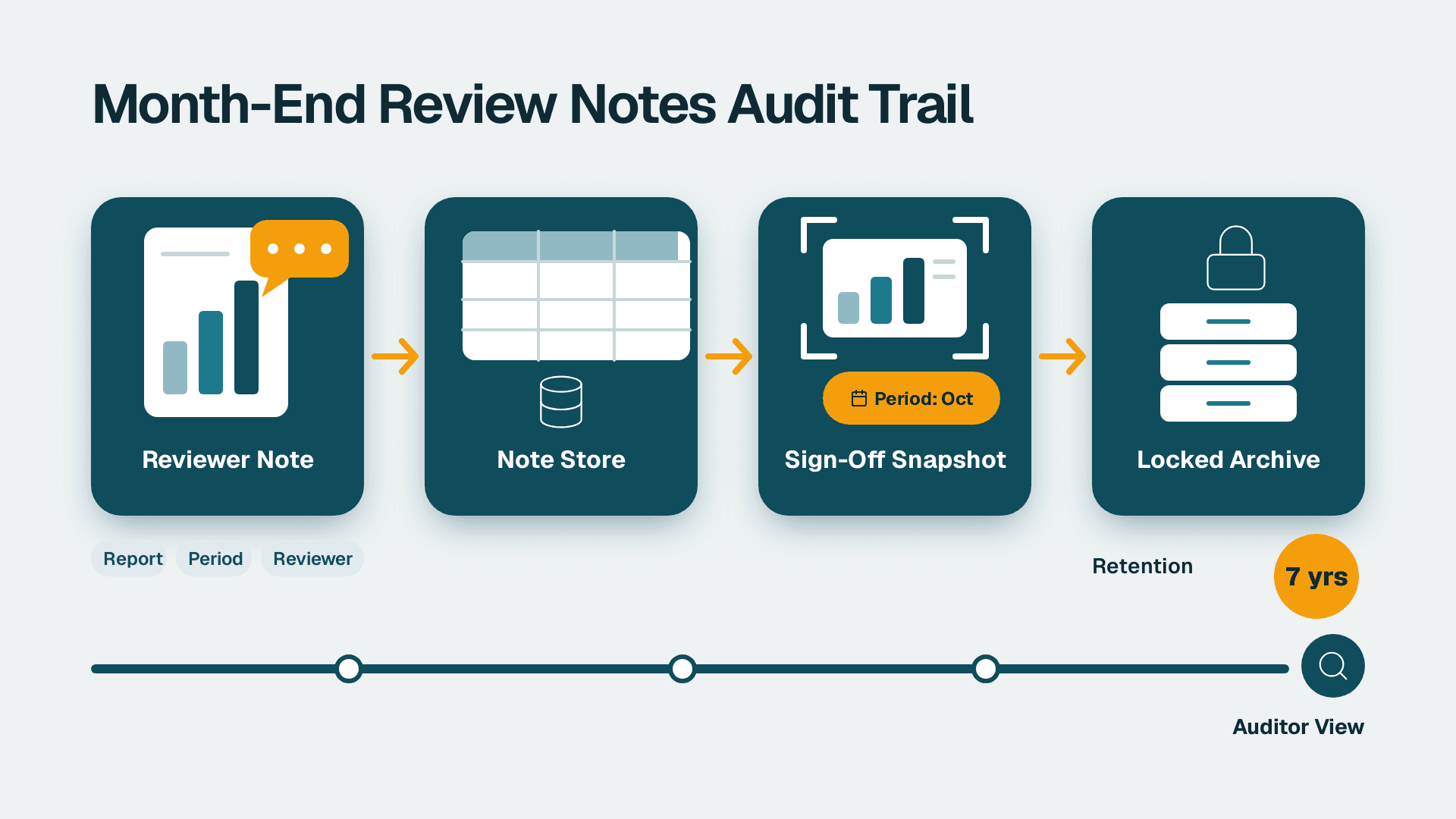
By the end of this guide you will have a working system that captures reviewer comments during month-end close, links each one to the exact report and period it concerns, and retains it in a locked, queryable archive for auditors. Plan on about one working week to build and one close cycle to prove it.
What You'll Need
- A Power BI workspace with at least a Pro licence ($14 per user/month list price since 1 April 2025) for every reviewer and preparer. If you want to publish to viewers without licences, you need a paid capacity instead.
- A data store you control for comments: a SharePoint list, a Dataverse table, or a SQL table in your warehouse. This guide uses a SharePoint list because most finance teams already have it.
- Power Apps and Power Automate access (both are part of most Microsoft 365 business plans, though some connectors need premium licences, so check your tenant).
- Admin rights to set list permissions and a workspace role of Member or Admin to edit the report.
- Your close checklist and the names of the controls your auditors test (for example, journal entry review, bank reconciliation review, flux analysis review).
- A written retention rule confirmed with your external auditor or counsel. Do not guess this one; see Step 5.
- Microsoft Purview access if you want activity logging. Purview Audit (Standard) keeps audit logs for 180 days (Microsoft Learn, 2025), which is far shorter than your retention need, so treat it as a supplement and not the archive.
Step 1: Define What a Review Note Is and What It Must Contain
Before touching any tool, agree on the record structure. Auditors do not ask whether you have comments; they ask whether you can show who reviewed what, when, what they found, and how it was resolved. A review note that lacks any of those is just chat.
Open a blank sheet and define these fields. They become the columns of your list in Step 2:
- NoteID - unique, auto-generated
- ClosePeriod - for example 2026-09
- ReportName - the report or page the note concerns
- LineReference - the account, entity or metric (for example 4010 Subscription Revenue, UK entity)
- ReviewerName and ReviewerRole
- NoteText - the comment itself
- Status - Open, Answered, Cleared, Escalated
- ResponseText, ResponderName
- CreatedOn, ClearedOn
- ControlID - the control in your risk and control matrix this review supports
- SnapshotRef - a pointer to the frozen report version (built in Step 4)
You should now have a one-page spec that your controller and your auditor have both read. Ask the auditor now whether anything is missing; changing columns after close is painful.
Step 2: Create the Note Store With Edit Protection
1. In SharePoint, open the finance team site and select New then List then Blank list. Name it CloseReviewNotes.
2. Add each column from Step 1. Use Choice type for Status and ClosePeriod so reviewers cannot type variants like 'cleared' and 'Cleared '.
3. Open List settings then Versioning settings. Set Create a version each time you edit an item in this list to Yes, and set Require content approval to No (approval adds friction during close). Version history is your first layer of audit trail because it records every edit with a user and timestamp.
4. Open List settings then Advanced settings and set Read access to Only their own items only if you need to hide notes; otherwise leave it open to finance. Set Edit access to Only their own items so a preparer cannot rewrite a reviewer's comment.
5. Under Permissions for this list, break inheritance and give auditors Read only.
What you should see: a new list with a version history icon on every item after a test edit, and an auditor test account that cannot edit or delete anything.
Step 3: Capture Notes Inside the Report Reviewers Already Use
Reviewers will not log into a separate tool during close week. Put the note entry next to the numbers.
1. Open your close report in Power BI Desktop. If you do not yet have a clean close report, the Power BI CFO dashboard pre-launch checklist covers the build.
2. Select Get data then SharePoint Online List, enter your site URL, pick CloseReviewNotes, and load it.
3. Relate it to your model. In Model view, drag ClosePeriod from your date table to the list's ClosePeriod, and create a relationship between your account dimension and LineReference. Set cross filter direction to Single.
4. Add a table visual on a new page called Review Notes, showing NoteID, LineReference, NoteText, Status and ReviewerName. Add a slicer on Status.
5. For entry, select Insert then Power Apps visual. Choose your environment, then Create new. In the app that opens, add a form bound to the SharePoint list and pass the selected line and period from the report as the Power Apps visual's data fields.
6. Save, then publish the report: Home then Publish and pick your workspace.
What you should see: a reviewer clicks a row such as 4010 Subscription Revenue, the form pre-fills ClosePeriod and LineReference, they type a comment, and the new row appears in the Review Notes table after a refresh. If you are building this on a recurring cadence, align it with your data refresh schedule so notes show up when people expect them.
A note on the REST route
If your comments live in a ticketing or workflow tool instead of SharePoint, you can load them with Get data then Web and an API URL, or with a custom connector, then handle pagination and authentication. SharePoint is simpler for a first build, and it needs no code.
Step 4: Freeze a Snapshot at Sign-Off
This is the step most teams skip, and it is the one auditors care about most. A comment that says 'revenue looks high' is meaningless if the report now shows different numbers after a late adjustment. You must be able to show what the reviewer saw.
1. Create a second SharePoint document library called CloseSnapshots.
2. In Power Automate, select Create then Instant cloud flow, name it Freeze close snapshot, and choose the trigger Manually trigger a flow.
3. Add the action Export to File for Paginated Reports if you use paginated reports, or Export To File for Power BI Reports (the action name in the Power BI connector) for standard reports. Set Workspace, Report, and Export Format to PDF.
4. Add Create file (SharePoint). Set Site Address to your finance site, Folder Path to /CloseSnapshots, File Name to an expression such as concat('Close_', formatDateTime(utcNow(),'yyyy-MM'), '_', formatDateTime(utcNow(),'yyyyMMddHHmm'), '.pdf'), and File Content to the export output.
5. Add Create item on CloseReviewNotes is not needed here. Instead add Update item to write the new file path to SnapshotRef for all notes in the current ClosePeriod with Status Open or Answered.
6. Run the flow once when the controller signs off, and again if anything is reopened.
What you should see: a time-stamped PDF in CloseSnapshots and the SnapshotRef column populated on the related notes. For a deeper pattern on logging report changes themselves, see AI change log for Power BI reports.
Step 5: Set Retention and Locking to Match Your Audit Regime
Retention rules differ by regime, so get them in writing from your auditor before you configure anything. As a starting orientation only:
- SOX (US-listed companies): documentation supporting internal control over financial reporting is typically retained for seven years. Confirm with your auditor and counsel.
- UK: company law sets minimum periods for accounting records, and they differ by company type. Your auditor and company secretary will specify the period.
- EU: retention is set by each member state, and GDPR means personal data in comments (reviewer names) should not be held longer than necessary. Document your lawful basis and period.
- Canada: tax authorities generally expect books and records to be kept for a minimum number of years after the relevant tax year. Confirm the exact period with your adviser.
Then configure it:
1. In the Microsoft Purview compliance portal, open Data lifecycle management then Retention policies then New retention policy.
2. Name it Close review records. Under Choose the type of retention policy, pick Static.
3. Under locations, select SharePoint sites and choose only your finance site.
4. Under Decide if you want to retain content, delete it, or both, choose Retain items for a specific period, enter the period your auditor confirmed, and choose to retain based on when items were created. Select Delete items automatically only if your rule requires deletion.
5. Publish the policy.
What you should see: the policy status moves to On (it may take time to apply), and a test deletion of a note is blocked or preserved in the hidden preservation library.
If you want a record of who opened and exported the reports themselves, the Purview Audit (Standard) log covers 180 days (Microsoft Learn, 2025). Export those logs on a schedule to your own store, because they will not live long enough to satisfy a multi-year retention period.
Step 6: Build the Auditor View and Walk Through It
Auditors test by selecting a sample and asking for evidence. Build the page that answers that request in one click.
1. In your report, add a page called Audit Evidence.
2. Add slicers for ClosePeriod, ControlID and Status.
3. Add a table with NoteID, ControlID, ReviewerName, NoteText, ResponseText, ResponderName, CreatedOn, ClearedOn and SnapshotRef. Format SnapshotRef as a Web URL under Column tools so the PDF opens on click.
4. Add a card with a DAX measure for notes not cleared at sign-off:
Open At Signoff = CALCULATE(COUNTROWS(CloseReviewNotes), CloseReviewNotes[Status] <> "Cleared")
5. Add a second measure for days to clear:
Days To Clear = AVERAGEX(FILTER(CloseReviewNotes, NOT(ISBLANK(CloseReviewNotes[ClearedOn]))), DATEDIFF(CloseReviewNotes[CreatedOn], CloseReviewNotes[ClearedOn], DAY))
6. Share the page through a dedicated Audit app audience with read-only access.
What you should see: pick a control and a period, and every note appears with its response, its clearing date and a link to the frozen PDF. Run a dry walk-through with your internal audit lead using three random notes. If they can trace each from comment to snapshot in under two minutes, you are ready. If you run this inside a wider Fabric estate, the Microsoft Fabric architecture guide for CFOs shows where the note store can sit.
Common Mistakes
- Storing notes only in email or Teams chat. Auditors cannot sample these reliably and retention is inconsistent. Fix: make the SharePoint list the system of record and paste or link chat conclusions into it.
- Letting reviewers edit or delete their own old comments. This breaks the trail. Fix: keep versioning on, restrict delete rights to a finance admin, and use Status changes, not deletion, to close a note.
- Freezing no snapshot. Notes pointing to a live report become unverifiable after a late adjustment. Fix: run the Step 4 flow at sign-off and after any reopen.
- Applying one retention period to everything. Personal data in comments may have shorter limits than financial records in some jurisdictions. Fix: document the period per regime and limit free-text personal details.
- No link to a control. Notes without a ControlID cannot be mapped to your control matrix. Fix: make ControlID a required column.
Troubleshooting
- New notes do not appear in the report. The dataset has not refreshed, or the SharePoint credentials in the Power BI service have expired. Open the dataset settings, check Data source credentials, and re-authenticate.
- The Power Apps visual shows a blank form. The visual's data fields are not populated, usually because no row is selected or the relationship in Step 3 filters everything out. Select a row and check the relationship direction.
- The snapshot flow fails with a permissions error. The account running the flow lacks access to the workspace or the library. Give that account at least Member on the workspace and Contribute on CloseSnapshots.
Once the system holds up through one close, it needs little upkeep: review the column list and retention rule each year with your auditor, and run a restore test after any tenant change. If you would rather have this built and maintained for you, see our Power BI for SaaS finance teams service.
---
About Lets Viz: Lets Viz has delivered Power BI and analytics consulting since 2020 for SaaS, healthcare, distribution, professional services and enterprise finance teams. We hold a 5.0 rating on Clutch.