Power Automate: What It Does, Limits and When to Get Help
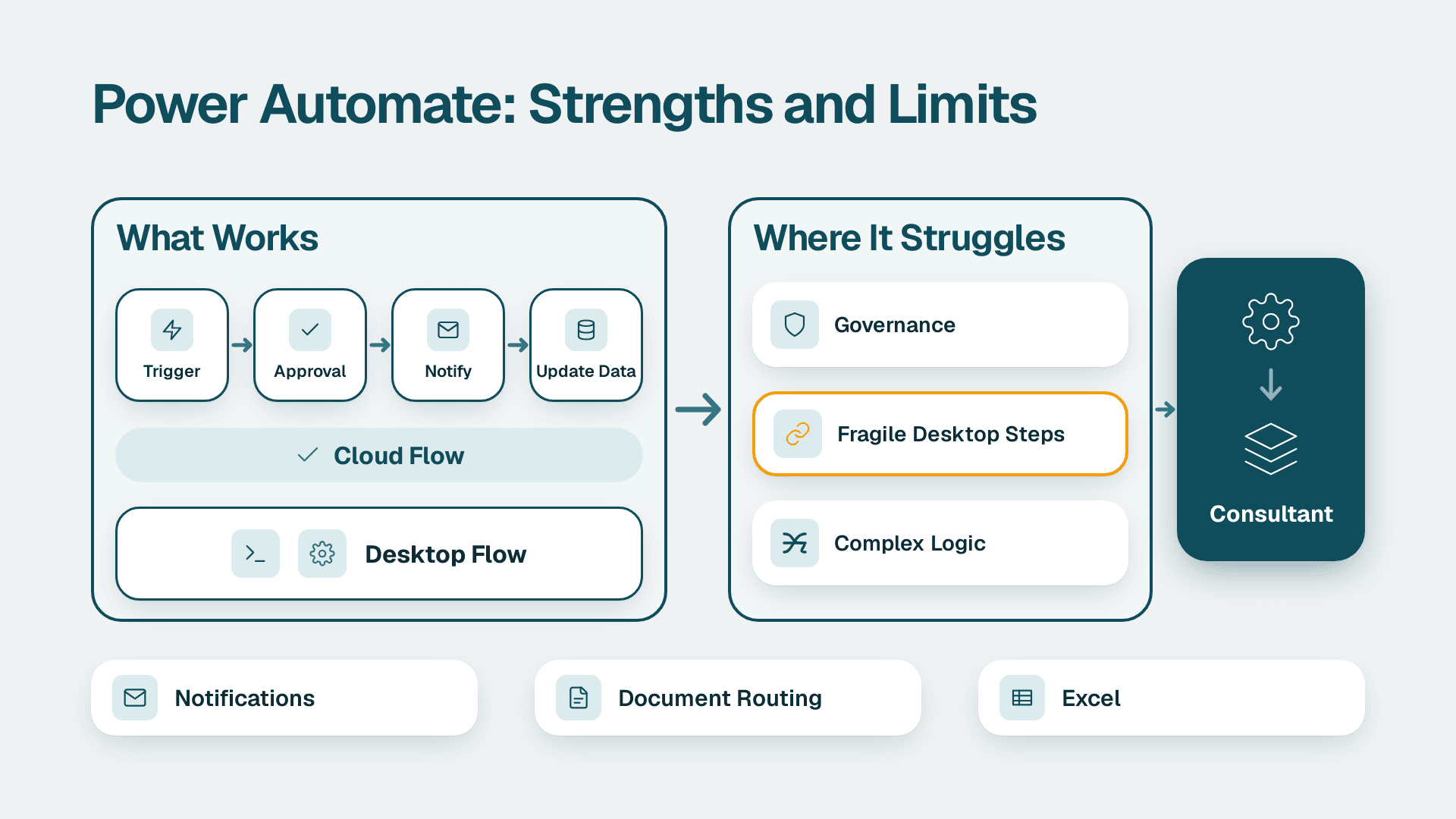
Power Automate is Microsoft's low-code service for building automated workflows, called flows, that connect apps and move data without manual effort. A mid-size company can use it to automate approvals, notifications, document routing and data entry across Microsoft 365 and other systems. It struggles with governance, fragile desktop automation and complex logic, which is where a consultant helps.
Key Takeaways
- Power Automate builds cloud flows and desktop flows that connect Microsoft 365, Dynamics 365 and many third-party apps.
- The best first targets are approvals, notifications, document handling and recurring data transfers.
- Its weak spots are flow sprawl, licensing surprises, brittle desktop automation and heavy data processing.
- Governance (environments, data loss prevention, auditing) matters more than the flows themselves once usage spreads.
- Bring in a consultant when flows touch regulated data, business-critical processes or several systems at once.
What Is Power Automate (and What Is Microsoft Power Automate Used For)?
Microsoft Power Automate is a cloud service that lets people build automated workflows, called flows, which connect multiple applications and services. A flow starts from a trigger, such as a new email, a form submission or a schedule, and then runs a series of actions, such as creating a record, sending a message or requesting an approval.
You will see it written several ways: MS Power Automate, Power Automate Microsoft, or Microsoft's Power Automate. They all refer to the same product, part of the wider Microsoft Power Platform alongside Power BI, Power Apps and Copilot Studio. Microsoft's own product page says Power Automate offers more than a thousand API connectors, and you can also create a custom connector for a system that lacks one (Microsoft Power Automate product page).
The product has changed names and scope over time. Microsoft Flow became generally available on 1 November 2016 and was rebranded Microsoft Power Automate on 4 November 2019, when robotic process automation (RPA) capabilities were announced alongside it (Wikipedia). Microsoft then bought Softomotive in 2020 and Minit in 2022 to strengthen RPA and process mining.
For a mid-market IT manager, the practical meaning is simple: Power Automate is the default automation layer for organisations already running on Microsoft 365 or Dynamics 365. Teams that want help scoping, building and governing flows can look at Microsoft Power Automate consulting as one route, but most organisations start by learning what the product can and cannot do on its own.
Two technical points shape every project:
- It is a cloud service. Power Automate is not available on-premises, but it can connect securely to your own on-premises systems through the on-premises data gateway.
- The barrier to entry is low. All you need is a web browser and an email address, and the desktop app runs on Windows 10 and 11.
That low barrier is both the appeal and the risk. Anyone can build something useful in an afternoon, and anyone can build something nobody else understands.
What Types of Flows Does Power Automate Support?
Power Automate provides three types of flows according to Microsoft's documentation: cloud flows, desktop flows and generative actions, which are still in preview (Microsoft Learn: flow types). Independent descriptions often split cloud flows further into automated, instant, scheduled and business process flows.
| Flow type | How it starts | Typical mid-market use |
|---|---|---|
| **Automated cloud flow** | An event, such as a new file or email | Route an incoming invoice to a finance folder and notify the approver |
| **Instant cloud flow** | A person presses a button | Send a standard customer update from a mobile device |
| **Scheduled cloud flow** | A timer | Pull a weekly export and post it to a Teams channel |
| **Business process flow** | A guided stage-based process | Walk a sales rep through qualification stages in Dynamics 365 |
| **Desktop flow (RPA)** | Triggered by a cloud flow or run manually | Key data into a legacy Windows application with no API |
| **Generative actions (preview)** | AI-assisted steps inside a flow | Experimental; test before relying on it |
The distinction that matters most is between cloud flows and desktop flows. Cloud flows work through connectors and APIs, so they are stable and scalable. Desktop flows imitate a person clicking through a screen, so they are the tool of last resort for systems that expose no other way in.
What Can a Small or Mid-Size Company Automate with Power Automate?
A small or mid-size company can automate any repeatable, rule-based task that moves information between people and systems, especially inside Microsoft 365. The strongest candidates share three traits: a clear trigger, predictable steps and a person who currently does the work by copy and paste.
Approvals and notifications
Approvals are the classic starting point. A purchase request, a leave request or a contract review can route to the right person, collect a decision and write the outcome back to a SharePoint list or a Dynamics 365 record. Approvals appear by default in the Power Automate navigation, so the capability is already visible to every user.
Document and email handling
Flows can save email attachments to SharePoint, rename files using a consistent convention, and notify a team when a document changes. A UK fintech firm, for example, might route client onboarding documents into a controlled library and alert a compliance officer, keeping the process inside its GDPR data handling rules.
Data movement between systems
Many mid-market teams use flows as lightweight integration: when a deal closes in a CRM, create a project in a work-management tool and a customer record in finance. This works well for low-volume, event-driven transfers. It works poorly as a substitute for a proper data pipeline.
Desktop automation for legacy software
A Canadian manufacturing company running an older Windows-based planning tool might use a desktop flow to enter orders from a spreadsheet. That is a reasonable stopgap, provided the team accepts that a change to the application's screen layout can break the flow, and that personal information handled this way still falls under PIPEDA.
Power Automate and Power BI integration
Power Automate and Power BI work well together in two directions. Flows can trigger actions when a report metric crosses a threshold, such as alerting a manager on a data-driven alert. Flows can also refresh or prepare the data that reports depend on, for example by landing files in a location a dataset reads from. If your reporting is the end goal, read how to build an automated reporting pipeline before deciding how much logic belongs in a flow and how much belongs in the data layer.
Can You Use Power Automate with Excel?
Yes. Power Automate can read from and write to Excel tables stored in OneDrive or SharePoint, so a flow can add a row when a form is submitted or update a tracker when a status changes. The data must be formatted as a table, and the workbook should live in cloud storage rather than on a local drive.
Excel works best as a lightweight data store for small volumes and as an output format for people who want to filter results. It is not a database, and flows that treat it as one tend to become slow and error-prone as rows accumulate. If the spreadsheet feeds dashboards, the guide to connecting Excel to Power BI with automatic refresh covers the reporting side without adding another flow to maintain.
What Is Office 365 Power Automate, and Is It Free?
"Office 365 Power Automate" usually means the Power Automate capability included with a Microsoft 365 subscription. Anyone can sign up for a free plan, but paid features require a 90 day free trial or a purchased Power Automate license, and Microsoft 365 or Dynamics 365 customers might already have access (Microsoft Learn: sign up and sign in).
| Option | What it means in practice |
|---|---|
| **Free plan** | Open to anyone with a work or school email; paid features are not included |
| **90-day free trial** | Unlocks paid features for evaluation before you commit |
| **Power Automate Premium** | A paid licence listed on the product page for individual users |
| **Power Automate Process** | A paid option listed on the product page for processes rather than individual users |
| **Included with Microsoft 365 or Dynamics 365** | Some access may already exist in your tenant; check before you buy |
We have deliberately left out per-user prices here. Microsoft changes licence structures and regional pricing, and a wrong number in a budget is worse than none. Confirm the current figure on Microsoft's pricing page for your region (US, UK, EU or Canada) before you plan.
A few sign-up details save time:
- You need a Microsoft work or school email address to create a cloud flow.
- Power Automate is not available to users with .gov or .mil email addresses, who should sign in with a Microsoft work or school address instead.
- New users select Try free; existing Microsoft online product users select Sign in.
The licensing question that catches mid-market teams out is not the entry price. It is the moment a flow that started on included rights needs a premium connector, or when a business-critical process needs to run under its own licence instead of depending on an individual employee. Plan for that early, as you would when comparing tiers in Power BI Pro, PPU and Fabric.
Where Does Power Automate Fall Short?
Power Automate falls short on governance at scale, resilience of desktop automation, heavy data processing and predictable licensing. None of these make it a poor tool. They make it a tool that needs design decisions that a quick build skips.
Flow sprawl and ownership
Every member of an organisation can access the default environment, and a flow created in one environment is not visible from another, according to Microsoft's getting-started documentation (Microsoft Learn: getting started). In practice, that means personal flows pile up in a shared space, owned by people who may change roles or leave. When the owner's account is disabled, the process can stop without anyone noticing.
Fragile desktop flows
Desktop flows depend on what the screen looks like. A software update, a changed button label or a slow login can break a run. Treat them as a bridge to a proper integration, not a permanent architecture.
Not built for heavy data work
Flows handle events and small batches well. Large transformations, complex joins or high-volume loads belong in a data platform or a purpose-built pipeline. If you find yourself looping over thousands of rows inside a flow, the design is probably wrong.
Error handling and monitoring
A flow that fails quietly is worse than no flow. Without deliberate error handling, retries and alerts, a failed step can leave a record half-processed. Business-critical flows need named owners, run-failure notifications and a documented recovery path.
Automating a messy process
Automation preserves whatever logic you give it, including the bad parts. If source data is inconsistent, a flow will move the inconsistency faster. A data quality check before AI or automation work is cheaper than untangling automated errors later.
How Do You Govern Power Automate Safely?
Governing Power Automate means controlling where flows are built, what data they can touch and who can see what they did. Microsoft names Managed Environments and data loss prevention among the admin-at-scale features on its product page, and these are the first controls most Microsoft 365 admins should look at.
A workable baseline for a mid-market tenant:
1. Separate environments. Keep experiments away from production flows, and keep the default environment for personal productivity only.
2. Data loss prevention policies. Decide which connectors can be combined, so a flow cannot pass customer data from an approved system to a personal storage service.
3. Named ownership. Every production flow has a primary and secondary owner, plus a service account where appropriate.
4. Audit trail. Microsoft Purview Audit (Standard) keeps audit logs for 180 days, so decide early whether that retention meets your regulatory needs.
5. Documented review. Review flows on a schedule and retire those nobody can explain.
Compliance context shapes how strict this must be. A US healthcare provider handling protected health information must consider HIPAA before a flow touches patient data. A UK or EU organisation needs a lawful basis and data minimisation under GDPR. A Canadian organisation should check PIPEDA obligations on consent and cross-border handling. A US finance team may also need SOC 2 evidence that changes to automated processes are controlled. In each case the technical controls above are what produce that evidence.
When Should You Bring in a Power Automate Consultant?
Bring in a consultant when a flow becomes important enough that its failure would cost real money, expose regulated data, or when your team lacks the time to design it properly. Simple personal automations rarely need outside help; shared, cross-system and regulated processes usually do.
| Situation | Build it yourself | Consider a consultant |
|---|---|---|
| One team, one app, low risk | Yes | No |
| Approval flow touching finance or HR data | Possible with review | Often |
| Several systems with different owners | Rarely | Yes |
| Regulated data (HIPAA, GDPR, PIPEDA) | Only with strong governance | Yes |
| Legacy desktop automation at scale | Rarely | Yes |
| Hundreds of ungoverned flows already running | No | Yes, for an audit first |
| Automation feeding reporting or AI initiatives | Depends on data quality | Yes, if the data model is unclear |
A consultant adds the most value in four places:
- Process design before build. Deciding what to automate, what to simplify and what to leave alone.
- Governance setup. Environments, policies, ownership and monitoring configured before sprawl sets in.
- Licensing review. Matching users and processes to the right licence rather than discovering the gap after launch.
- Rescue and cleanup. Inventorying existing flows, removing duplicates and repairing the ones the business now depends on.
A useful test: could you hand the flow to a colleague tomorrow, with documentation, and have them support it? If not, the project needs more structure. For broader context on where automation fits alongside AI, see AI automation for SMBs: what it is and how to start.
How Do You Get Started with Power Automate?
Start with one painful, well-understood process, build it in a non-production environment, and measure whether it actually saves time. Resist the urge to automate everything at once.
1. Pick the process. Choose something repetitive, rule-based and owned by a team that wants it fixed.
2. Map the steps on paper. Note the trigger, the decisions and the exceptions. Exceptions are where flows fail.
3. Check access. Confirm your Microsoft 365 or Dynamics 365 rights, and use the 90-day trial if you need premium features for evaluation.
4. Build in a test environment. Use a template if one fits, then adjust. Templates and learning content are part of the Power Automate home page.
5. Add error handling and a named owner before anyone depends on it.
6. Review after a month. Check run history, failures and time saved, then decide whether to expand.
If your organisation is larger or more regulated, run a readiness check first. The free BI readiness self-assessment is a quick way to see whether your data foundation can support automation and reporting together.
---
About Lets Viz: Lets Viz is a data analytics consulting firm that has delivered Power BI, Microsoft 365 and automation projects since 2020 for clients including US healthcare organisations, UK fintech firms, Canadian manufacturers and global SaaS companies. We hold a 5.0 Clutch rating, and our work focuses on governed, maintainable solutions rather than one-off builds.
If you want a second pair of eyes on your flows, governance or licensing, explore our Microsoft Power Automate consulting service.
Sources
- Microsoft Power Automate product page
- Microsoft Learn: sign up and sign in
- Microsoft Learn: getting started with Power Automate
- Microsoft Learn: flow types
- Wikipedia: Microsoft Power Automate
Facts and prices checked October 2026.