How to Run an ERP Data Quality Check Before AI Implementation
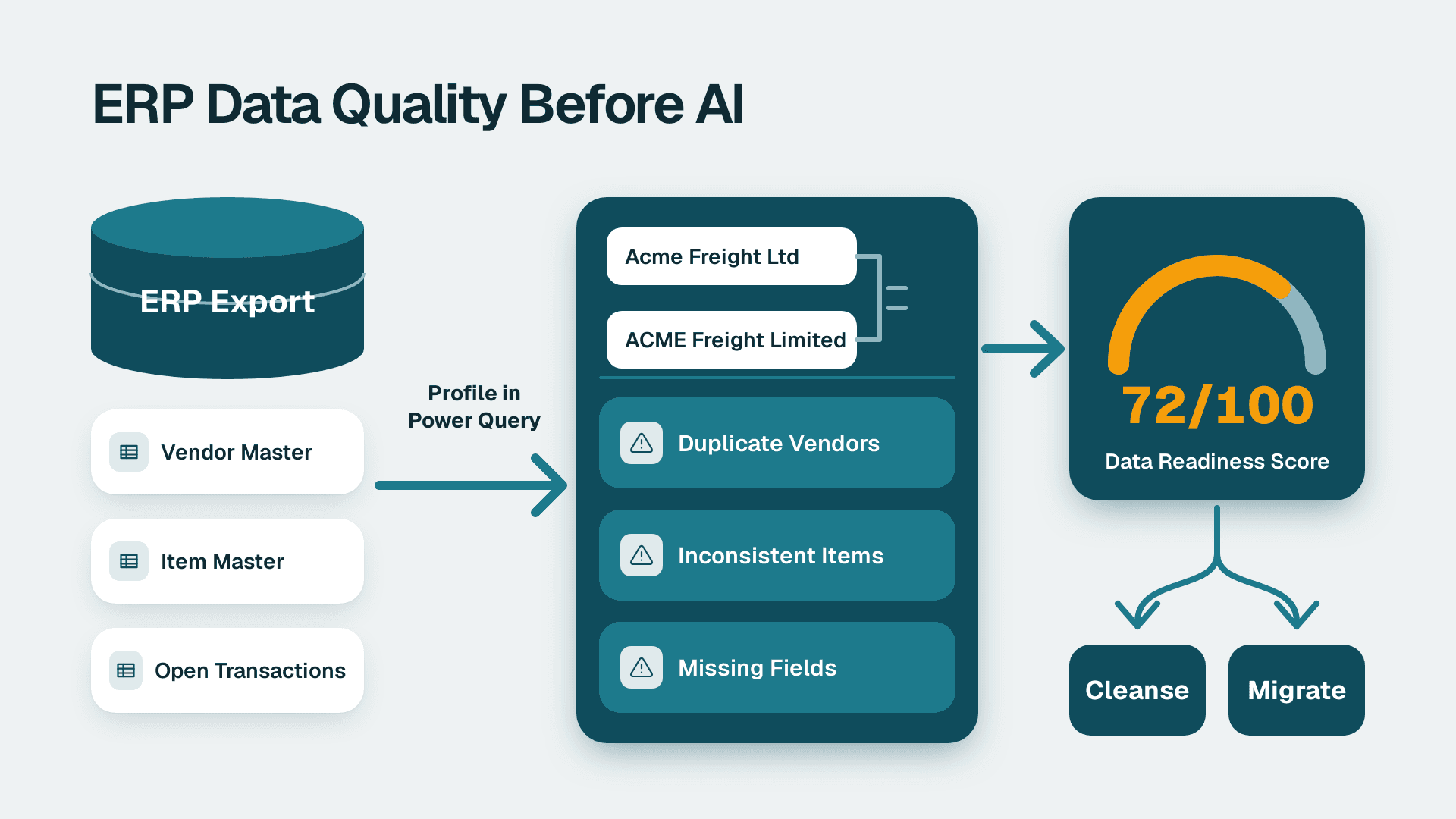
You will export your vendor master, item master and open transactions from your ERP, profile them in Excel and Power Query, and end with a scored list of duplicate vendors, inconsistent items and missing fields. Plan on about two working days for a 20-200 person distributor, 3PL or brokerage, plus a few more hours if your item master has more than 50,000 rows.
This is the practical answer to 'what is data readiness for AI': the records an AI tool will read must be unique, consistently coded and complete enough that two people would interpret them the same way. If you want the wider picture first, the AI data strategy walkthrough covers the planning side. This article is the hands-on data check.
What You'll Need
- ERP read access with permission to run exports on the vendor master, item master, open purchase orders and the last 12 months of vendor invoices. A report-writer or admin role is usually required.
- Excel for Microsoft 365 (desktop version, because the Power Query column profiling tools used below are not in every web build).
- Optionally, Power BI Desktop (free) if you want to chart the results. A paid Pro licence is not needed for this exercise.
- CSV exports, not screenshots or PDF reports. Ask for every column, including created date, last modified date and status.
- One process owner from purchasing and one from accounts payable, each available for about two hours to rule on ambiguous records.
- A blank workbook named `DQ_Log.xlsx` with a sheet called `Findings` and columns: Table, Record ID, Issue Type, Severity, Owner, Fix Status.
Step 1: Define the Scope of Your ERP Data Quality Checklist Before AI Implementation
Pick the tables that feed the AI use case you plan to run. For back-office work (order entry, PO processing, invoice matching, reporting) that is four tables. Do not audit the whole ERP.
1. In your ERP, open the reporting or export function and export these four tables to CSV:
- Vendor master (all statuses, including inactive and blocked)
- Item master (all statuses, including discontinued)
- Open and closed purchase orders for the last 12 months
- Vendor invoices for the last 12 months
2. Save the files as `vendors.csv`, `items.csv`, `pos.csv`, `invoices.csv` in one folder.
3. Open each file and confirm the header row is on row 1 and row counts look plausible. If your vendor file has 400 rows but you know you pay roughly 1,200 suppliers, the export was filtered. Re-run it without filters.
4. In `DQ_Log.xlsx`, add a `Scope` sheet listing each file, row count and export date.
You should now have four files with row counts you can explain. If you are unsure which use case to target first, use cases for big data in distribution helps you choose, and the choice decides which fields matter most.
Step 2: Profile Every Table in Power Query
Profiling gives you a fast read on blanks, errors and odd values before you hunt for specifics.
1. In Excel, go to Data > Get Data > From File > From Text/CSV and select `vendors.csv`.
2. In the preview dialog, click Transform Data to open the Power Query Editor.
3. On the View tab, tick Column quality, Column distribution and Column profile.
4. At the bottom-left of the editor, click the status text that says 'Column profiling based on top 1000 rows' and change it to Column profiling based on entire data set. Skipping this is the most common way to miss problems that sit past row 1,000.
5. Click through each column. Read the three percentages under the header: Valid, Error, Empty.
6. For every column where Empty is above 0% and the field is something an AI tool would need, add a row to the `Findings` sheet with Issue Type `Missing`.
7. Repeat for `items.csv`, `pos.csv` and `invoices.csv`.
You should now see green Valid bars for well-populated columns and grey Empty slivers elsewhere. Do not fix anything yet. Profiling is for finding, not repairing, so your ERP stays the source of truth until you decide how to correct it.
Step 3: Find Duplicate Vendors
Exact duplicates are rare. The costly ones are near-duplicates like 'Acme Freight LLC', 'ACME FREIGHT, L.L.C.' and 'Acme Frt'. Check four signals in order.
Check A: Normalized name
1. Load `vendors.csv` into a worksheet and add a helper column next to the vendor name (assume the name is in B2):
- `=UPPER(TRIM(SUBSTITUTE(SUBSTITUTE(SUBSTITUTE(B2,",",""),".","")," LLC","")))`
2. Add a second column: `=COUNTIF($H:$H,H2)>1` (where H holds the normalized name). Filter for TRUE.
3. You should see pairs or clusters of vendors that differ only in punctuation or suffix. Log each cluster.
Check B: Tax ID
1. In a new column, use `=COUNTIF($D:$D,D2)>1` against the Tax ID / EIN column.
2. Filter for TRUE and exclude blanks. Two active vendor records with the same EIN are a duplicate unless they are legitimately separate remit-to entities, which your AP owner should confirm.
Check C: Bank account
1. Join routing and account number: `=E2&"|"&F2`.
2. Count duplicates the same way. Different vendor names sharing one bank account is the highest-severity finding, because it can signal a duplicate payment risk or a fraud pattern. Mark it High and escalate to AP immediately.
Check D: Fuzzy match for what the first three miss
1. In Power Query, select the vendor query, then Home > Merge Queries > Merge Queries as New.
2. Pick the vendor table for both the top and bottom, select the normalized name column in each, and tick Use fuzzy matching to perform the merge.
3. Expand Fuzzy matching options and set Similarity threshold to `0.8`.
4. Click OK, then expand the merged column and filter out rows where the two IDs are identical.
You should see candidate pairs such as 'Midwest Pallet Co' and 'Mid-West Pallet Company'. Expect false positives; a human decides. Log confirmed pairs with Issue Type `Duplicate Vendor`.
Step 4: Check the Item Master for Inconsistencies
An AI model matching invoice lines to POs relies on consistent item identity. Check four things.
1. Unit of measure conflicts. Pivot `items.csv` (Insert > PivotTable) with Item Description in Rows and Unit of Measure in Values as a distinct count. In the field list, add the data to the Data Model and choose Distinct Count. Any description with a count above 1 is selling the same thing as 'EA' in one record and 'CS' in another.
2. Near-identical descriptions with different SKUs. Add a normalized description helper column (UPPER, TRIM, remove punctuation) and run `=COUNTIF` on it. Pairs with different SKU codes are likely the same product entered twice.
3. Pack size buried in the description. Filter the description column for text containing `PK`, `CS` or `/` using Text Filters > Contains. If the pack size lives only in free text and not in a structured field, an AI tool cannot reliably compare prices across suppliers.
4. Inactive items on open orders. In `pos.csv`, use XLOOKUP against `items.csv` status: `=XLOOKUP(C2,items!A:A,items!G:G,"NOT FOUND")`. Filter for 'Inactive' or 'NOT FOUND'. Open lines pointing at dead items are a clear sign of workarounds.
You should end this step with a count of items by problem type. Log each type once with a count in the `Notes` column rather than creating thousands of individual log rows. The aim is a pattern list, not an itemized repair ticket.
Step 5: Find Missing and Placeholder Fields
Empty cells are easy. The harder problem is a field that looks filled but holds a default.
1. Write down the fields your target use case needs. For invoice matching, a typical list is: vendor ID, payment terms, remit-to address, tax ID, item SKU, unit of measure, unit cost, PO number on the invoice, receipt date.
2. For each, return to the Power Query Column distribution view and look for a single value that dominates. Hover over the tallest bar to see the value. Typical placeholders: `0`, `N/A`, `TBD`, `99999`, `01/01/1900`, `UNKNOWN`.
3. Filter each suspicious column for that value and record the count.
4. In `invoices.csv`, add the formula `=IF(OR(F2="",F2=0),"MISSING","OK")` on the PO number column and count MISSING rows. Those are the invoices a person has to match by hand today.
A real example of why this matters: a home-services company's support dashboard showed excellent first response times. The help desk stored 0 hrs, not null, for tickets that were never answered, so every ignored ticket counted as answered instantly. Lets Viz rebuilt the metric on real response data and validated it row for row across 105,704 tickets with zero mismatches before it went live. Your ERP can hide the same trap in a default payment term or a zero lead time. A zero looks complete to any model reading it.
You should now have a list of fields where blank and placeholder values combined exceed what you can tolerate. A sensible working rule is to mark any required field with more than a few percent blank or placeholder values as High severity, and tune the threshold with your process owners.
Step 6: Test the Records Against a Real Transaction Sample
Profiling tells you the data looks wrong. A sample tells you whether it breaks real work.
1. From `invoices.csv`, take a random sample of 100 invoices. In Excel, add `=RAND()` in a helper column, sort ascending, and keep the top 100.
2. For each, look up the vendor in the master, the PO and the item lines. Mark each invoice Clean if all three resolve to a single active vendor record, a PO whose lines match the invoice items, and a unit of measure that agrees.
3. For failures, record the reason in one of four buckets: `Vendor`, `Item`, `PO link`, `Terms/UOM`.
4. Add a `Sample` sheet with your Clean percentage and the bucket counts.
You should see which bucket dominates. If most failures are in the `Item` bucket, your item master is the first cleanup priority. If your team spends time re-keying orders, the order entry automation ROI formula shows how to price the payoff from fixing it.
Step 7: Score the Findings and Decide Between Cleansing and Migration
Now you can turn the log into a decision.
1. On the `Findings` sheet, filter by Severity and count High, Medium and Low issues per table.
2. Create a summary table with the four tables as rows and these columns: Duplicates, Inconsistent, Missing, Sample Clean %.
3. Mark each table Ready, Fix first or Not ready. As a starting rule, call a table Ready only when duplicate and missing-field findings are Low and its sample is overwhelmingly clean.
4. Decide your path for the Fix first and Not ready tables:
- Cleansing in place corrects records inside the live ERP. Choose this when problems are limited to duplicates, blanks and a handful of codes.
- Migration moves data to a new system or a clean data layer. Choose it when the structure itself is the problem, for example pack sizes that have no field at all.
5. This is the core of ERP data migration vs data cleansing for AI: cleansing is cheaper and faster when the structure is sound, and migration is only worth its cost when the structure cannot hold the data your AI use case needs.
6. Estimate effort for scope and cost purposes: count the records per issue type and ask each process owner how long a typical record takes to review. Multiply. That gives you an honest first estimate for an ERP data readiness assessment for AI cost and scope, built from your own numbers rather than a rule of thumb.
You should end with a one-page summary and a ranked fix list. Data is one of the five pillars of AI readiness people commonly discuss, alongside areas such as people, process, technology and governance, and this checklist covers only the data pillar. For a wider self-score, try the 45-point AI readiness self-score.
Common Mistakes
- Profiling only the first 1,000 rows. Power Query defaults to a sample, so problems deeper in the file stay hidden. Switch to Column profiling based on entire data set before reading any percentages.
- Auto-merging fuzzy duplicates. A fuzzy match at 0.8 will pair genuinely separate vendors such as two regional branches. Have the AP owner confirm each pair before anything is merged or blocked in the ERP.
- Excluding inactive records. Inactive vendors and discontinued items still appear on historical invoices, and an AI tool trained on history will read them. Export all statuses.
- Treating zero as filled. A `0` in a cost, lead-time or terms field is often a default. Check column distribution for a dominant value, not just for blanks.
- Fixing records during the audit. Correcting data while you profile makes your before-and-after comparison meaningless. Log first, fix after the summary is signed off.
Troubleshooting
- The fuzzy merge returns thousands of pairs. The similarity threshold is probably too low or the normalized name column still contains suffixes and punctuation. Raise Similarity threshold toward `0.9` and re-run the normalization formula first.
- XLOOKUP returns 'NOT FOUND' for almost every PO line. The SKU columns likely differ in data type or carry leading zeros or trailing spaces. Wrap both sides in `TEXT()` and `TRIM()`, or set both columns to Text in the Power Query step.
- Row counts in Power Query differ from the ERP export. Embedded line breaks or commas in description fields can split rows. Re-export with a quoted-text CSV option, or in the From Text/CSV dialog set Delimiter and confirm the Quote Style under Advanced Options.
Once you have your scored summary, the next question is what a fix and an AI pilot would cost and cover. A five-day assessment turns your findings into a prioritized plan, and you can book the AI readiness assessment (fixed price, 5 days) to have it done with you.
---
About Lets Viz: Lets Viz is a data analytics consultancy that has helped teams turn messy operational data into reliable reporting since 2020. We work with wholesale distribution, logistics, healthcare, SaaS and professional services clients, and hold a 5.0 Clutch rating.