Looker Studio String Functions: Calculated Field Reference
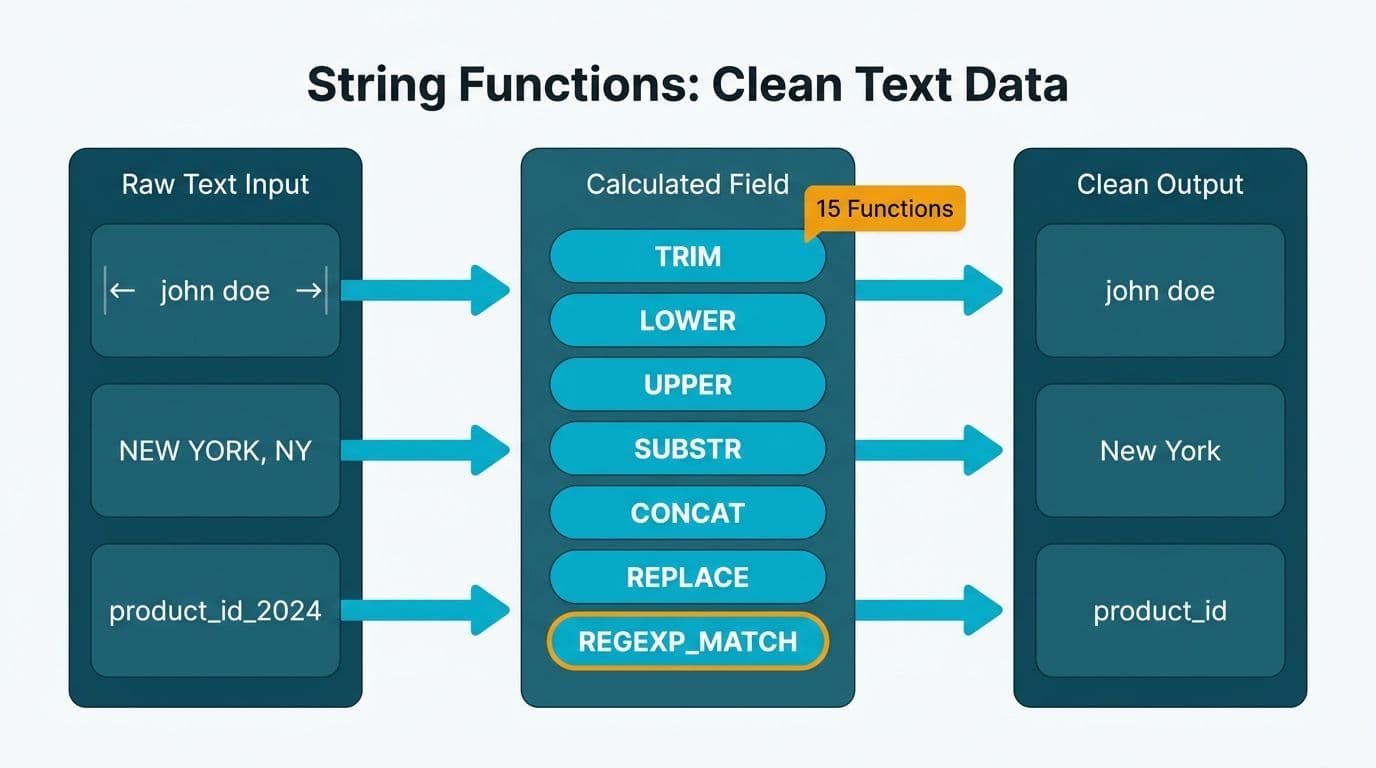
Looker Studio calculated fields support a complete set of string functions that let analysts transform, clean, and classify text data without modifying the underlying source. REGEXP_MATCH, SUBSTR, CONCAT, UPPER, LOWER, TRIM, REPLACE, and their counterparts cover virtually every text manipulation scenario in production dashboards. Mastering these functions reduces pipeline complexity and keeps reports maintainable by non-engineers across your organisation.
Key Takeaways
- Looker Studio offers fifteen core string functions in calculated fields, each with a distinct syntax and a string or boolean return type.
- REGEXP_MATCH is the most versatile pattern-matching function; SUBSTR handles positional extraction; CONCAT joins multiple fields into a single dimension.
- All string functions operate on text - numeric fields must be cast with TO_TEXT() before use.
- Organizations in regulated industries (US healthcare, UK fintech, Canadian manufacturing) can use string functions to enforce naming conventions and mask sensitive display values without altering source data.
- Before architecting complex calculated field logic, estimate build scope with the Instant project cost calculator to set realistic project expectations.
What Are Looker Studio String Functions in Calculated Fields?
Looker Studio calculated fields are virtual columns that exist only at report time - they do not write back to your data source. String functions within those calculated fields accept one or more text arguments and return either a string or a boolean value, depending on the function.
Google's Looker Studio help documentation (2025) lists the following string functions as available across standard connectors:
| Function | Return Type | Primary Use |
|---|---|---|
| CONCAT(text1, text2, ...) | String | Join multiple values into one string |
| CONTAINS_TEXT(text, search) | Boolean | Check if a substring exists |
| ENDS_WITH(text, suffix) | Boolean | Check whether text ends with a given value |
| LEFT(text, n) | String | Extract n characters from the left |
| LENGTH(text) | Number | Count characters in a string |
| LOWER(text) | String | Convert to lowercase |
| REGEXP_MATCH(text, pattern) | Boolean | Match against a regular expression |
| REGEXP_REPLACE(text, pattern, replacement) | String | Replace text matching a regex pattern |
| REPLACE(text, pattern, replacement) | String | Simple literal string substitution |
| RIGHT(text, n) | String | Extract n characters from the right |
| SPLIT(text, delimiter, index) | String | Extract nth segment by delimiter |
| STARTS_WITH(text, prefix) | Boolean | Check whether text begins with a given value |
| SUBSTR(text, start, length) | String | Extract a substring by position |
| TRIM(text) | String | Remove leading and trailing whitespace |
| UPPER(text) | String | Convert to uppercase |
Familiarity with this function set lets you build a Looker Studio sales dashboard more efficiently, because you can classify raw dimension values into logical groups directly in the report layer rather than restructuring the data pipeline upstream.
How Do You Use CONCAT and REGEXP_MATCH in Looker Studio Calculated Fields?
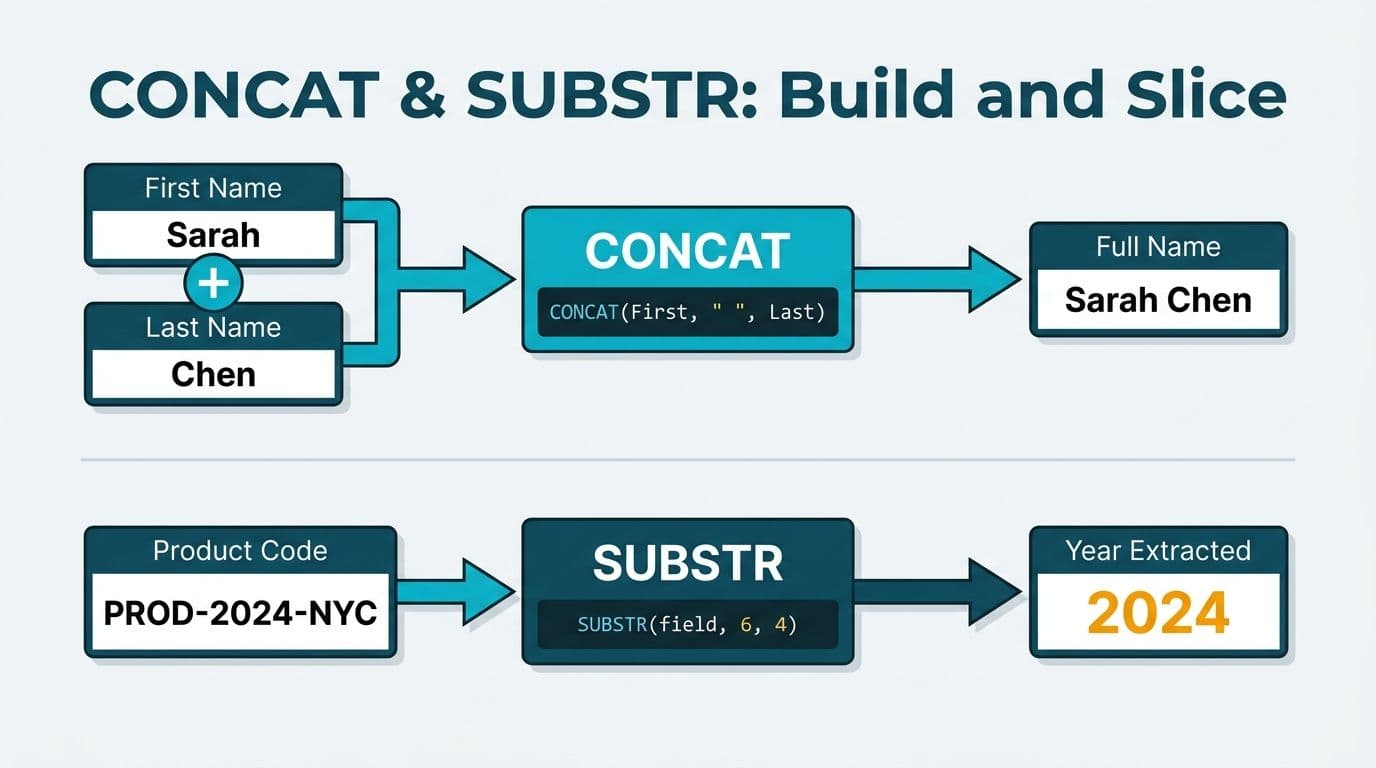
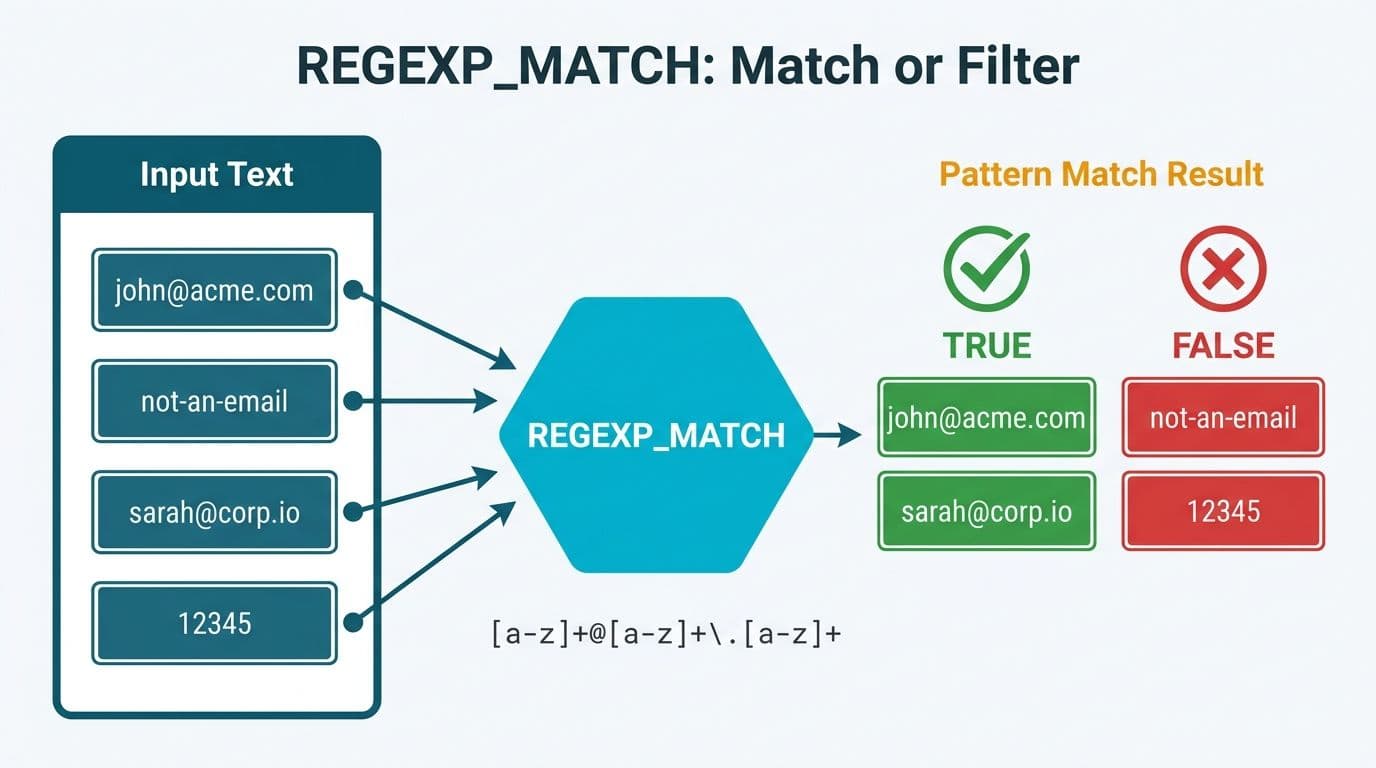
CONCAT joins two or more strings into a single output. REGEXP_MATCH returns TRUE or FALSE based on whether a value matches a regular expression pattern. Both are central to any team building text-based classifications at the report layer.
CONCAT: Syntax and Practical Examples
```
CONCAT(text1, text2, ...)
```
Combining campaign source and medium into an attribution label:
```
CONCAT(Source, " / ", Medium)
```
This produces values like `google / cpc` or `email / newsletter`, matching the standard GA4 source/medium format without modifying the underlying data connector.
For a US SaaS finance team building a multi-source dashboard under SOC 2 audit controls, CONCAT is commonly used to create surrogate keys that stay consistent across data sources:
```
CONCAT(Region_Code, "-", Customer_ID)
```
This makes cross-source joins predictable and keeps the logic in the reporting layer - no ETL changes required, and no risk of introducing inconsistencies at the pipeline level.
REGEXP_MATCH: Syntax and Practical Examples
```
REGEXP_MATCH(text, "regular_expression")
```
REGEXP_MATCH uses RE2 syntax (Google's regular expression standard). Examples covering common geographic validation cases:
- Check for a UK postcode format start: `REGEXP_MATCH(Postcode, "^[A-Z]{1,2}[0-9]")`
- Validate Canadian province codes: `REGEXP_MATCH(Province, "^(ON|BC|AB|QC|MB|SK|NS|NB|NL|PE|NT|YT|NU)$")`
- Detect numeric-only strings: `REGEXP_MATCH(Reference, "^[0-9]+$")`
A UK fintech firm auditing payment records for GDPR compliance can use REGEXP_MATCH inside a calculated field to flag rows where a reference number does not conform to the expected format - producing a boolean dimension that feeds a compliance filter without modifying source data.
Use REGEXP_MATCH inside CASE to build readable category labels:
```
CASE
WHEN REGEXP_MATCH(Campaign_Name, ".*brand.*") THEN "Brand"
WHEN REGEXP_MATCH(Campaign_Name, ".*conquest.*") THEN "Conquest"
ELSE "Generic"
END
```
Before building calculated field logic that spans multiple dimensions, estimate the project scope with the Instant project cost calculator - calculated field architecture directly affects long-term dashboard maintainability and the effort required for future changes.
What Is SUBSTR and How Does It Work in Looker Studio?
SUBSTR extracts a portion of a string starting at a specified character position. It is the primary positional extraction function in Looker Studio, equivalent to MID in spreadsheet applications and SUBSTRING in SQL.
```
SUBSTR(text, start_position, length)
```
`start_position` is 1-indexed - the first character is position 1. `length` is optional; if omitted, SUBSTR returns everything from `start_position` to the end of the string.
Extract a year from an ISO date stored as text:
```
SUBSTR(Order_Date_Text, 1, 4)
```
If `Order_Date_Text` contains `2026-08-14`, this returns `2026`.
Extract a country code from a composite SKU:
```
SUBSTR(SKU, 5, 2)
```
If the SKU is formatted as `PRD-US-00123`, this returns `US` (starting at position 5, extracting 2 characters).
A Canadian manufacturing company working under PIPEDA requirements might use SUBSTR to extract facility codes from internal reference numbers, then use those codes as dimensions in a compliance dashboard - keeping the extraction logic entirely within Looker Studio rather than adding a transformation step to the data pipeline.
LEFT and RIGHT are convenience alternatives:
- `LEFT(text, n)` returns the first n characters - equivalent to `SUBSTR(text, 1, n)`
- `RIGHT(text, n)` returns the last n characters
For teams familiar with DAX from Power BI or Microsoft Fabric, Looker Studio's SUBSTR is positionally equivalent to DAX's MID function, though argument order differs slightly. If your organisation is evaluating platforms, the Power BI vs Tableau TCO breakdown and Microsoft Fabric architecture overview provide context on which platform fits which enterprise analytics workload.
Looker Studio String Functions vs DAX Text Functions: What Is the Difference?
The core difference is that Looker Studio supports RE2 regular expressions natively via REGEXP_MATCH, while DAX has no direct pattern-matching equivalent. Most other string operations - LEFT, RIGHT, UPPER, LOWER, TRIM - have near-identical syntax in both platforms.
The table below maps the most common Looker Studio string functions to their DAX equivalents for teams evaluating BI tools for regulated industries, or managing both platforms simultaneously:
| Task | Looker Studio | DAX (Power BI / Microsoft Fabric) |
|---|---|---|
| Join strings | CONCAT(a, b, c) | CONCATENATE(a, b) or a & b |
| Extract by position | SUBSTR(text, start, len) | MID(text, start, len) |
| Extract left N chars | LEFT(text, n) | LEFT(text, n) |
| Extract right N chars | RIGHT(text, n) | RIGHT(text, n) |
| Find substring (boolean) | CONTAINS_TEXT(text, sub) | No direct equivalent - use SEARCH with error handling |
| Pattern match | REGEXP_MATCH(text, pattern) | No native equivalent - requires Power Query M |
| Replace via pattern | REGEXP_REPLACE(text, pat, repl) | SUBSTITUTE handles literals; Power Query handles patterns |
| String length | LENGTH(text) | LEN(text) |
| Remove whitespace | TRIM(text) | TRIM(text) |
| Case conversion | UPPER / LOWER | UPPER / LOWER |
The REGEXP_MATCH gap is the most significant for regulated industries. Teams that need PII detection, format validation, or rule-based classification workflows will find Looker Studio's native regex support substantially reduces the complexity of that logic compared to building equivalent behavior in DAX. For context on how filter mechanics differ between platforms - specifically how CALCULATE in Power BI DAX handles context transitions - the CROSSFILTER DAX guide covers the Power BI filter model in detail.
How Do You Build a Sales Dashboard Using Looker Studio String Functions?
A Looker Studio sales dashboard typically requires several string transformations to make raw CRM or e-commerce data readable and consistent. The three most common patterns are deal stage normalization, rep name formatting, and geographic segmentation.
Deal Stage Normalization
CRM exports often contain inconsistent stage labels across records. Use LOWER and REPLACE to standardize first:
```
LOWER(REPLACE(Deal_Stage, "_", " "))
```
Then use CASE with CONTAINS_TEXT to map to canonical stage names:
```
CASE
WHEN CONTAINS_TEXT(LOWER(Deal_Stage), "won") THEN "Closed Won"
WHEN CONTAINS_TEXT(LOWER(Deal_Stage), "lost") THEN "Closed Lost"
WHEN CONTAINS_TEXT(LOWER(Deal_Stage), "proposal") THEN "Proposal"
ELSE "Other"
END
```
Rep Name Formatting
When first and last names arrive in separate fields, CONCAT builds display names:
```
CONCAT(TRIM(First_Name), " ", TRIM(Last_Name))
```
TRIM prevents double spaces when source data contains trailing whitespace - a common issue with CRM exports from legacy systems across all three markets.
Geographic Segmentation from Postal Codes
For dashboards covering the US, UK, and Canada simultaneously, REGEXP_MATCH can classify records by postal code format in a single calculated field:
```
CASE
WHEN REGEXP_MATCH(Postal_Code, "^[0-9]{5}") THEN "US"
WHEN REGEXP_MATCH(Postal_Code, "^[A-Z][0-9][A-Z]") THEN "Canada"
WHEN REGEXP_MATCH(Postal_Code, "^[A-Z]{1,2}[0-9]") THEN "UK"
ELSE "Other"
END
```
This single field turns a postal code column into a geographic segment with no ETL changes - useful for teams that need GDPR-scoped and PIPEDA-scoped views on the same report without duplicating data sources. For a fuller treatment of how to structure a Looker Studio sales dashboard with GA4 data sources, that guide covers connector-level considerations that affect which calculated field types are available per source.
When Should You Use REPLACE vs REGEXP_REPLACE in Looker Studio?
REPLACE performs a literal string substitution - it matches an exact character sequence. REGEXP_REPLACE matches a pattern before substituting. Use REPLACE when the target string is fixed; use REGEXP_REPLACE when the target varies in form.
REPLACE example - removing a consistent prefix from product codes:
```
REPLACE(Product_Code, "SKU-", "")
```
REGEXP_REPLACE example - removing all non-numeric characters from a phone number field:
```
REGEXP_REPLACE(Phone_Number, "[^0-9]", "")
```
This collapses `+1 (416) 555-0123` to `14165550123` - a common requirement when standardizing contact data across CRM systems that store phone numbers in different regional formats.
For teams handling contact data at scale, the automation layer matters as much as the reporting layer. A B2B client's team built marketing lists by hand from their CRM. A scheduled job now runs every two hours inside Zoho, syncing 30 fields of sales context into four regional mailing lists and routing each contact by country - manual list-building went to zero. String normalization in the Looker Studio reporting layer complements that kind of upstream automation: both clean the data, at different stages of the pipeline.
REGEXP_REPLACE also collapses repeated delimiters efficiently:
```
REGEXP_REPLACE(Description, " +", " ")
```
This reduces multiple consecutive spaces to a single space - cleaner than chaining multiple REPLACE calls and more readable for the next analyst who maintains the report.
Which String Functions Work Best for Compliance and Data Governance?
For organizations in regulated industries, Looker Studio string functions serve a specific governance function: they allow display-layer masking and classification without touching source data, which is significant when source system access is locked down for compliance reasons.
Partial masking with SUBSTR: A US healthcare organization operating under HIPAA can use RIGHT and CONCAT to display only the last four digits of a member ID in a shared dashboard:
```
CONCAT("***-", RIGHT(Member_ID, 4))
```
The source data remains intact; the calculated field controls what viewers see based on report-level access rules.
Format validation with REGEXP_MATCH: A UK fintech firm can surface a boolean dimension flagging records that fail format checks - without creating a derived table in BigQuery or modifying the data warehouse schema. This keeps validation logic in the reporting layer where business analysts can update it without requiring a data engineering sprint, supporting GDPR Article 5 data quality obligations.
Sensitive term detection with CONTAINS_TEXT: A Canadian organization handling personal information under PIPEDA can use CONTAINS_TEXT to flag free-text fields containing specific terms, surfacing records for manual review before they flow into downstream reports or automated decision processes.
For organizations evaluating whether Looker Studio's governance controls meet their requirements alongside a broader platform selection, the Power BI governance best practices checklist provides a useful cross-platform comparison framework. For finance teams specifically, the Power BI managed service overview covers how managed-service governance controls differ from self-service reporting setups and where the operational accountability sits.
---
About Lets Viz: Lets Viz has delivered data analytics and dashboard projects since 2020, serving US healthcare organizations, UK fintech firms, Canadian manufacturing companies, and global SaaS businesses. The team holds a 5.0 rating on Clutch across Power BI, Looker Studio, Microsoft Fabric, and Zoho Analytics engagements. Every Looker Studio build follows a governance-first approach that aligns calculated field design with the client's data access and compliance requirements.
Estimate your Looker Studio project scope before your first architecture call - the Instant project cost calculator gives you a working budget range in under two minutes.