How to Run CRM-Synced Campaigns in Zoho Campaigns
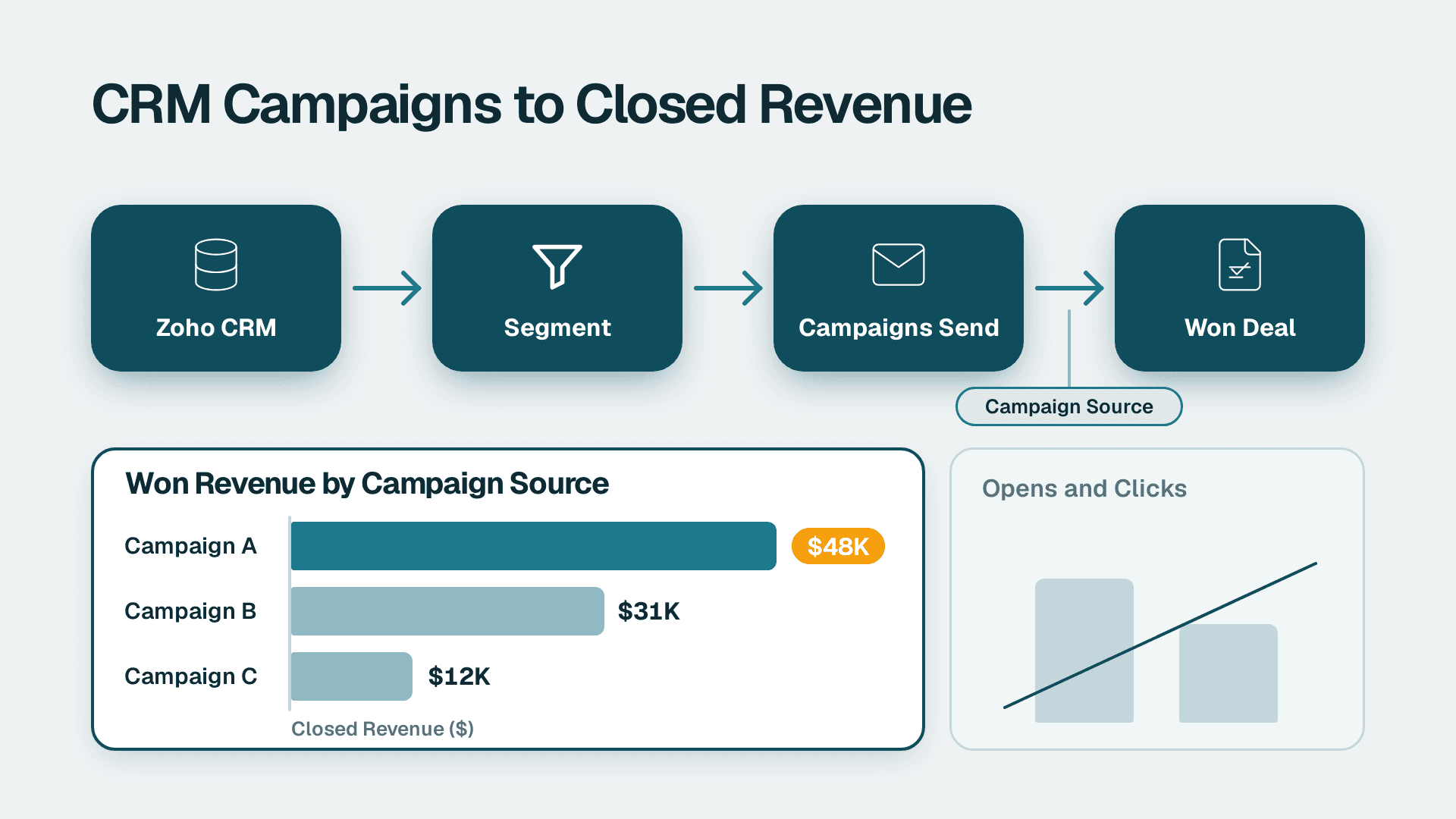
You can run a CRM-synced email campaign in Zoho Campaigns and tie it to closed revenue with about half a day of setup, plus a few weeks of waiting for deals to close. You connect Zoho CRM, sync a segment, send with tracking on, and report on won deals by campaign source instead of opens.
Key Takeaways
- Opens and clicks tell you about attention. Revenue attribution needs the campaign recorded against the CRM deal.
- The sync is only as good as your CRM data: standard Email field, country or region, and a clear lead source.
- Send from a segment, not a whole list, so you can compare groups later.
- One CRM report (Deals by Campaign Source, Closed Won, summed by Amount) answers the question leadership actually asks.
- Plan for a 30, 60 and 90 day review, because B2B deals close long after the email is sent.
What You'll Need
Before you start, check each item. Most failed setups trace back to one of these.
- Zoho CRM with an admin profile (you will edit fields, connect an integration and build a report).
- Zoho Campaigns with an admin or super admin role. Zoho offers a forever free plan for up to 2,000 contacts and 6,000 emails per month, which is enough to follow this guide on a small list. Zoho states paid plans scale as the contact list grows and that no long-term contract is required.
- Access to your DNS (or the person who manages it) so you can authenticate the sender domain.
- A defined revenue field: in most CRMs this is Amount on the Deals module, with the Closed Won stage marking real revenue.
- At least one quarter of historical contacts with a Lead Source value, so your first report has something to compare against.
- A decision on who owns the data. If the suite is new to you, read What Is Zoho One and Is It Worth It for Small Business? first. If you would rather have the connection and reporting built for you, our Zoho consulting services cover exactly this setup.
Menu names in Zoho move around between releases and editions. Where a label below does not match your screen exactly, search for the nearest wording in the same area. Zoho's own Campaigns user guide is the place to confirm current screens.
Step 1: How Do You Connect Zoho CRM to Zoho Campaigns?
This step creates the link that every later step depends on.
1. In Zoho Campaigns, open Settings (the gear or profile menu) and find Integrations or Zoho Apps.
2. Choose Zoho CRM and click Authorize or Connect. Sign in with the CRM admin account and accept the permissions.
3. Pick the CRM organisation if you belong to more than one.
What you should see: Zoho CRM listed as connected, with a green status or a Disconnect option in its place.
Authenticate the sender domain
While you are in settings, authenticate the domain you send from. Go to Settings and open the sender or domain authentication area, add your domain, and copy the SPF and DKIM records it shows into your DNS provider. Return and click Verify.
What you should see: both records marked verified. Unauthenticated domains tend to land in spam, which makes every number you measure later meaningless.
Step 2: How Do You Sync CRM Contacts Into a Campaigns List?
A mailing list in Zoho Campaigns is a copy of CRM records, so the quality of the copy decides the quality of the campaign.
1. In Zoho Campaigns, go to Contacts and click Add Contacts.
2. Choose the import from Zoho Apps and select Zoho CRM.
3. Select the module (Contacts or Leads) and a CRM View or filter to import from. Start with a saved view such as 'Open leads, last 12 months'.
4. Map fields (see the table below), choose or create the destination mailing list, and name it with the audience and date, for example `Prospects - Q4 nurture`.
5. Turn on the option to keep the list in sync with CRM if your screen offers it, then click Sync or Import.
What you should see: a new list under Contacts with a contact count close to the number of CRM records in that view.
| CRM field | Campaigns field | Why it matters |
|---|---|---|
| Contact Email | The only address used for sending. Check it is the standard field. | |
| First Name | First Name | Used in the greeting merge tag. |
| Lead Source | Custom field | Lets you split results by origin later. |
| Country or Region | Custom field | Needed for routing to regional lists. |
| Owner | Custom field | Lets you report by salesperson. |
Why the standard Email field matters
Zoho's sending tools use the standard Email field. If your team stores addresses in a custom field, those records will sync with nothing to send to. Check your list count against the CRM count straight after the sync. A mismatch is a data problem, not a Campaigns problem.
Keep the sync running without anyone touching it
Manual list building is where most CRM-to-email processes quietly break. One of our B2B clients had a team building marketing lists by hand from their CRM. We replaced that with a scheduled job inside Zoho that runs every two hours, syncs 30 fields of sales context into four regional mailing lists and routes each contact by country. Manual list-building went to zero. You do not need that scale on day one, but you do need the principle: the list should refresh itself. If you want to automate beyond the built-in sync, Zoho Flow is the usual route.
Step 3: How Do You Segment Contacts Before Sending?
A single blast to everyone gives you one data point. Segments give you comparisons.
1. In Zoho Campaigns, open Contacts and click Segments, then Create Segment.
2. Name it clearly, for example `Prospects - Quote sent, no reply`.
3. Add criteria using the synced CRM fields. For example: Lead Source is `Webinar` and Country is `United States`.
4. Add one engagement rule if you like, such as not having received an email in the last 14 days.
5. Click Save and then view the segment's contact count.
What you should see: a count smaller than the parent list. If it shows zero, a field value is spelled differently from your criteria. Open a few CRM records and copy the exact value.
Create two segments that differ on one thing only (for example, offer A versus offer B audiences, split by Lead Source). That one difference is what makes the revenue comparison in Step 6 meaningful.
Step 4: How Do You Build and Send a Zoho Campaigns Email?
This is the step most people already know. The detail that matters for revenue is tracking.
1. Go to Campaigns, click Create Campaign, and choose Regular (a one-off send).
2. Enter the Campaign Name. Use a naming pattern you will recognise in a CRM report, such as `2026-11 Webinar follow-up A`.
3. Fill in Subject, From Name and From Email. The From Email must be on the domain you verified in Step 1.
4. Choose your Mailing List or Segment as the recipients.
5. Design the email in the drag-and-drop editor. Zoho notes it is designed mobile-first and needs no coding skills, and dynamic content blocks let you vary content per recipient. Zia, Zoho's AI, can draft copy from the subject line, audience and channel and suggest edits for grammar, clarity and tone.
6. Use Insert Merge Tag for the greeting, for example the contact's first name.
7. Make the call to action a single link to a page where a deal can start, such as a booking page.
8. Before scheduling, open the Tracking or Analytics options and make sure link tracking is on. If you use Google Analytics, enable the option that adds UTM parameters to links.
9. Send yourself a test, then click Schedule or Send.
What you should see: the campaign in the Sent or Scheduled list, and soon after, delivery, open and click counts updating in the report.
Zoho Campaigns also covers SMS and WhatsApp and reports on all three channels in one place. Start with email so your first attribution test has only one variable.
Step 5: How Do You Record the Campaign Against CRM Deals?
This is the step that separates opens from revenue. The goal is for each deal to carry the campaign that influenced it.
1. In Zoho CRM, open Setup, then Customization, then Modules and Fields, and select Deals.
2. Check that a Campaign Source field exists on the Deals layout. If not, drag it onto the layout or add a Lookup to the Campaigns module, and save.
3. In the CRM Campaigns module, confirm your Zoho Campaigns send appears as a record. If it does not, check that the integration from Step 1 is still authorized.
4. For existing contacts who reply, open the lead or contact and use the Campaigns related list to confirm the campaign is attached.
5. Add a Workflow Rule (Setup, then Automation, then Workflow Rules) on Deals so that when a deal is created from a contact with a campaign, the Campaign Source is filled in. If you prefer to keep it manual, add Campaign Source to the required fields at the Qualification stage so reps cannot skip it.
What you should see: new deals showing a campaign name in Campaign Source. Create one test deal and check before moving on.
The common failure here is not technical. Reps create deals from a phone call and leave the field blank. Make the field required at a stage every deal must pass.
Step 6: How Do You Report Revenue by Campaign?
Now you can answer the question: which campaign made money?
1. In Zoho CRM, go to Reports and click Create Report.
2. Choose the Deals module and a Summary Report.
3. Set the filter: Stage is `Closed Won` and Closing Date is within the period you care about.
4. Group by Campaign Source.
5. Add a summary on Amount: Sum and Count.
6. Save it and add it to a dashboard component, for example a bar chart.
What you should see: one row per campaign with deal count and total closed revenue.
Compare this with the engagement figures from Campaigns. Zoho Campaigns tracks opens, clicks and deliveries as they happen. Put them side by side:
| Measure | Where it lives | What it tells you |
|---|---|---|
| Delivery and bounces | Zoho Campaigns report | Whether the list and domain are healthy |
| Opens | Zoho Campaigns report | Subject line and sender recognition (a weak signal) |
| Clicks | Zoho Campaigns report | Interest in the offer |
| Deals created | Zoho CRM report | Whether interest turned into pipeline |
| Closed Won amount | Zoho CRM report | Revenue attributed to the campaign |
For a fuller view, Zoho Campaigns integrates with Zoho Analytics or Google Analytics. See What is Zoho Analytics? if you want blended dashboards, and How to Build Zoho CRM Reports and Dashboards for Sales for the CRM side of the build.
Step 7: How Do You Review Results and Improve the Next Send?
Attribution is slow. Set review dates now.
1. Add three calendar reminders at 30, 60 and 90 days after the send.
2. At each review, open the Step 6 report and note deals created, deals won and amount per campaign.
3. Use the workflow tools to see where contacts stall. Zoho names Trace Contact Path for seeing where contacts drop off, and Live workflow edits for changing a running workflow without disrupting campaigns already in flight.
4. Check on the go if you need to. The Zoho Campaigns iOS app reports opens, clicks, bounces and unsubscribes in real time, and shows CRM deal insights on a contact.
5. Write down one change for the next send, such as a different segment or a clearer call to action, and change only that.
What you should see: a short running log of campaign, spend of effort, deals won and revenue. After three sends you can judge which audiences are worth repeating.
Common Mistakes
- Syncing contacts whose addresses sit in a custom field. The campaign reports little or nothing sent. Backfill the standard Email field in CRM first. In one client case, filling the standard field lifted coverage from 77 of 358 records to 283 of 358, and the resend delivered 206 of 206.
- Sending one blast to the whole list. You cannot compare anything afterwards. Send to two segments that differ by one attribute.
- Leaving Campaign Source optional on deals. Revenue then shows as 'blank' in your report. Make it required at the Qualification stage or fill it by workflow rule.
- Using empty geography fields for routing. In another client's CRM, the Country field was empty on all 19,643 contacts, while Region was populated on 64%. We built a fallback chain (Region first, then email domain) so contacts routed to the right country list. Audit which fields are actually filled before you design segments around them.
- Judging a campaign after one week. B2B deals often take months. Review at 30, 60 and 90 days, not at the first open rate.
Troubleshooting
- Symptom: the Campaigns list has far fewer contacts than the CRM view. Likely cause: records with a blank standard Email field, or contacts flagged as opted out or invalid, were skipped during sync. Compare counts and spot-check skipped records.
- Symptom: the campaign sends but CRM shows no campaign record or no related contacts. Likely cause: the CRM integration authorization expired or was made by a user who has since lost admin rights. Reconnect it as described in Step 1.
- Symptom: your revenue report shows deals but the Campaign Source column is blank. Likely cause: the deals were created before the field or workflow rule existed, or by a path (such as a phone call) that bypasses it. Backfill recent deals by hand and make the field required going forward.
Next Steps
Once one campaign is attributed end to end, repeat the pattern: a synced list, two comparable segments, tracked links, a required Campaign Source and one report. If you want help connecting CRM, Campaigns and reporting so this runs without manual work, talk to our team about Zoho consulting services.
Sources
Facts and prices checked October 2026.
---
About Lets Viz: Lets Viz is a data analytics and Zoho consulting firm that has served clients since 2020, working with small and mid-sized businesses across industries including finance, healthcare, distribution and B2B services. We hold a 5.0 Clutch rating, and our work spans CRM automation, reporting and dashboards built on the Zoho suite and Power BI.