How to Simplify Sales Automation When It Takes Too Much Work
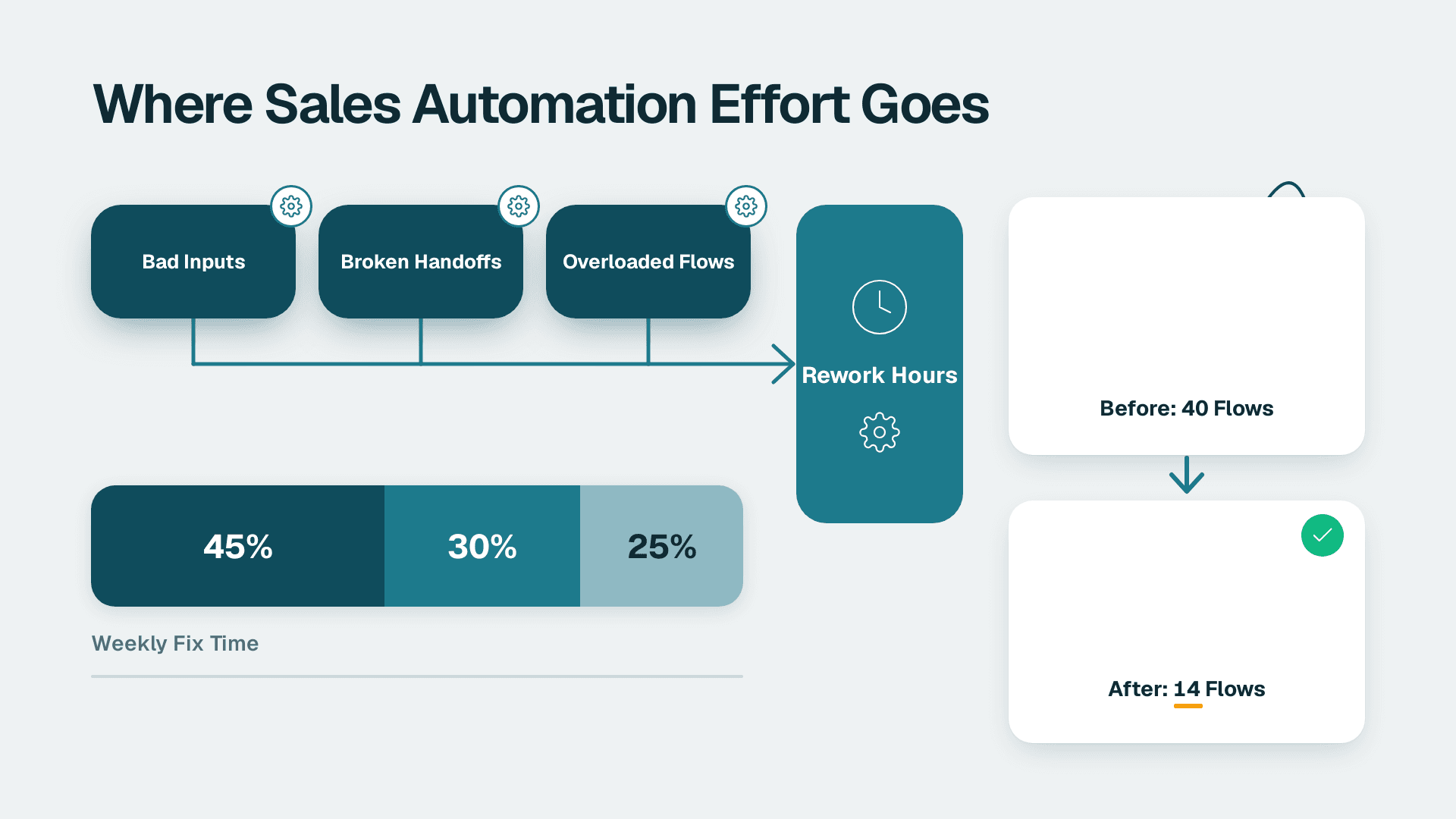
Sales automation feels like constant work because most of the effort goes into repairing bad inputs, patching handoffs and maintaining flows that do too much. This guide shows you how to find which of those three is hurting you and cut the workload. Plan on about two weeks of part-time effort, roughly 10 to 15 hours in total, for a 20 to 200 person company.
What You'll Need
- Admin access to your CRM, including the ability to view workflows, export records and edit field settings. Read-only access is not enough.
- An export of your automation list. Every workflow, rule, sequence, and integration that touches leads, deals or accounts. Most CRMs list these under Settings, then Automation or Workflows.
- A spreadsheet with one tab for flows and one for fields.
- One sales lead and one operations owner available for two 45-minute reviews. Automation fails at the seams between these roles.
- A list of every connected tool. Think email, quoting, billing, ERP or order system, and any third-party enrichment service.
- Your data-privacy basics. Who can see contact data, where it is stored, and which vendors receive copies. Step 6 uses this.
No special licence tier is required, but you do need the ability to switch a flow off without deleting it.
Why Is Sales Automation So Much Work? The Three Usual Causes
Before touching anything, understand the pattern. When people ask why is sales automation so much work, the answer is almost never the tool. It is one of three things, and usually all three at once.
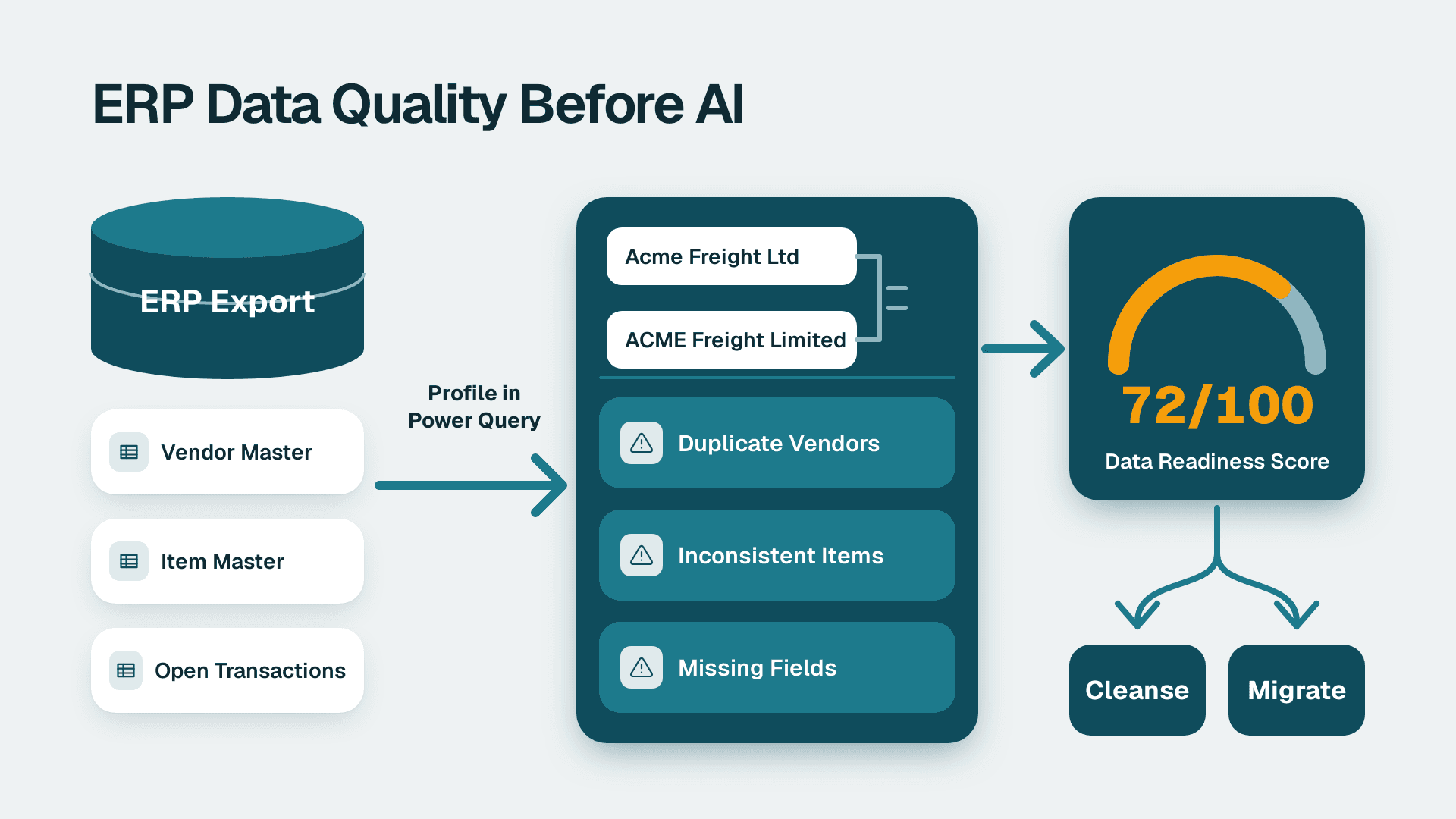
1. Messy CRM data. Duplicate accounts, free-text fields where a picklist belongs, and missing owners. Every automation reads these fields, so every flaw becomes a misfire.
2. Broken handoffs. A lead moves from marketing to sales, or a closed deal moves to fulfilment, and nobody owns the moment. Automation was added to cover the gap, but it just hides it.
3. Over-built flows. One workflow with fifteen branches, built to handle every edge case someone once mentioned. It breaks often and nobody dares touch it.
The rest of this guide is a procedure for finding and fixing each one, in the order that creates the least rework.
Step 1: Inventory Every Automation in One Spreadsheet
You cannot simplify what you cannot see. Spend the first session listing everything.
1. Open your CRM and go to Settings, then the section for Automation, Workflows or Rules. The exact label differs by product, but you are looking for a list view of active automations.
2. Export the list if the CRM allows it. If not, copy names manually.
3. In your spreadsheet's Flows tab, create these columns: Name, Trigger, Action, Owner, Last Edited, Last Fired, Status.
4. Add automations that live outside the CRM: email sequences, form tool notifications, spreadsheet scripts, and integration platform scenarios.
5. Fill in Owner honestly. If no one can name an owner, write "none".
What you should see: a single list, typically longer than anyone expected. In our experience, firms of this size usually discover automations that nobody currently on the team created. Those orphans are your first cleanup candidates.
Step 2: Score Each Flow by Whether It Still Earns Its Keep
Now sort the list by usefulness. Add three more columns: Fired in last 90 days (Y/N), Saves a human step (Y/N) and Caused a correction in last 90 days (Y/N).
Use your CRM's workflow history or audit log to answer the first column. Ask your sales lead for the other two.
Then apply this rule:
- Never fired: mark "Retire".
- Fired but saves no human step: mark "Retire" (it is notification noise).
- Saves a step and caused corrections: mark "Repair".
- Saves a step and caused no corrections: mark "Keep".
What you should see: a spreadsheet with three colour-coded groups. Do not delete anything yet. Switch retired flows to Inactive and set a calendar reminder for 30 days out. If nothing breaks, delete them then.
Step 3: Audit the Fields Your Automations Depend On
This is where messy CRM data shows itself. Open the Fields tab of your spreadsheet and list every field that a "Keep" or "Repair" flow reads in its trigger or condition.
For each field, record:
- Field name (for example, Lead Source, Deal Stage, Account Owner, Industry).
- Field type. Picklist, free text, date, lookup.
- Fill rate. Export 500 recent records and count how many have a value.
- Distinct values. Run a pivot or a unique-values filter on the exported column.
Two red flags matter most:
- A free-text field driving a condition. If Industry is typed by hand, you will find "Distribution", "distribution", "Distrib." and "Wholesale dist" in the same column. A flow that checks for "Distribution" misses the rest.
- A fill rate under about 90 percent on a field that triggers routing. The flow silently skips every record where the field is blank.
What you should see: a short list of three to six fields that account for most of your misfires. Fix these, not every field in the system.
Step 4: Clean Those Fields at the Source
Fix the entry point first, then clean the backlog. Reversing the order means you clean the same mess twice.
1. In the CRM's field settings, convert each free-text field from Step 3 to a picklist with a short, agreed list of values (aim for under ten).
2. Mark routing fields as Required on the screen where a lead or deal is created, or on the stage change that depends on them.
3. Add a validation rule for deal-stage transitions. For example, block moving a deal to a proposal stage when Deal Amount or Account Owner is empty.
4. Merge duplicate accounts using your CRM's Duplicates or Merge tool. Start with accounts that have open deals.
5. Bulk-update old records with an import: export, map old values to new picklist values in your spreadsheet using a lookup, and re-import with the update option enabled.
What you should see: new records can no longer be saved with blank routing fields, and a re-export of the distinct values shows only your approved list. If you also report from this data, the reconciliation steps in this Power BI guide show how inconsistent source fields turn into disagreeing reports.
Step 5: Map and Fix the Handoffs
Handoffs cause most of the "it's always something" feeling. Run a 45-minute session with your sales lead and operations owner and draw the path a record takes.
1. On a whiteboard or shared doc, write the stages: New Lead, Qualified, Proposal Sent, Closed Won, Handed to Fulfilment (rename to match your process).
2. Between each pair of stages, write the answers to three questions: Who owns the record after this moment? What must be true before it moves? How does the next owner find out?
3. Circle every handoff where the answer to "How does the next owner find out?" is "someone remembers to tell them" or "a long email".
4. For each circled handoff, define a handoff checklist with no more than five required fields (for example: contract value, delivery address, payment terms, key contact, special requirements).
5. Build a single automation per handoff that does only two things: assigns the new owner and sends a short notification containing a link to the record.
In distribution, 3PL and manufacturing, the most fragile handoff is Closed Won to fulfilment or onboarding. In professional services it is usually sale to project kickoff. Those are the two to fix first.
What you should see: every handoff has a named owner, a short checklist and one tiny automation. If the next owner still asks the seller a question, your checklist is missing a field. Add it.
Step 6: Rebuild the "Repair" Flows as Small, Single-Purpose Automations
Over-built flows are the third cause. The fix is to break them apart.
1. Open the biggest "Repair" flow. Count its branches. More than three is a warning sign.
2. For each branch, write one sentence: "When X happens, do Y". Each sentence becomes its own automation.
3. Build the new automations one at a time, with a clear naming rule such as [Stage] - [Trigger] - [Result], so the list reads in plain language.
4. Turn on the first new automation and switch the old flow to inactive for a trial week. Test with a single record before going live.
5. For each automation, add a description field that states the owner and the date it was last reviewed.
Keep a firm rule: if a flow needs more than one "if" to explain, it is probably two flows. Edge cases that fire rarely, say once a quarter, should be handled by a person, not by automation.
What you should see: more automations in total, but each one is short enough to read in 30 seconds and debug without help.
CRM data-privacy notes for multi-tool setups
The more tools you chain together, the more copies of contact data you create. Before relaunching, check these points:
- Know where each field travels. For every integration in your list, note which fields it sends and where they are stored. Do not send fields a tool does not need.
- Limit who can export. Restrict bulk export and API tokens to a small group. Review them whenever a person leaves.
- Check vendors before connecting. Ask where data is stored, how long it is retained, and whether it is used to train models. The AI vendor due diligence checklist gives a six-step process.
- Honour deletion and opt-out requests across every copy. If a contact asks to be removed, your list from Step 1 tells you where to look.
- Keep logs. If you use Microsoft 365 as part of the stack, Microsoft Purview Audit (Standard) keeps audit logs for 180 days, so decide whether that retention window is enough for your needs.
These are general operating practices, not legal advice. Have counsel review your obligations if you handle data from regulated sectors.
Step 7: Set a Light Maintenance Rhythm and Measure the Result
Without upkeep, the workload returns within a few months.
1. Add a recurring 30-minute calendar entry each quarter titled "Automation review". Attendees: the sales lead and operations owner.
2. At each review, open the Flows tab, refresh Last Fired and Caused a correction, and retire anything that no longer qualifies.
3. Track two numbers in a simple sheet each month: hours per week spent fixing records or re-sending information (ask each seller for a rough estimate) and count of records missing a routing field.
4. Compare both to your baseline from Step 3. You do not need a precise figure. A clear downward trend is enough to show the work paid off.
5. Put any new automation request through one question: "What manual step does this remove, and who owns it?" No answer means no build.
What you should see: a list that gets shorter or stays flat, and a falling count of records that need manual repair.
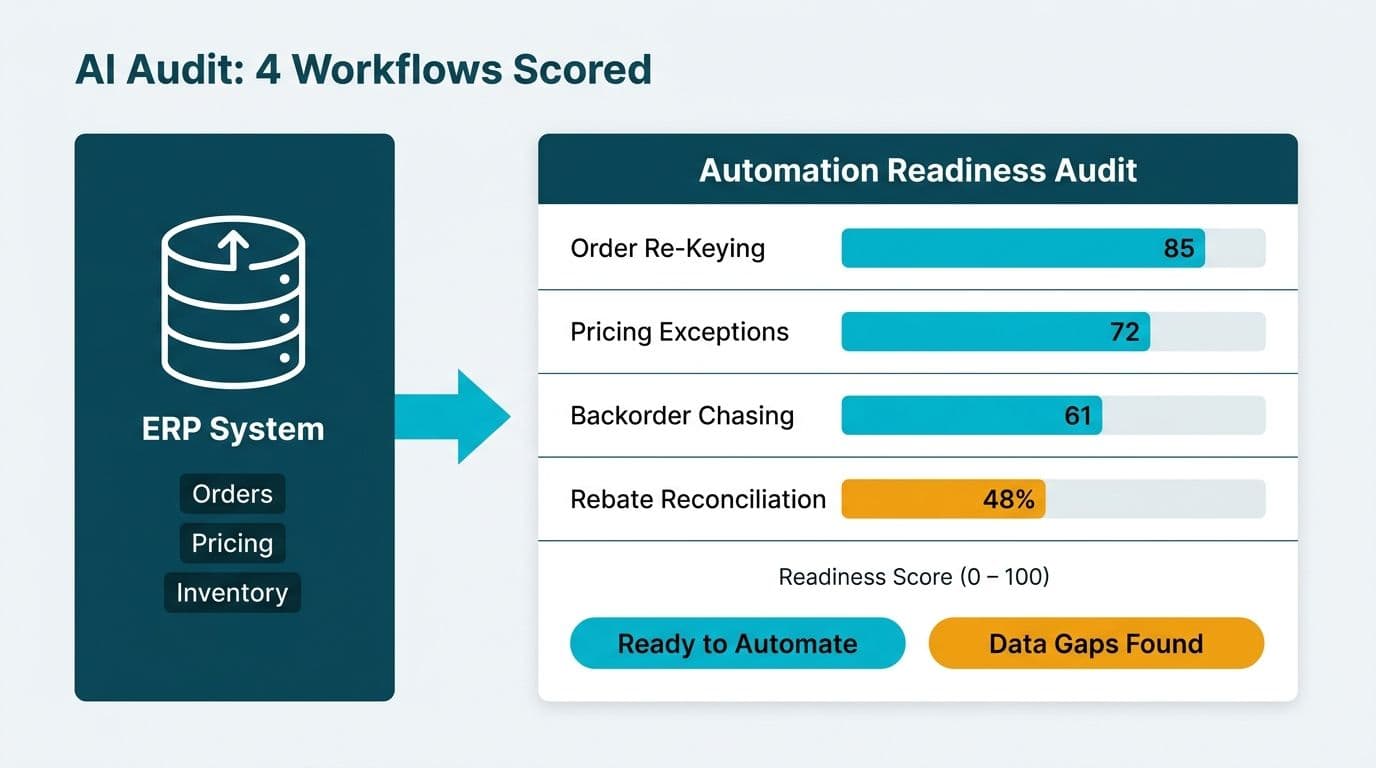
If you want a wider view of where manual effort sits across your business, the AI readiness self-score and the AI audit walkthrough go beyond sales. To turn the cleaned data into recurring management reports, see how to build an automated reporting pipeline.
Common Mistakes
- Automating before cleaning. Building new flows on top of free-text fields recreates the original problem. Fix the field and the entry rule first (Step 4), then automate.
- Deleting flows instead of deactivating them. If a retired flow turns out to matter, you lose the logic. Set it to inactive for 30 days, then delete.
- Making every handoff field required. Seven mandatory fields push sellers to enter junk just to proceed. Limit each handoff to five fields that the next owner truly needs.
- Letting one person own everything. When the only person who understands the workflows is on leave, nothing gets repaired. Assign an owner to each flow in the Owner column and name a backup.
- Adding enrichment and AI tools before the basics hold. A new tool that writes to your CRM fields multiplies the data problem. Connect it only after the fill-rate and picklist checks in Step 3 pass.
Troubleshooting
- A flow you fixed still does not fire. The usual cause is a trigger condition that reads a field value from your old list, such as "Distrib." rather than the new picklist value. Open the flow's conditions and update them to the new values.
- Records are assigned to the wrong owner after cleanup. Duplicate accounts probably still exist, so the routing rule is matching an older copy. Re-run the duplicates tool on accounts, then check the assignment rule order, since the first rule that matches wins.
- Sellers bypass the required fields by entering placeholders such as "n/a". The field accepts any value. Switch it to a picklist or add a validation rule that rejects placeholder text, and review the distinct values monthly.
If the symptoms persist after these checks, the problem is likely in a connected tool rather than the CRM itself. Go back to your Step 1 inventory and test each integration one at a time.
When you are ready for an outside view, the AI readiness assessment (fixed price, 5 days) reviews your data, handoffs and automations and returns a prioritised list of what to simplify first.
---
About Lets Viz: Lets Viz has delivered analytics, automation and AI advisory work since 2020 for wholesale distribution, logistics and 3PL, non-defense manufacturing, professional services and ecommerce companies across the US. We hold a 5.0 Clutch rating from client reviews, and we focus on practical, well-scoped projects that reduce manual effort instead of adding more tools.