What Is Zoho CRM Canvas and How Does It Work?
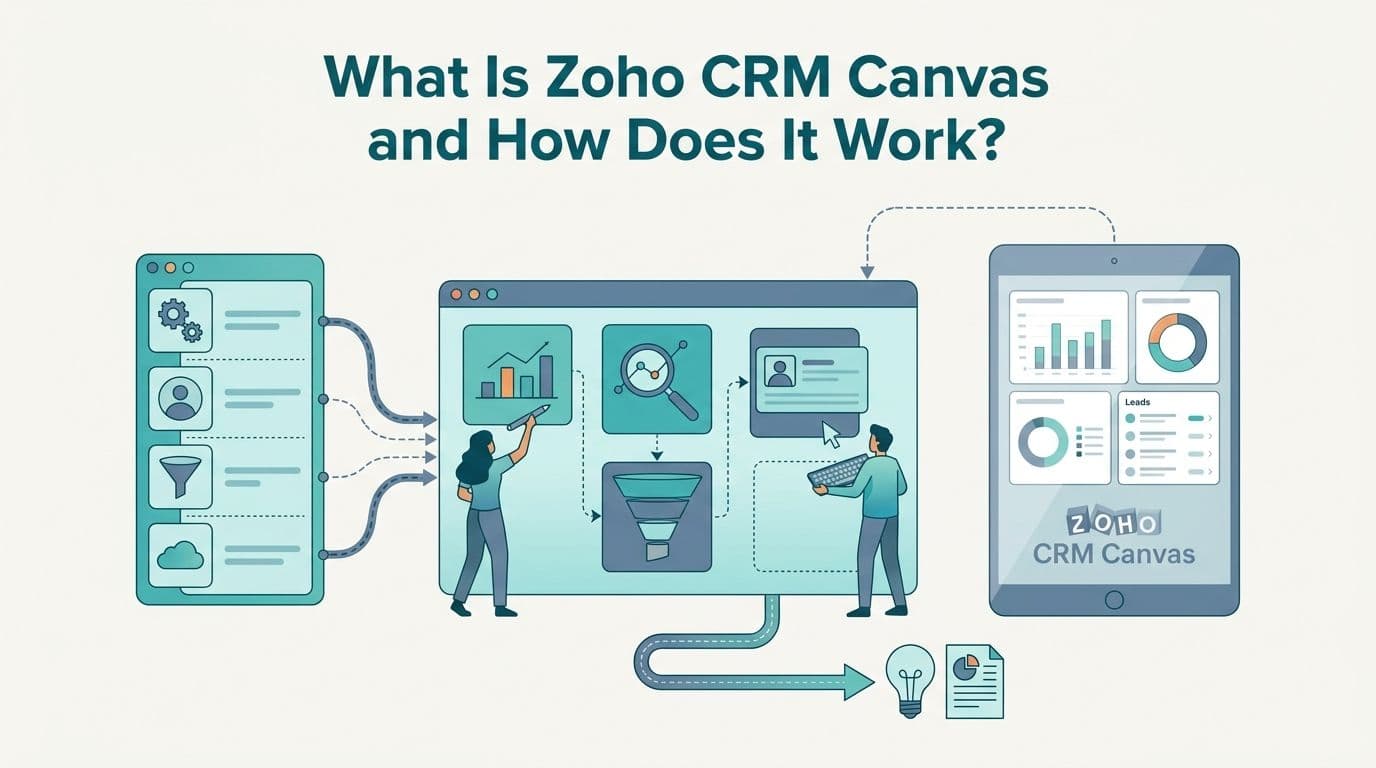
Zoho CRM Canvas is a no-code visual editor inside Zoho CRM that lets administrators redesign record detail pages using a drag-and-drop grid. You control which fields appear, where they sit, and which related lists are visible, then publish different layouts to different user profiles. Every team member sees a view matched to their workflow, not a generic default that slows data entry and undermines adoption.
Key Takeaways
Canvas reskins the display layer of a Zoho CRM record without altering the underlying data model or deleting any stored data.
You can rearrange fields, embed related lists anywhere on the page, add images, and create conditional blocks that show or hide content based on field values.
Multiple Canvas designs can be published to different user profiles - your finance analyst and your SDR can see entirely different views of the same Deal record.
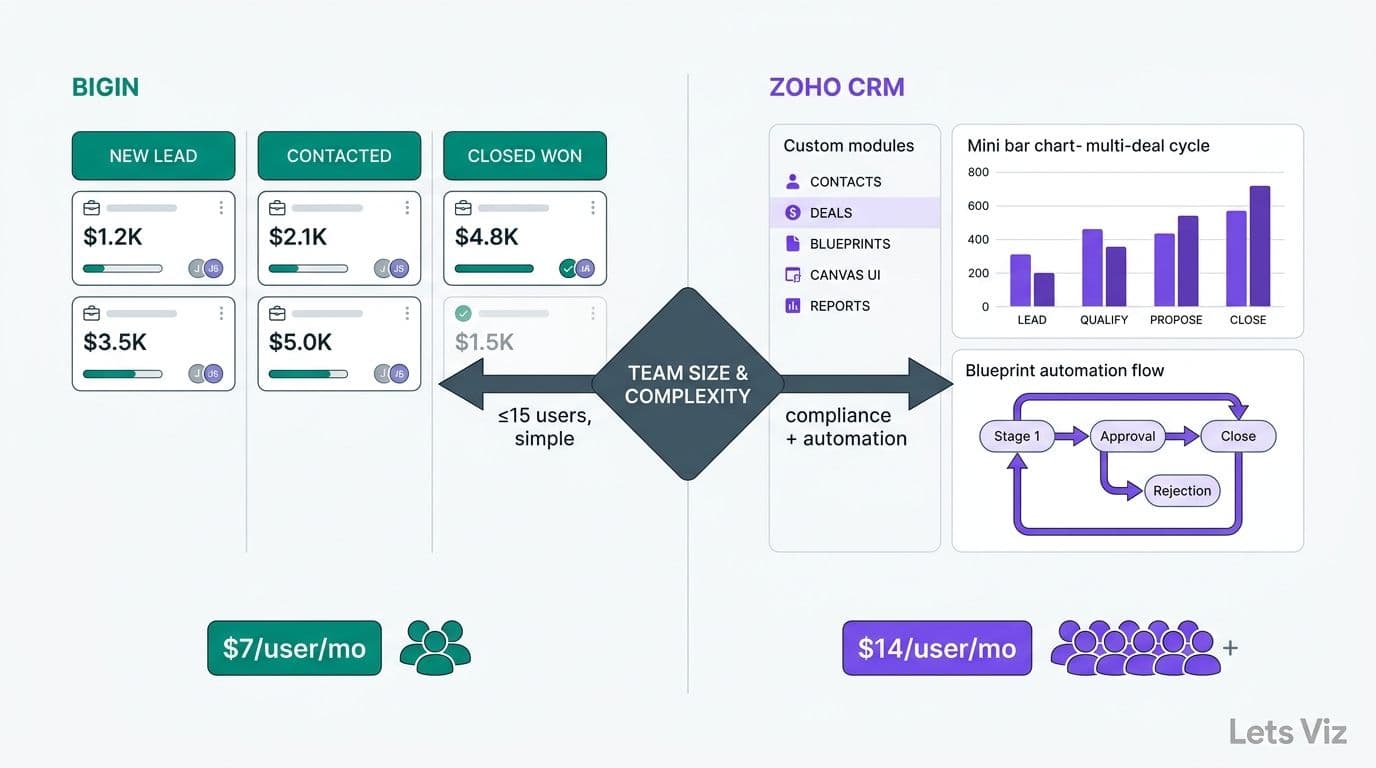
Canvas is available on Zoho CRM's Enterprise plan and above; standard layout customization is available on all plans. Zoho CRM pricing starts at $14/user/month (Standard) and reaches $40/user/month (Enterprise) where Canvas unlocks.
A B2B sales team can rebuild a deal detail page in under two hours with a clear field map and proper preparation.
What Is Zoho CRM Canvas and How Does It Work?
Canvas is Zoho's drag-and-drop record editor, accessible from Setup > Customization > Canvas. Unlike standard module layouts, which arrange fields in a list-style column structure, Canvas uses a responsive grid where administrators place elements precisely where they want them - similar to designing a report template rather than completing a linear form field by field.
The fundamental mechanic: Canvas is a presentation layer that sits on top of an existing module. All fields - custom or standard - are defined and stored in the module itself. When you remove a field from a Canvas design, you are hiding it from that particular view, not deleting it from the database. Data continues to be captured and stored; it is simply not displayed to users assigned to that Canvas profile.
Before building any Canvas design, you need to know what fields exist in the module and which fields must be added. Knowing how to add custom fields in Zoho CRM - via Setup > Customization > Modules > [Module Name] > Fields - is a prerequisite, because Canvas can only surface fields that already exist in the module. The Zoho CRM Customization Cost for Small Business: 2026 Guide covers what a full customization engagement typically involves for mid-market organizations evaluating the broader scope.
Element types available in the Canvas builder:
Fields - Any standard or custom field already defined in the module
Section dividers - Named groupings that create labeled visual panels within the record
Related lists - Linked records (Activities, Notes, Emails, Custom modules) that can be embedded anywhere on the page
Images - Profile photos or thumbnails sourced from URL-type fields
Conditional blocks - Content sections that render differently based on the value of a specified trigger field
CTA buttons - Triggers for Blueprint transitions, email actions, or external links
According to Future Market Insights (as of 2026), the AI consulting services market is on track to grow from USD 11.07 billion to USD 90.99 billion by 2035 - a 26.2% CAGR that reflects accelerating enterprise investment in AI-driven operational platforms. That growth reflects a broader pattern: mid-market organizations are investing not in new software but in making existing platforms work precisely for their workflows. Zoho CRM Canvas is one tool delivering that outcome without requiring a single line of custom code.
What Can You Rearrange Inside the Canvas Builder?
Canvas gives administrators control over four distinct dimensions of the record page, each targeting a different source of CRM adoption friction.
Field placement and visual hierarchy
Every field defined in the module - standard fields like Amount, Close Date, and Stage, plus any custom fields added via the module editor - can be dragged onto the Canvas grid. You can cluster revenue-relevant fields at the top of the page and collapse administrative metadata like Created By and Last Modified into a non-prominent section at the bottom. The grid supports multi-column layouts, so priority fields can span wider columns and appear more visually dominant than supporting detail fields.
Conditional visibility by field value
Conditional blocks are the most powerful element in Canvas for teams with multi-stage processes. A block can display one set of fields when Deal Stage equals "Qualification" and an entirely different set when the deal advances to "Negotiation." This eliminates the problem of reps scrolling past 30 irrelevant fields to find the two they need at a given stage - a friction point that most frequently surfaces at mid-funnel stages like Qualification and Negotiation, where the data requirements are most divergent - while preserving all field options for data capture when they become relevant later in the cycle.
Related lists embedded in the record body
In a standard Zoho CRM layout, related lists - linked Activities, Contacts, or Custom module records - live in tab navigation at the bottom of the record page and are frequently ignored. Canvas lets you embed a related list directly into the record body. For a healthcare technology sales team, a "Compliance Documents" custom module can appear as a visible panel beside deal financials rather than requiring three clicks to locate.
Profile-specific display per role
Once a Canvas design is complete, you publish it to specific user profiles. A sales development representative sees a streamlined prospecting view with next steps and decision-maker fields at the top. A finance analyst sees margin, contract value, and renewal date as the primary panel. A legal reviewer sees a compliance checklist first. Same underlying record, same stored data - completely different display for each role.
How Does Canvas Compare to Standard Zoho CRM Layouts?
The table below maps the practical differences between Zoho's Standard Layout editor and Canvas. Use it to determine where customization effort is best invested given your plan tier and workflow complexity.
| Feature | Standard Layout | Canvas |
|---|---|---|
| Edit interface | Field-list editor | Visual grid editor |
| Conditional field visibility | No | Yes |
| Profile-specific record views | Layout per module per profile | Canvas per module per profile |
| Images inside the record body | No | Yes |
| Related lists in body (not only tabs) | No | Yes |
| CTA buttons in the record view | No | Yes |
| Custom coding required | No | No |
| Plan availability | All Zoho CRM plans | Enterprise and above |
| Estimated configuration time | 30-60 minutes | 1-3 hours |
The practical heuristic: Standard Layouts work for teams that need basic field reordering. Canvas is justified when different user roles need meaningfully different views of the same record, when the default layout creates enough friction that reps skip fields or export data to spreadsheets, or when compliance fields need guaranteed visibility at specific deal stages. For a detailed breakdown of what implementation scope looks like at different budget levels, the Zoho CRM Customization Cost for Small Business: 2026 Guide provides a useful framework even for mid-market teams.
What Does Zoho CRM Pricing Look Like for Canvas Users?
Canvas is gated at the Enterprise tier, so understanding Zoho CRM pricing is a prerequisite before scoping any Canvas implementation. Zoho CRM pricing (billed annually, per user per month) breaks down across four tiers:
| Plan | Annual Price | Canvas | Blueprint | Custom Modules |
|---|---|---|---|---|
| Standard | $14/user/month | No | No | No |
| Professional | $23/user/month | No | No | No |
| Enterprise | $40/user/month | Yes | Yes | Yes |
| Ultimate | $52/user/month | Yes | Yes | Yes |
For organizations evaluating whether the Enterprise upgrade is justified, the question is not whether Canvas is worth the per-user cost in isolation - it is whether the combination of Canvas, Blueprint, custom modules, and advanced analytics at the Enterprise tier collectively deliver enough workflow precision to outpace the incremental plan cost.
A mid-market sales team of 20 reps moving from Professional to Enterprise pays roughly $340 more per month (20 users x $17 incremental cost). If Canvas reduces time spent on manual data correction and export-to-spreadsheet workarounds by even 30 minutes per rep per week, the ROI calculation typically closes within the first quarter. The Ultimate plan adds enhanced AI features, tighter Zoho Analytics integration, and higher API call limits - meaningful for teams planning reporting and analytics work alongside CRM customization.
One nuance worth flagging for budget planning: Zoho CRM pricing is per user, but Canvas designs are published per profile - not per user. A Canvas design built for a "Finance Reviewer" profile applies to every user on that profile at no additional per-seat cost. Teams with a large proportion of read-only or occasional CRM users should evaluate Zoho's light user licensing options alongside the standard per-user rate to avoid over-licensing at the Enterprise tier.
Step-by-Step: How a B2B Sales Team Rebuilds Their Deal Detail Page
The following walkthrough uses a healthcare technology company as the context - a complex deal cycle involving multiple stakeholders, compliance requirements, and a finance team that reviews deal economics before approval. The objective is to give sales reps, finance reviewers, and leadership each a Deal detail page optimized for their specific function.
Prerequisites before opening Canvas
Confirm your organization is on Zoho CRM Enterprise or above. In Setup > Customization > Modules > Deals > Fields, create all custom fields the new layouts will require: Gross Margin, Payment Terms, Contract Value, BAA Status, Covered Entity Type, and any fields specific to your deal model. Identify two or three user profiles that will receive distinct Canvas designs. Mapping fields to roles in a simple spreadsheet before opening the Canvas editor cuts configuration time significantly and prevents the need to exit Canvas mid-session to add missing fields.
Step 1: Open the Canvas Editor
Navigate to Setup > Customization > Canvas. Click "Create Canvas." Select the "Deals" module. Choose "Blank Canvas" to start from scratch, or select a prebuilt template if you want a structural starting point to modify.
Step 2: Design the Sales Rep View
Drag "Deal Name" and "Account Name" into the header row at the top of the canvas. Create a "Deal Snapshot" section below the header. Add: Amount, Close Date, Stage, Probability, and Deal Owner.
Add a conditional block beneath the snapshot section:
If Stage = "Qualification" - show Next Step, Decision Maker Name, Budget Confirmed (checkbox), and Competitor Notes.
If Stage = "Negotiation" - show Discount Approved (checkbox), Legal Review Date, Contract Sent Date, and Procurement Contact.
If Stage = "Closed Won" - show Contract Value, Start Date, Renewal Date, and Implementation Contact.
Embed a "Recent Activities" related list in the body below the conditional block. Push compliance and finance fields into a collapsed section at the bottom - visible on demand, but not cluttering the primary rep view.
Step 3: Publish to the Sales Rep Profile
Click "Publish." Select the "Sales Rep" profile. Save.
Step 4: Build a Second Canvas for Finance Reviewers
Return to the Canvas list and create a new Canvas for the same Deals module. Header row: Deal Name, Account Name, Deal Owner. Primary section: Amount, Expected Revenue, Gross Margin, Payment Terms, Contract Value. Secondary section: Stage, Close Date, Probability. Embed the "Finance Approvals" custom module as a related list in the body. Add a CTA button configured to trigger the "Request Legal Review" Blueprint stage transition.
Step 5: Publish to the Finance Reviewer Profile
Publish the second Canvas design to the "Finance Reviewer" profile.
Step 6: Test Both Views
Log in as a representative user in each profile and open the same Deal record. Confirm that conditional blocks trigger correctly when Stage changes. Verify that related lists load and that CTA buttons connect to the correct Blueprint or workflow. Collect feedback from one rep per role before broad rollout - small layout adjustments at this stage prevent retraining later.
Step 7: Track Adoption via Field Completion Rates
Use Zoho CRM's field audit trail (Setup > Data Administration > Audit Log) to monitor whether key fields are now being completed consistently. A sustained increase in completion rates on stage-gated custom fields is the clearest signal that Canvas has reduced friction rather than merely rearranging the default clutter. In implementations we've completed for mid-market sales teams, field completion rates on stage-gated custom fields typically improve by 30-50% within the first 60 days when Canvas is paired with Blueprint-enforced transitions - the combination leaves no path through the record that bypasses required data entry.
For teams combining Canvas with workflow automation, pairing the layout with Zoho CRM Blueprint for sales process automation creates a complementary control layer: Canvas controls what reps see at each stage, while Blueprint enforces which actions are available and which fields must be populated before a stage transition is permitted.
When Should Healthcare and Finance Teams Prioritize Canvas?
Healthcare and financial services organizations face a specific CRM problem that generic layouts cannot solve: their deals carry compliance, regulatory, and financial metadata that standard CRM views were not designed to surface. A deal at a healthcare SaaS company may require BAA status, covered entity type, contract renewal date, and payer type alongside standard pipeline fields. None of these appear on a default Zoho CRM layout without explicit configuration.
The Healthcare Financial Analytics Market is projected to grow at an 8.58% CAGR from 2026 to 2035, according to Market Research Future (as of 2026), driven in part by organizations embedding financial and operational data into unified platforms rather than maintaining separate systems. Zoho CRM Canvas supports this consolidation by bringing compliance, financial, and operational data into a single, role-appropriate record view without requiring custom development.
Three signals that Canvas investment is overdue at your organization:
1. Data entry is inconsistent across the sales team. Reps skip fields because the default layout shows 40 fields when a rep at that stage needs 8 - a ratio that, across a 20-rep team averaging 15 new deals per week, compounds into more than 4,000 missing field entries per quarter, enough to invalidate pipeline stage reporting and corrupt win-rate analysis by deal type. Skipped fields degrade forecast accuracy and pipeline reporting reliability, and are rarely recovered retroactively.
2. Finance or operations teams are exporting CRM data to spreadsheets. When the record view is too cluttered or missing the financial fields analysts need, the workaround is always a manual export. Canvas eliminates the layout friction that drives that behavior.
3. Compliance fields are routinely missed. For healthcare sales teams operating under HIPAA requirements, an absent BAA status field on a deal record is a material data risk. Canvas keeps compliance fields visible and prominent at the deal stages where they matter most.
For healthcare organizations building compliant data practices across their analytics stack, the HIPAA-Compliant Analytics Dashboard: Best Practices Checklist addresses governance and compliance at the reporting layer above CRM configuration.
Medinsight (2026) reports that through 2026, three dominant themes continue to shape healthcare data strategy: value-based care, AI-driven analytics, and payer analytics innovation. All three depend on clean, consistently captured deal and account data at the CRM layer - and Canvas is the mechanism that enforces that data quality without adding process overhead for the teams entering it.
Finance teams at mid-market companies managing complex deal economics - margin tracking, multi-year contract values, payment term variance - will find Canvas equally valuable for surfacing deal financial fields alongside pipeline stage without requiring analysts to cross-reference a separate financial system. The AI Analytics for Healthcare Finance Teams: 2026 Guide examines how analytics platforms consume and enrich the operational CRM data that Canvas helps standardize.
How Do Custom Fields and Blueprints Connect to Canvas?
Canvas displays fields but does not create them. The correct sequence for any Canvas project is: define your data model first, then build the display layer on top of it.
Define fields before opening Canvas
All custom fields must exist in the module before Canvas can surface them. Create text, number, currency, picklist, multi-select, lookup, formula, and checkbox fields in Setup > Customization > Modules > [Module Name] > Fields. Document each field's name, type, and the profile that needs to see it. That mapping document becomes the blueprint for the Canvas layout sessions and prevents the most common mid-configuration interruption: discovering a required field does not exist yet.
Connect Canvas to Blueprint for process enforcement
Zoho CRM Blueprint governs process logic - it defines valid stage transitions and mandates field completion before a deal can advance. Canvas governs display - it shows the fields relevant to the current stage front and center. The two tools operate on different layers and do not conflict.
A practical example: Blueprint requires that "Legal Review Date" be populated before a deal can move from Negotiation to Contract Sent. The Finance Reviewer's Canvas design places "Legal Review Date" prominently in the primary section whenever Stage equals "Negotiation." The combination closes the data quality gap. The field is enforced by Blueprint, and Canvas makes it visually impossible to miss. Most CRM data quality problems traced during mid-market audits resolve to layout friction rather than rep behavior. Canvas paired with Blueprint addresses the root cause directly.
CIOs and data team leads evaluating the full scope of a Zoho CRM implementation - from custom field design through Canvas configuration, Blueprint workflow design, and integration with the analytics layer - can explore what a structured engagement looks like through our Zoho consulting services.
---
About Lets Viz: Lets Viz is a data analytics and CRM consulting firm that has served mid-market healthcare, financial services, and technology companies since 2020. Our consultants hold credentials across Zoho, Microsoft Power BI, and enterprise analytics platforms, and have delivered CRM customization, dashboard, and reporting solutions for clients across the US and Canada who need both operational precision and regulatory compliance.
---