Looker Studio Custom SQL Query with BigQuery: A Practical Guide
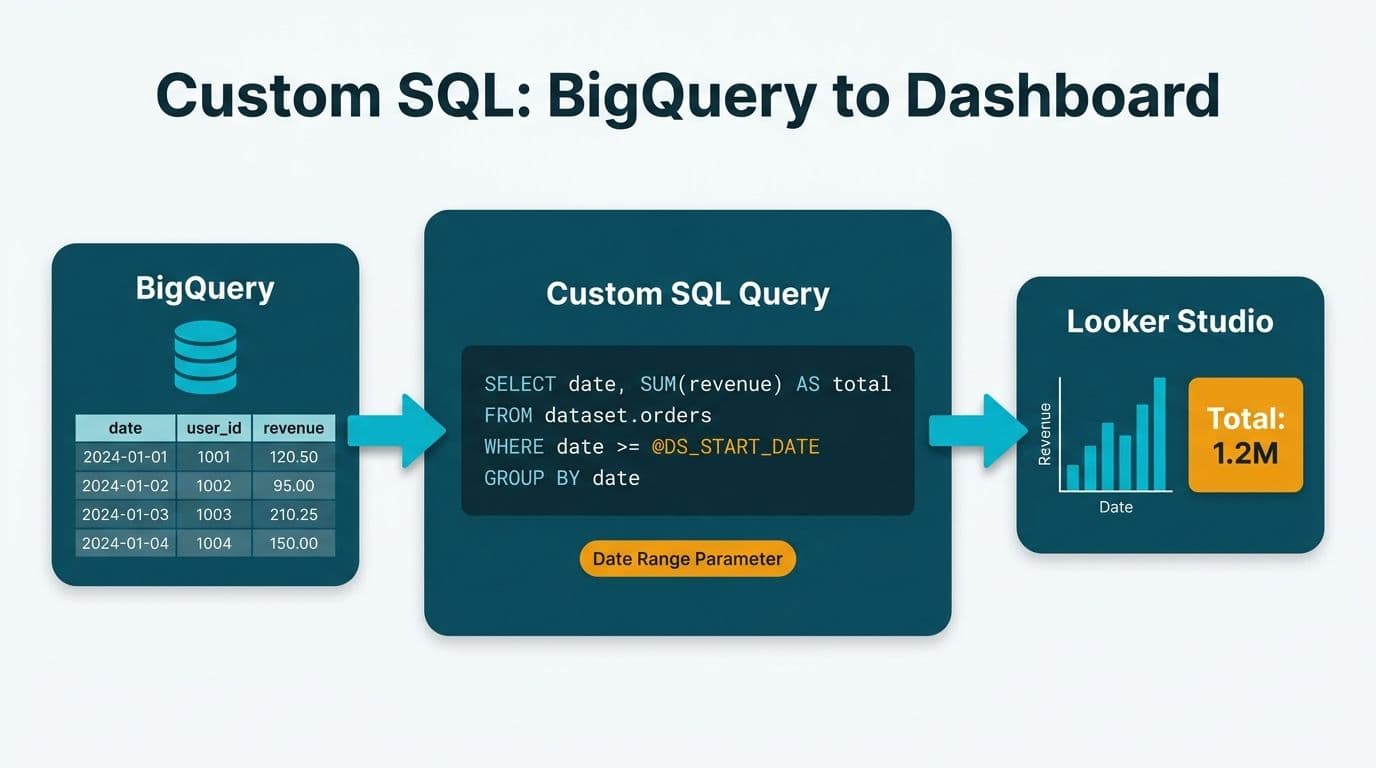
A Looker Studio custom SQL query connects directly to BigQuery, letting you bypass the visual query builder and write precise SQL that returns exactly the dataset your dashboard needs. To set one up, add a BigQuery data source, select Custom Query, enter your SQL, and optionally enable date range parameters for dynamic filtering. This gives data teams full control over joins, window functions, and cost-limiting clauses before the data ever reaches a chart.
Key Takeaways
A custom SQL query in Looker Studio lets you write standard BigQuery SQL instead of relying on the point-and-click connector, enabling joins across multiple tables, CTE logic, and partitioned scans.
You can reduce BigQuery costs significantly by filtering on partition columns and enabling the built-in date range parameters (`@DS_START_DATE` and `@DS_END_DATE`).
Healthcare and finance schemas need compliance review: HIPAA in the US and PIPEDA in Canada require PHI and PII to be masked or aggregated at the SQL layer before reaching any shared dashboard.
Data refresh is not automatic for custom queries - configure a scheduled refresh or use a BigQuery materialized view to control when scans run.
When query logic grows complex or is shared across multiple reports, promote it to a BigQuery view and connect Looker Studio to that view via the standard connector.
What Is a Custom SQL Query in Looker Studio, and Why Use BigQuery?
Looker Studio's custom SQL data source lets you write a raw BigQuery SQL statement as the basis for a report, rather than pointing the connector at a single table. This is the right choice when your data spans more than one table, requires aggregation the visual builder cannot express, or needs compliance-driven filtering before any record reaches a chart.
BigQuery is the natural pairing because it is Google Cloud's serverless analytical warehouse - and Looker Studio connects to it natively with no ODBC driver, no gateway, and no middleware. For mid-market healthcare or finance organisations running Google Workspace, the pipeline from Cloud Storage through BigQuery to Looker Studio sits entirely within the Google ecosystem, simplifying governance, audit logging, and billing allocation.
As of 2026, the BigQuery–Looker Studio stack has become the default starting point for net-new BI projects in Google Cloud environments, with organisations citing zero-infrastructure setup and native IAM governance as the two primary reasons for choosing it over third-party warehouse and BI combinations.
For organisations building or modernising this architecture, our Certified Looker Studio consulting practice works with teams across the US, UK, and Canada to design custom SQL data source layers that balance analytical power with compliance and cost control.
How Do You Set Up a Looker Studio Custom SQL Query with BigQuery?
Setup takes under five minutes once your BigQuery permissions are in order. The steps are identical whether you are a US SaaS finance team, a UK fintech firm, or a Canadian healthcare operator.
Step 1 - Add a data source. In Looker Studio, click Add data, select BigQuery, then choose Custom Query from the left panel.
Step 2 - Select your billing project. Looker Studio charges the Google Cloud project you select here. Confirm this with your finance team before going live - every viewer-triggered refresh generates charges against it.
Step 3 - Write your SQL. Enter standard BigQuery SQL (GoogleSQL dialect). You can reference any dataset and table your service account has permission to read.
Step 4 - Enable date range parameters. Check Enable date range parameters below the editor. This injects `@DS_START_DATE` and `@DS_END_DATE` variables that Looker Studio populates from the report's date range control, preventing full-table scans on every dashboard load.
Step 5 - Set a refresh schedule. Custom SQL queries do not cache by default. Under Data freshness, set an interval (minimum 15 minutes). For high-traffic dashboards, a BigQuery BI Engine reservation serves pre-cached results at sub-second latency.
Step 6 - Click Connect. Looker Studio runs a dry run to validate the SQL and returns the inferred schema. Review field types and rename any columns arriving with opaque aliases.
A note for organisations subject to GDPR (UK and EU) or PIPEDA (Canada): the moment the schema appears, verify that no personal identifiers - names, email addresses, or patient IDs - are visible in the returned fields. Masking or hashing must happen in the SQL itself, not in a Looker Studio calculated field, because the raw value would otherwise transit the API response even if it never renders in a chart.
Worked Examples: Custom BigQuery SQL for Healthcare and Finance Schemas
According to MedInsight (2026), value-based care analytics, AI-driven operational reporting, and payer analytics innovation remain the three dominant drivers of new BI deployments in US and Canadian healthcare networks - with AI-assisted query generation now accelerating adoption among smaller clinical teams that previously lacked dedicated data engineering capacity. All three use cases require aggregated, compliance-filtered SQL queries like those below.
Example 1 - US Healthcare: Claims Summary by Department
A US hospital network storing encounter records in a partitioned BigQuery table needs a HIPAA-compliant dashboard that aggregates before exposing any data. No single row should represent an individual patient.
```sql
SELECT
DATE_TRUNC(encounter_date, MONTH) AS month,
department_name,
payer_type,
COUNT(claim_id) AS total_claims,
SUM(billed_amount) AS total_billed,
SUM(paid_amount) AS total_paid,
SAFE_DIVIDE(
SUM(paid_amount),
SUM(billed_amount)) AS collection_rate
FROM `project.claims.encounter_fact`
WHERE encounter_date
BETWEEN @DS_START_DATE AND @DS_END_DATE
AND encounter_date >= '2023-01-01'
GROUP BY 1, 2, 3
```
`DATE_TRUNC` ensures no row represents a single encounter. The hardcoded partition filter limits scanned bytes even when a viewer selects a wide date range from the report controls.
Example 2 - Canadian Finance: FX-Adjusted Revenue by Region
A Canadian SaaS company reporting in CAD joins a revenue table to a daily FX rates table. Under PIPEDA, account-level ARR must be aggregated before surfacing in a shared finance dashboard.
```sql
WITH fx AS (
SELECT date, usd_to_cad
FROM `project.finance.fx_rates`
WHERE currency_pair = 'USD/CAD'
),
revenue AS (
SELECT
DATE_TRUNC(close_date, MONTH) AS month,
region,
SUM(arr_usd) AS arr_usd
FROM `project.finance.opportunities`
WHERE close_date
BETWEEN @DS_START_DATE AND @DS_END_DATE
AND stage = 'Closed Won'
GROUP BY 1, 2
)
SELECT
r.month,
r.region,
r.arr_usd,
r.arr_usd * f.usd_to_cad AS arr_cad
FROM revenue r
JOIN fx f
ON r.month = DATE_TRUNC(f.date, MONTH)
ORDER BY r.month DESC
```
Example 3 - UK Fintech: GDPR-Safe Cohort Retention Analysis
A UK fintech firm running cohort retention analysis must not expose individual transaction records under GDPR Article 25 (data minimisation by design). The query returns only cohort-level statistics.
```sql
SELECT
DATE_TRUNC(first_tx_date, MONTH) AS cohort_month,
DATE_DIFF(
tx_date, first_tx_date, MONTH) AS months_since_first,
COUNT(DISTINCT hashed_user_id) AS retained_users
FROM `project.transactions.user_cohorts`
WHERE tx_date BETWEEN @DS_START_DATE AND @DS_END_DATE
GROUP BY 1, 2
HAVING COUNT(DISTINCT hashed_user_id) > 5
ORDER BY 1, 2
```
`hashed_user_id` is a SHA-256 of the real user identifier, hashed upstream in the BigQuery transform pipeline. The `HAVING` clause suppresses thin cohorts with fewer than five users - a pseudonymisation technique recommended by the UK Information Commissioner's Office to prevent re-identification.
For a broader view of data governance obligations in regulated sectors, our guide to AI analytics data privacy risks in healthcare covers the full audit checklist.
How Do You Schedule and Refresh a Looker Studio Custom SQL Query?
Looker Studio does not natively schedule a query to run at a fixed clock time. Freshness works through three mechanisms, each with a different cost and latency profile.
Viewer-triggered refresh. Every time a viewer opens the report or clicks Refresh, Looker Studio re-executes the SQL against BigQuery. Simple to set up, but at scale this generates charges proportional to your audience size.
Data source refresh schedule. In the data source editor, set a cadence from 15 minutes to 12 hours. Looker Studio caches the result and serves it to all viewers between cycles - dramatically reducing per-viewer costs for busy dashboards.
BigQuery materialized views. Write your custom SQL as a BigQuery materialized view, then connect Looker Studio to that view using the standard connector. BigQuery refreshes the view on its own schedule and Looker Studio reads the pre-computed result at near-zero scan cost.
| Approach | Typical cost | Freshness | Best for |
|---|---|---|---|
| Viewer-triggered custom query | High - per-user scan | Real-time | Fewer than 5 daily viewers |
| Scheduled refresh (cached) | Medium - periodic scan | 15 min to 12 h | 5 to 50 daily viewers |
| BigQuery materialized view | Low - incremental refresh | 5 min to 24 h | 50+ viewers or large tables |
| BigQuery BI Engine + custom query | Low - in-memory cache | Real-time against cache | Finance and healthcare dashboards needing sub-second loads |
Teams familiar with the import-versus-live-connection trade-off in other BI tools will recognise this pattern. Our Power BI Import vs DirectQuery decision guide explores the parallel concepts if your organisation uses multiple BI platforms alongside Looker Studio.
How Do You Control BigQuery Query Costs in a Looker Studio Custom SQL Data Source?
Runaway query costs are the most common complaint from teams that adopt custom SQL data sources without guardrails. Every viewer who opens a report can trigger a full BigQuery table scan if partition filters and refresh schedules are not in place.
Five cost controls that belong in every production custom query:
1. Partition filters on every date column. BigQuery only charges for partitions scanned. Always include `WHERE partition_column BETWEEN @DS_START_DATE AND @DS_END_DATE` so the date picker prunes the scan automatically.
2. Explicit column projection. `SELECT *` on a wide table scans every column. Name columns explicitly and BigQuery reads only those bytes.
3. Cluster key filters. If the table is clustered on `region` or `department`, include that column in the WHERE clause. BigQuery skips non-matching block groups entirely.
4. Per-user daily quotas. In the BigQuery console under IAM, set a custom quota per user per day (bytes scanned). This caps what any single Looker Studio viewer can trigger in 24 hours.
5. Maximum bytes billed at the connector level. The BigQuery connector exposes a Maximum bytes billed field. Set it to a value your finance team approves - queries exceeding the cap fail safely rather than running silently.
Teams that add partition filters and switch from viewer-triggered to a scheduled refresh consistently reduce BigQuery dashboard spend by 60–80% in typical mid-market deployments — often without any SQL logic changes.
When Should You Use Custom SQL vs. a Standard BigQuery Table or View?
Not every Looker Studio connection needs custom SQL. The right approach depends on data model complexity and compliance requirements.
| Scenario | Recommended approach |
|---|---|
| Single clean table, no joins needed | Standard BigQuery connector (table or view) |
| Multi-table join or CTE logic | Custom SQL query |
| Aggregation required for HIPAA or GDPR compliance | Custom SQL query - aggregate at the source |
| Complex logic shared across multiple reports | BigQuery view, then standard connector |
| Near-real-time data, latency under 5 minutes | BigQuery materialized view plus standard connector |
| Row-level security per dashboard viewer | Custom SQL with SESSION_USER() or query parameters |
A practical rule: if the same SQL will underpin more than one report, promote it to a BigQuery view. Single-report logic is fine as a custom query. Row-level security always requires custom SQL - with careful parameter sanitisation to prevent injection through viewer-controlled inputs.
For organisations benchmarking total cost of ownership across BI platforms, our Looker vs Power BI cost comparison at 50 to 500 seats includes BigQuery compute alongside platform licensing. For data model patterns that translate well into Looker Studio, our healthcare KPI dashboard examples by department shows how those schemas become production reports.
Pre-Launch Checklist for a Production Custom SQL Data Source
Before a custom SQL data source goes live against production data, verify each of the following:
[ ] Partition filter on every partitioned column in the WHERE clause
[ ] No `SELECT *` - explicit column list only
[ ] PHI, PII, or commercially sensitive fields masked, hashed, or excluded at the query layer
[ ] `@DS_START_DATE` and `@DS_END_DATE` parameters enabled in the data source settings
[ ] Refresh schedule configured - not viewer-triggered for dashboards with more than five concurrent users
[ ] Maximum bytes billed value set in the BigQuery connector
[ ] Service account scoped to `roles/bigquery.dataViewer` on the specific dataset, not project-wide
[ ] SQL validated with a BigQuery dry run before connecting to Looker Studio
---
About Lets Viz: Lets Viz has delivered data analytics and BI solutions since 2020, serving US healthcare systems, UK fintech firms, Canadian manufacturing companies, and global SaaS organisations. The practice holds a 5.0 Clutch rating and specialises in Google ecosystem deployments - from BigQuery schema design to production Looker Studio dashboards - alongside enterprise BI migrations and platform modernisation.
Ready to move from ad hoc BigQuery queries to a governed, cost-controlled analytics layer? Our Certified Looker Studio consulting team designs custom SQL data source architectures that balance analytical power with compliance requirements and cloud cost control.