How to Use Copilot in Word: A 7-Step Guide for Teams
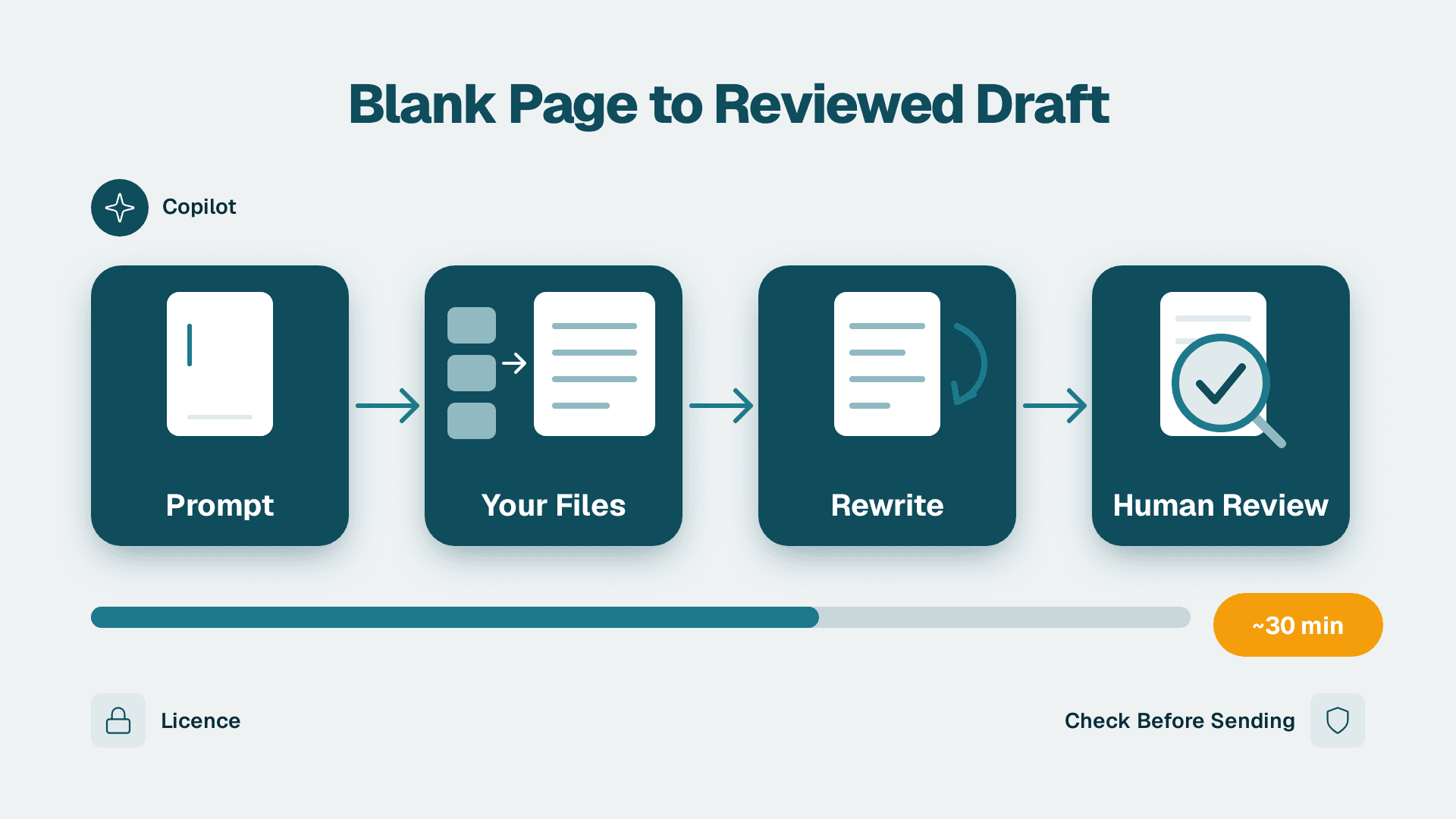
You can go from a blank page to a reviewed, usable first draft in Word with Copilot in about 30 minutes, including checking your licence and testing on one real document. This guide covers opening Copilot, drafting from a prompt, grounding it in your own files, rewriting, summarizing, and checking the result before anything is sent.
What You'll Need
- A Microsoft 365 Copilot licence assigned to your user account. The add-on is separate from the base Microsoft 365 plan. Ask your admin to confirm it under the Microsoft 365 admin center, in Billing > Licenses.
- A supported Word app. Word for Windows, Word for Mac or Word for the web, signed in with your work or school account (not a personal account).
- Files saved in OneDrive or SharePoint if you want Copilot to draw on them. Copilot can only reference what you already have permission to open.
- AutoSave on for the document you are testing, so Copilot features that depend on cloud storage are available.
- One real, low-risk document to practise on, such as an internal memo, a meeting follow-up or a draft policy. Do not start with a contract or a board paper.
- An owner for review. Someone who will read every Copilot output before it leaves the building. Copilot drafts; your people are accountable.
Feature availability and menu labels change between app versions. Microsoft's 2026 Copilot in Word documentation is the authority on what your build supports, so check it if a button described here looks different on your screen.
Step 1: Confirm Copilot Is Enabled in Word
Before you write a single prompt, make sure the licence and the app agree.
1. Open Word and sign in with your work account. Check the top-right corner for your profile picture or initials.
2. Open a new blank document, or an existing one saved in OneDrive or SharePoint.
3. Click the Home tab and look at the far right of the ribbon for the Copilot button.
4. Click Copilot.
What you should see: a Copilot pane opens on the right side of the window with a message box at the bottom. In a blank document you may also see a small Copilot icon in the left margin, next to the empty line, inviting you to draft with Copilot.
If you do not see the button, go to File > Account and confirm the account shown is your licensed work account. Then check File > Account > Update Options to make sure Word is on a current channel. Section on Troubleshooting below covers the other common causes.
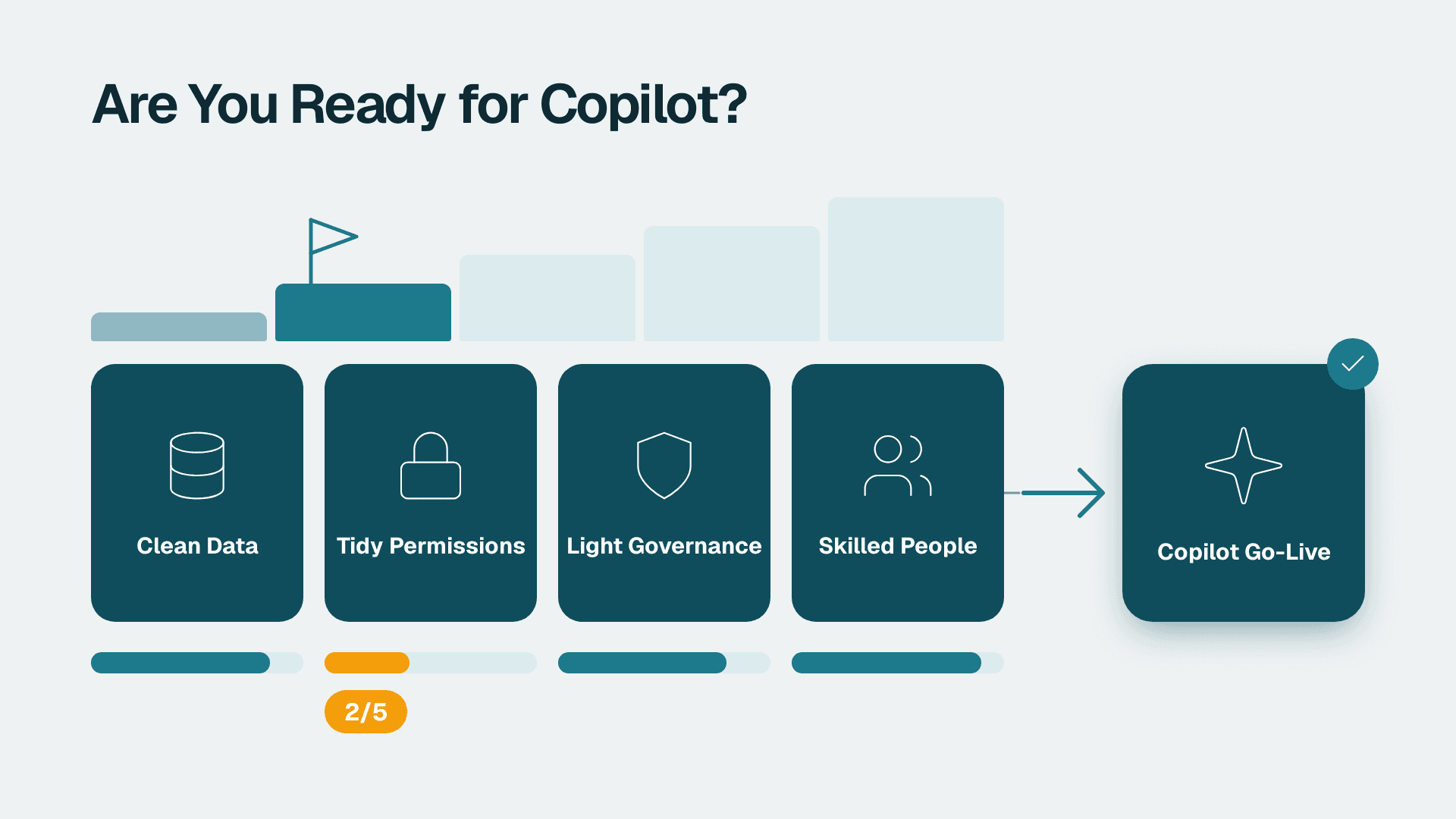
For an organisation-wide rollout, do the wider checks first. The Power BI Copilot readiness checklist is written for Power BI, but its conditions on data access, permissions and ownership apply equally to Word, because Copilot respects the same permission model.
Step 2: Draft a First Version From a Prompt
The fastest win in Word is getting past the blank page.
1. In a blank document, click the Copilot icon in the left margin, or use the Copilot button on the Home tab and choose the draft option.
2. In the prompt box, type a specific request. A good prompt names the document type, the audience, the purpose and the length. For example:
- `Draft a one-page internal memo to all staff announcing that our expense approval limit is changing from the first of next month. Tone: clear and friendly. Include what changes, who is affected and who to contact.`
3. Press Enter or click Generate.
What you should see: Copilot writes a draft directly in the document, usually with a control bar beneath it offering Keep it, Discard (the bin icon), Regenerate and a box to refine it.
Refine before you keep it
Use the refine box under the draft to adjust it without starting over. Good follow-ups are short and specific:
- `Make it shorter and remove the second paragraph.`
- `Change the tone to more formal.`
- `Add a short FAQ section at the end.`
When the draft is close enough to edit by hand, click Keep it. Nothing is final until you do.
Tip: Put facts in the prompt. If the approval limit is a specific amount, type the amount. Copilot does not know your internal figures unless you supply them or point it at a file, which is the next step.
Step 3: Ground Copilot in Your Own Files
A generic prompt gives a generic draft. Referencing a real document gives you something closer to your house style and facts.
1. In the draft prompt box, type a forward slash `/`.
2. A list of your recent files appears. Choose a relevant one, for example an existing policy, a proposal or meeting notes.
3. Finish the prompt around the reference:
- `Draft a client-ready summary of the project status using /Q3 project notes. Keep it to three short sections: progress, risks, next steps.`
4. Generate the draft.
What you should see: the referenced file appears as a chip in the prompt, and the draft draws on content from it. Copilot typically shows references or citations you can expand to see where content came from.
Two rules keep this step safe:
- Copilot can only use files you already have access to. If a colleague cannot open the file, Copilot will not help them read it either. That is a feature, but it also means messy SharePoint permissions get exposed fast. Fix oversharing before you roll out, not after.
- Always open the source and compare a few specifics. Copilot can blend or misstate details.
Step 4: Rewrite and Reshape Existing Text
Most of the daily value is editing, not drafting from nothing.
1. Select a paragraph in your document by clicking and dragging.
2. A small Copilot icon appears beside the selection. Click it.
3. Choose Rewrite (or Auto Rewrite, depending on your version) to see alternative versions.
4. Use the arrows to cycle through the options, then click Replace to swap one in, or Insert below to keep your original and add the new version underneath.
What you should see: the selected text is either replaced or joined by a new version, and you can undo with Ctrl+Z if you do not like it.
Other quick transformations
With text selected, the same menu lets you:
- Visualize as a table. Turns a list of items and attributes into a Word table. Check the column headings and every cell.
- Adjust tone. Ask in the pane: `Rewrite the selected text in a warmer, more direct tone.`
- Shorten. `Cut this to half the length without losing the deadline and owner.`
This is also where a good reviewer earns their keep. Shortening tends to drop qualifiers such as dates, conditions and exceptions. Read the result against the original.
Step 5: Summarize a Long Document and Ask Questions About It
For reports, contracts drafts and long email-turned-documents, Copilot can give you the gist in seconds.
1. Open the long document.
2. Click Copilot on the Home tab to open the pane.
3. Click a suggested prompt such as Summarize this doc, or type your own:
- `Summarize this document in five bullet points for a non-technical executive. List any deadlines and any decisions still needed.`
4. Press Enter.
What you should see: a summary appears in the pane, typically with numbered references. Click a reference and Word scrolls to the passage it came from.
Ask targeted questions
Use the same pane for questions that would otherwise mean scrolling and searching:
- `What does section 4 say about payment terms?`
- `Which action items are assigned to operations?`
- `Are there any inconsistencies between the introduction and the conclusion?`
Treat answers as pointers, not proof. Click the reference, read the original passage and confirm it says what Copilot claims. This matters most when the document feeds a finance or audit decision. The AI-generated reports audit questions for finance teams give a solid checklist for how to challenge any AI-produced summary before it is relied on.
Step 6: Use Copilot to Review and Improve the Document
Once you have a draft you are happy with, use Copilot as a first-pass reviewer.
1. With the document open, click Copilot on the Home tab.
2. Ask for a specific review rather than general feedback:
- `Review this document for clarity. List the five sentences that are hardest to understand and suggest a simpler version of each.`
- `Check whether the tone is consistent from start to finish and flag any shifts.`
- `List any claims in this document that need a source or a figure.`
3. Read the list in the pane, then fix items yourself in the document, or ask Copilot to apply a change to a named paragraph.
What you should see: a structured list in the pane that points to particular parts of the text. Changes are not applied to your document unless you choose to insert or replace.
Turn the output into a template
When a prompt works well, save it. Keep a shared page with your best prompts for proposals, status updates, policy drafts and meeting follow-ups, and note the file to reference and the review owner for each. Teams that share prompts get consistent results faster than teams where everyone experiments alone. The 10 CFO Power BI dashboard adoption mistakes article makes the same point about analytics tools: adoption follows shared habits and clear ownership, not licences alone.
Step 7: Check, Save and Share Responsibly
This step is what separates a useful tool from a liability.
1. Read the whole document once, top to bottom, as if someone else wrote it. Do not skim.
2. Verify every figure, date, name and commitment against its source.
3. Turn on Review > Track Changes if another person will approve the document, so edits from the Copilot draft onward are visible.
4. Remove any placeholder text Copilot left behind, such as bracketed names or `[insert date]`.
5. Check File > Info > Inspect Document if the file will leave the company, so hidden metadata and comments are removed.
6. Save to OneDrive or SharePoint in the correct folder and confirm the sharing settings before sending a link.
What you should see: a clean document, no leftover placeholders, with tracked changes visible to the approver.
For anything involving numbers, compare against the system of record. AI-written commentary about a report can sound confident while describing a figure incorrectly. If your documents summarise analytics output, consider how the AI role fits your team. Our view on that is in Will AI replace financial analysts?, and the short version is that review skills matter more, not less.
Common Mistakes
- Vague prompts. `Write a report about sales` produces filler. Name the audience, length, structure and source file, for example `Draft a half-page update for the leadership team using /July sales notes`.
- Keeping the first draft unread. Copilot can produce fluent text that contains wrong details. Fix: make reading the full output a rule, and have one named person approve anything external.
- Expecting Copilot to know company facts. It does not know your prices, policies or names unless they are in the prompt or a file it can access. Fix: type the facts in, or reference the source with `/`.
- Rolling out before cleaning up permissions. If a SharePoint site is shared too widely, Copilot can surface content to people who should not see it. Fix: review site and folder sharing before assigning licences to everyone.
- Using it for the wrong jobs first. Legal wording, regulated statements and final financial figures need human authorship. Fix: start with internal memos, summaries and first drafts, then widen use once staff have a feel for its errors.
Troubleshooting
- No Copilot button on the Home tab. The most likely cause is that the licence is not assigned to your account, or you are signed in with a personal account. Check File > Account, then ask your admin to confirm the licence in the Microsoft 365 admin center. An out-of-date Word build is the second cause; update and restart.
- The `/` file picker shows no files, or Copilot says it cannot find a document. The file is probably not stored in OneDrive or SharePoint, or you do not have permission to open it. Move or save the file in a cloud location and confirm you can open it normally.
- Copilot is greyed out or responses fail part way through. This is often a document issue, such as a file that is very large, protected, or opened in compatibility mode. Save a copy in the current format, try a smaller section, and check whether your organisation has restricted Copilot for this content through admin policies.
If you are still deciding whether your organisation is ready to roll Copilot out beyond Word, the same groundwork applies: clean permissions, named owners and clear review rules. Our Copilot readiness assessment (fixed price, 5 days) checks those foundations across Microsoft 365 before you commit more licences.
---
About Lets Viz: Lets Viz is a data analytics and Microsoft 365 consulting firm that has worked with SMB and mid-market organisations since 2020, across healthcare, finance, logistics, SaaS and professional services. We hold a 5.0 Clutch rating and help teams turn tools like Copilot and Power BI into habits that stick.