Zoho CRM Microsoft 365 Integration Guide 2026
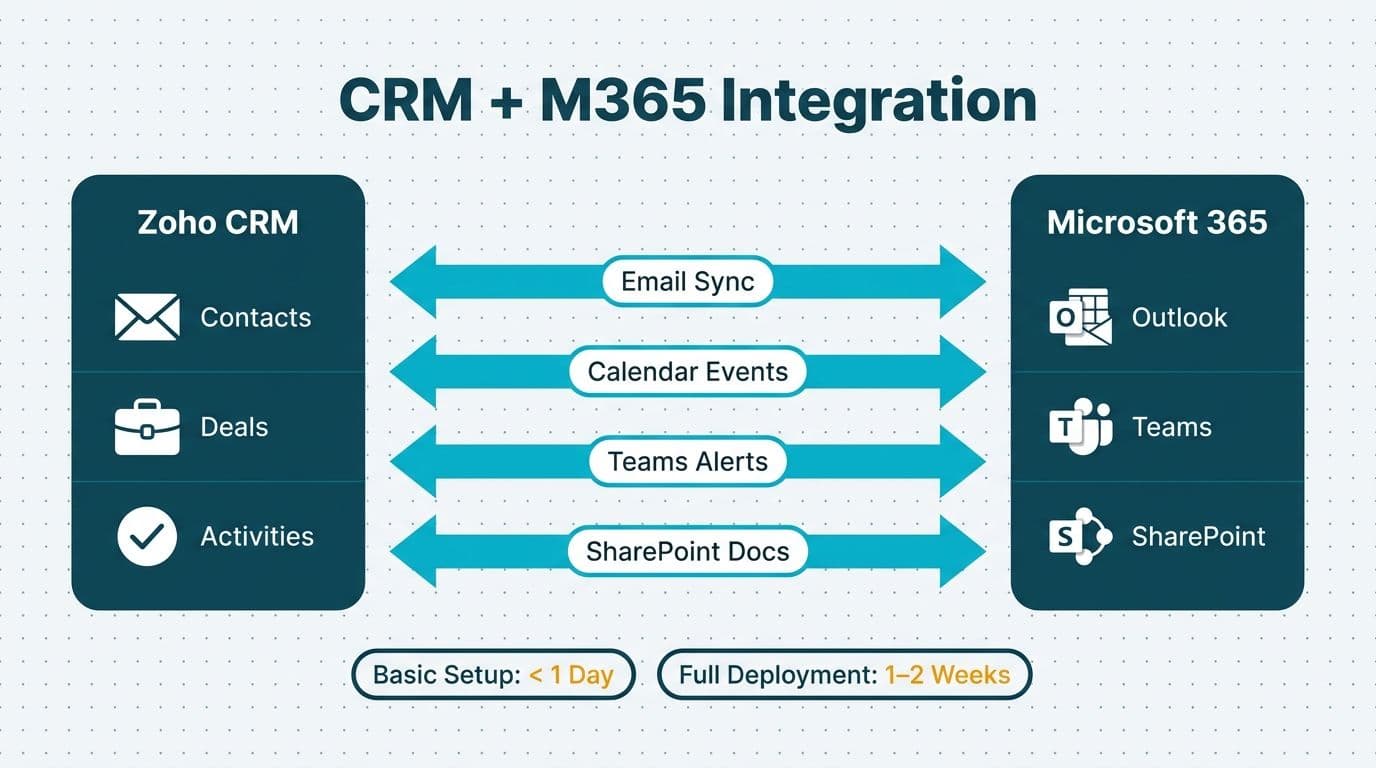
Zoho CRM integrates with Microsoft 365 through native add-ins, Zoho Flow, and Power Automate. The Outlook add-in syncs emails, contacts, and calendar events bidirectionally. Teams notifications and SharePoint document libraries connect via workflow bridges. A basic email-and-calendar sync takes under a day; a full Outlook-Teams-SharePoint deployment typically requires one to two weeks of configuration and testing.
Key Takeaways
- The Zoho CRM for Outlook add-in handles email and calendar sync for most Microsoft 365 plans without third-party middleware
- Teams and SharePoint connections require Zoho Flow or Power Automate and deliberate field mapping before go-live
- Roles and profiles in Zoho CRM must be locked down before connecting any Microsoft 365 surface to prevent permission conflicts
- HIPAA, GDPR, and PIPEDA each impose specific data residency and audit requirements that must be addressed in both platforms before the integration goes live
- Mid-market organizations with clean data typically complete a full Microsoft 365 integration in three to four weeks; poor data quality is the most common cause of delays
What Does a Zoho CRM Microsoft 365 Integration Actually Cover?
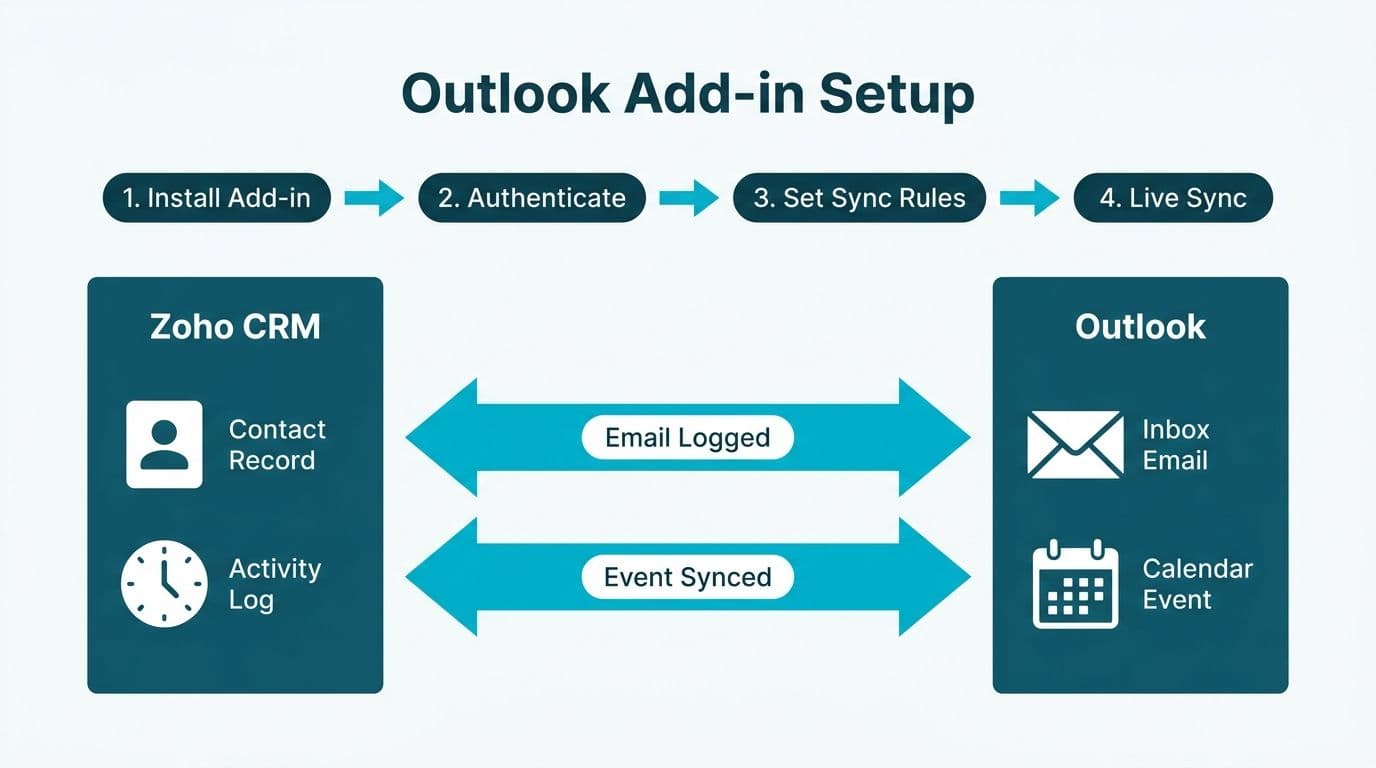
A complete integration bridges four surfaces: email (Outlook), calendar (Exchange/Outlook), team collaboration (Teams), and document management (SharePoint). Most organizations start with Outlook because it ships a native add-in and requires no middleware. Teams and SharePoint integrations are thinner out of the box - Zoho CRM has no native Teams app, so you route CRM signals through Zoho Flow or Microsoft Power Automate.
For a US healthcare practice managing patient referrals or a UK fintech firm running deal pipelines inside Teams, this distinction matters in practice. Zoho CRM becomes the system of record; Microsoft 365 becomes the surface where your team acts on CRM signals. Organizations evaluating whether Zoho is the right fit for their Microsoft-first environment often start with Zoho CRM consulting to map the architecture before any connector is installed.
| M365 Component | Integration Method | Key Capabilities | Relative Setup Effort |
|---|---|---|---|
| Outlook (email) | Zoho CRM for Outlook add-in | Email sync, contact creation, call logging | Low - under 4 hours |
| Exchange Calendar | Built-in CRM calendar sync | Meetings, tasks, appointment sync | Low - under 2 hours |
| Microsoft Teams | Zoho Flow or Power Automate | Deal stage alerts, pipeline notifications | Medium - 1 to 3 days |
| SharePoint | Power Automate + CRM webhooks | Document library mapping, proposal storage | Medium-High - 2 to 5 days |
How Do You Set Up the Zoho CRM Microsoft 365 Integration?
The Zoho CRM Microsoft 365 integration setup begins in Zoho Marketplace or Microsoft AppSource. You need both a Zoho CRM admin role and a Microsoft 365 tenant admin to authorize the add-in on your organization's tenant.
The configuration sequence for Outlook:
1. In Zoho CRM, navigate to Setup > Email > Email Configuration and select Microsoft 365 as the provider
2. Authorize the OAuth connection using your Microsoft 365 admin credentials
3. Enable SalesInbox or basic email association depending on your Zoho CRM edition - SalesInbox requires Professional tier or above
4. Install the Zoho CRM for Outlook add-in from Microsoft AppSource for each user, or push it via centralized deployment in the Microsoft 365 admin center for organization-wide rollout
5. Configure email association rules - decide whether emails auto-associate by matching the contact's email address or require manual tagging by the rep
6. Set up calendar sync under Zoho CRM Setup > Calendar > Microsoft Calendar Sync, choosing bidirectional or one-way depending on which system will serve as the master calendar
A field-mapping issue trips up most rollouts: Zoho CRM's email sync reads from the standard Email field, not from custom fields. If contacts were imported with addresses stored in a custom field - common after migrations from spreadsheets or other CRM platforms - the sync silently skips those contacts. We encountered this with a client whose supplier mass-email campaign kept reporting "No emails have been sent." The root cause: 281 of their 358 contacts had addresses stored in a custom `Primary_Email` field rather than the standard Email field. Backfilling the standard field moved coverage from 77 to 283 of 358 contacts; the resend then delivered all 206 of 206 queued messages. Audit your field mapping before running any Microsoft 365 email sync at scale.
For Zoho CRM roles and profiles setup, complete this configuration before enabling the Outlook add-in organization-wide. Profiles control which users can view, edit, or delete the records the add-in creates or updates. A mismatch between CRM profiles and who has the add-in installed causes records to appear read-only in Outlook or creates duplicates when two users both attempt to log the same email to the same contact.
How Do You Connect Zoho CRM to Microsoft Teams and SharePoint?
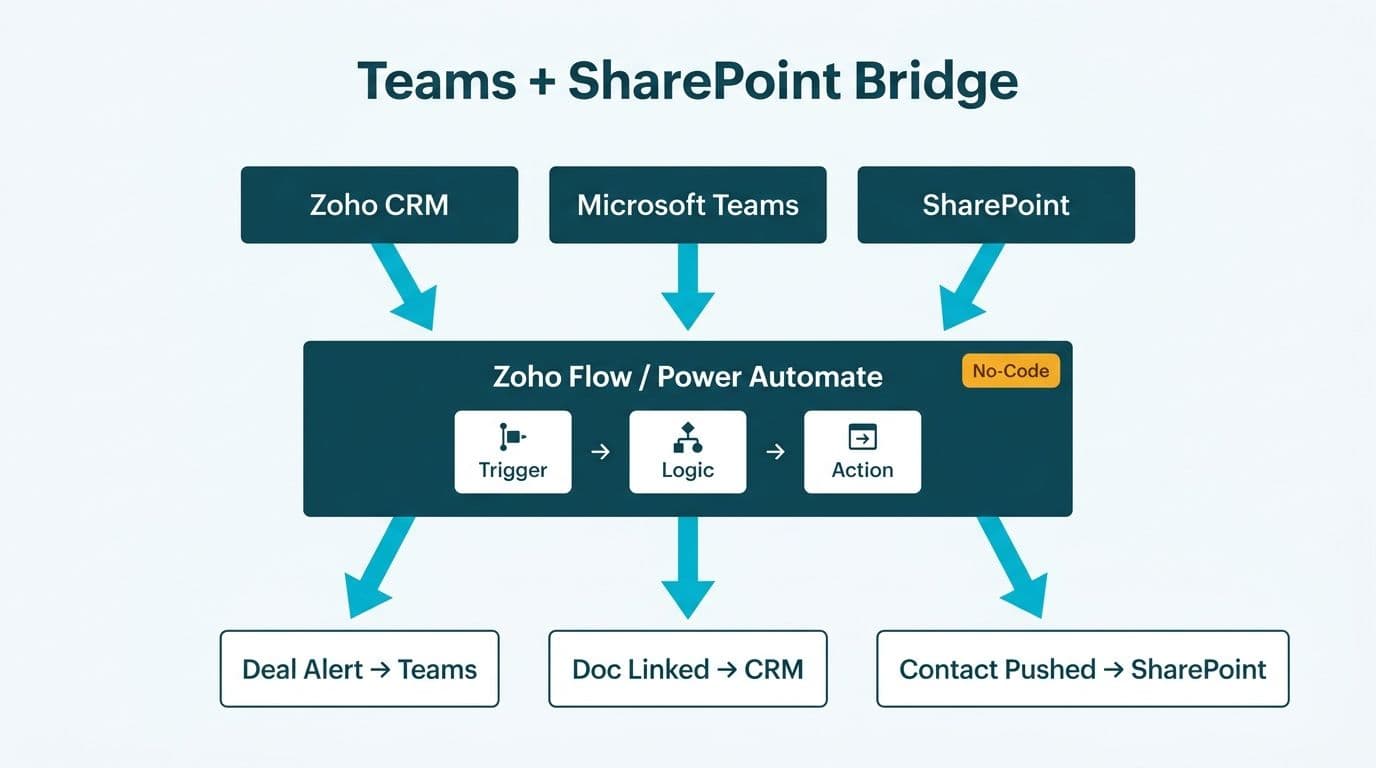
Teams integration relies on outbound webhooks or Power Automate flows. The practical approach for most mid-market organizations:
Teams Channel Notifications
In Power Automate, build a flow triggered by Zoho CRM webhooks configured via Automation > Workflow Rules. Map deal stage changes, new leads above a revenue threshold, or overdue tasks to a specific Teams channel. Use the "Post adaptive card" action in Power Automate to send structured deal data - account name, deal value, stage, and owner - rather than plain-text alerts that teams frequently ignore.
SharePoint Document Libraries
Create a Power Automate flow that triggers when a Zoho CRM deal advances to a defined stage, such as "Proposal Sent" or "Contract Review." Have the flow create a named folder in a designated SharePoint document library. Attach proposals, contracts, and compliance sign-offs to that folder, then write the SharePoint folder URL back to a custom field in the Zoho CRM deal record so reps can navigate directly from the CRM without hunting through SharePoint.
A Canadian manufacturing company running PIPEDA-compliant procurement workflows would typically configure SharePoint as the document store and Zoho CRM as the contract lifecycle tracker, with Power Automate synchronizing status between them. This keeps contract documents in the Microsoft environment while CRM deal data stays in Zoho. For guidance on how Zoho handles audit-trail configuration in compliance-sensitive environments, Zoho Analytics for Healthcare Compliance Reporting covers the patterns that transfer directly to this architecture.
What Compliance Settings Do Healthcare and Finance Organizations Need Before Go-Live?
Regulatory requirements differ by market and industry. Address them in Zoho CRM configuration before enabling any Microsoft 365 sync.
US Healthcare (HIPAA)
Zoho CRM offers a HIPAA-compliant configuration under Enterprise and Ultimate tiers. Enable audit logs, restrict field-level access using profiles so that PHI fields are visible only to authorized clinical staff, and sign a Business Associate Agreement (BAA) with Zoho. Microsoft 365 also requires a BAA for eligible plans - Microsoft publishes its HIPAA documentation and BAA terms in its online services compliance center. Do not enable automatic email association via SalesInbox until you have confirmed that patient-identifiable information in emails is excluded from Zoho's email search index. For a complete breakdown of Zoho CRM configuration for healthcare environments, Zoho CRM for Healthcare Practices covers the field-level access controls in detail.
UK and EU (GDPR)
Zoho operates EU data centers. Confirm your Zoho tenant is assigned to the EU region in Zoho's data residency settings before enabling any cross-platform sync. The Outlook add-in logs emails into Zoho's environment, which means GDPR lawful basis for processing must be documented for each contact category before the integration goes live. Zoho's data processing addendum (DPA), updated in 2025, covers standard contractual clauses for EEA data transfers.
Canada (PIPEDA and Provincial Privacy Law)
Canadian organizations should confirm that neither Zoho's servers nor Microsoft 365's data routing sends Canadian contact data through US infrastructure without explicit consent. Both Zoho and Microsoft offer Canadian data residency options on eligible plans. Verify data residency terms contractually before any configuration work begins, not after.
For finance organizations across all three markets subject to SOC 2 Type II audits, enable field history tracking on all deal-value, pipeline-stage, and record-owner fields from day one. Reconstructing a deal timeline during a regulatory review is significantly easier when Zoho's built-in audit trail has been active since the first record was created.
How Long Does a Zoho CRM Microsoft 365 Integration Take to Deploy?
The Zoho CRM implementation timeline for a Microsoft 365 integration depends almost entirely on data quality and organizational readiness, not technical complexity. The connectors install in hours. The time goes into data cleanup, field mapping decisions, and getting the right stakeholders aligned on workflow design.
A realistic phased timeline for a 50-to-250 seat mid-market organization:
- Week 1: Admin setup, OAuth authorization, Zoho CRM roles and profiles configuration, Outlook add-in deployed to a pilot group of 10-15 users
- Week 2: Email and calendar sync validation, field mapping corrections - this is where most deployments stall - and pilot user feedback collected
- Week 3: Teams workflow build and testing, SharePoint library structure agreed on and created, compliance settings verified with legal or IT security
- Week 4: Full organization rollout, user adoption training, SharePoint document sync live
Organizations with clean, deduplicated CRM data and a dedicated Microsoft 365 admin available full-time often compress this to two to three weeks. Organizations migrating contact data from a previous CRM without field-mapping documentation routinely need six to eight weeks. Which Zoho CRM tier you are on also affects scope - SalesInbox is not available on the Standard plan - so review Zoho CRM pricing plans compared before finalizing your feature requirements.
A UK fintech firm with 120 sales staff and existing Teams governance policies will typically extend the Teams workflow phase to two or three weeks because channel governance and message-retention policies need IT security sign-off before Zoho webhook data can flow into any regulated channel. Build that approval cycle into your project timeline from the start.
Zoho CRM Workflow Rules vs Blueprint Automation for a Microsoft 365 Stack
Zoho CRM workflow rules execute simple if-then actions: when a field changes, fire a webhook, update a field, or trigger a Zoho Flow. They are stateless - the rule fires and the process moves on regardless of whether downstream steps completed successfully.
Blueprint automation enforces a structured stage-transition process where specific actions must be completed before a deal can advance. For a Microsoft 365 integration, blueprints are the right choice when you need Teams notifications or SharePoint folder creation to be mandatory steps in a deal process rather than optional automations that can be skipped.
The practical division for most Microsoft-first organizations:
- Use workflow rules for Teams channel pings on new lead assignment, for automatic population of SharePoint folder links into deal records, and for lightweight field updates triggered by Outlook email activity
- Use blueprints when compliance requires documented proof that a contract was uploaded to SharePoint before a deal advances to "Signed" - blueprints capture who approved each stage transition and when, a record workflow rules do not produce
US finance organizations subject to SOC 2 Type II audits benefit specifically from blueprints because the audit trail they generate satisfies process-documentation requirements for client-facing deal workflows without manual record-keeping overhead.
What Is the Total Cost of Ownership for Mid-Market Zoho CRM with Microsoft 365?
Zoho CRM total cost of ownership for mid-market organizations integrating with Microsoft 365 has three layers: licensing, integration tooling, and implementation services.
| Cost Layer | Typical Range for a 50-Seat Team | Notes |
|---|---|---|
| Zoho CRM licensing | $700-$3,300/month (approx.) | Standard to Ultimate; verify current pricing at Zoho's pricing page |
| Microsoft 365 licensing | Existing cost - no add-on required | Business Premium or E3 recommended for centralized add-in deployment |
| Power Automate flows | $0-$150/month | Per-user plan needed if flows exceed the seeded monthly run limit |
| Implementation (partner-led) | $8,000-$25,000 one-time | Scope-dependent; includes data migration, field mapping, training |
| Ongoing administration | 0.25-0.5 FTE internal | Typically decreases after six months once workflows stabilize |
The Zoho CRM partner vs in-house implementation decision for most mid-market teams comes down to whether you have a dedicated CRM admin who also knows Power Automate. If you do, an in-house build is viable for straightforward Outlook and calendar sync. If your IT team is shared across multiple systems and the project carries a compliance deadline, a Zoho partner reduces timeline risk and brings access to Zoho's escalation channels when OAuth errors or sync failures require platform-level diagnosis - issues that general IT support cannot resolve.
For organizations considering the broader Zoho suite alongside CRM, What Is Zoho CRM Plus? covers the bundle economics that often make the Teams and SharePoint integration effort more cost-effective when spread across the full Zoho stack.
How Do You Drive User Adoption in a Microsoft-First Organization?
Zoho CRM user adoption best practices for Microsoft-first organizations center on one guiding principle: keep users inside Microsoft surfaces for as long as possible during the transition.
The Outlook add-in is the single highest-leverage adoption tool available. When a sales rep can log calls, create contacts, and view deal history from inside Outlook without switching to a browser tab, resistance drops sharply. Deploy the add-in to your pilot group before any formal training sessions and let users discover the sync behavior through normal daily activity. Reps who discover the feature themselves trust it more than reps who are told about it in a training room.
For Teams users, configure deal-stage notifications to channels people already monitor daily. A pipeline alert surfacing in the same Teams channel where an account team discusses the customer gets read; a notification sent only to Zoho's in-app notification feed does not.
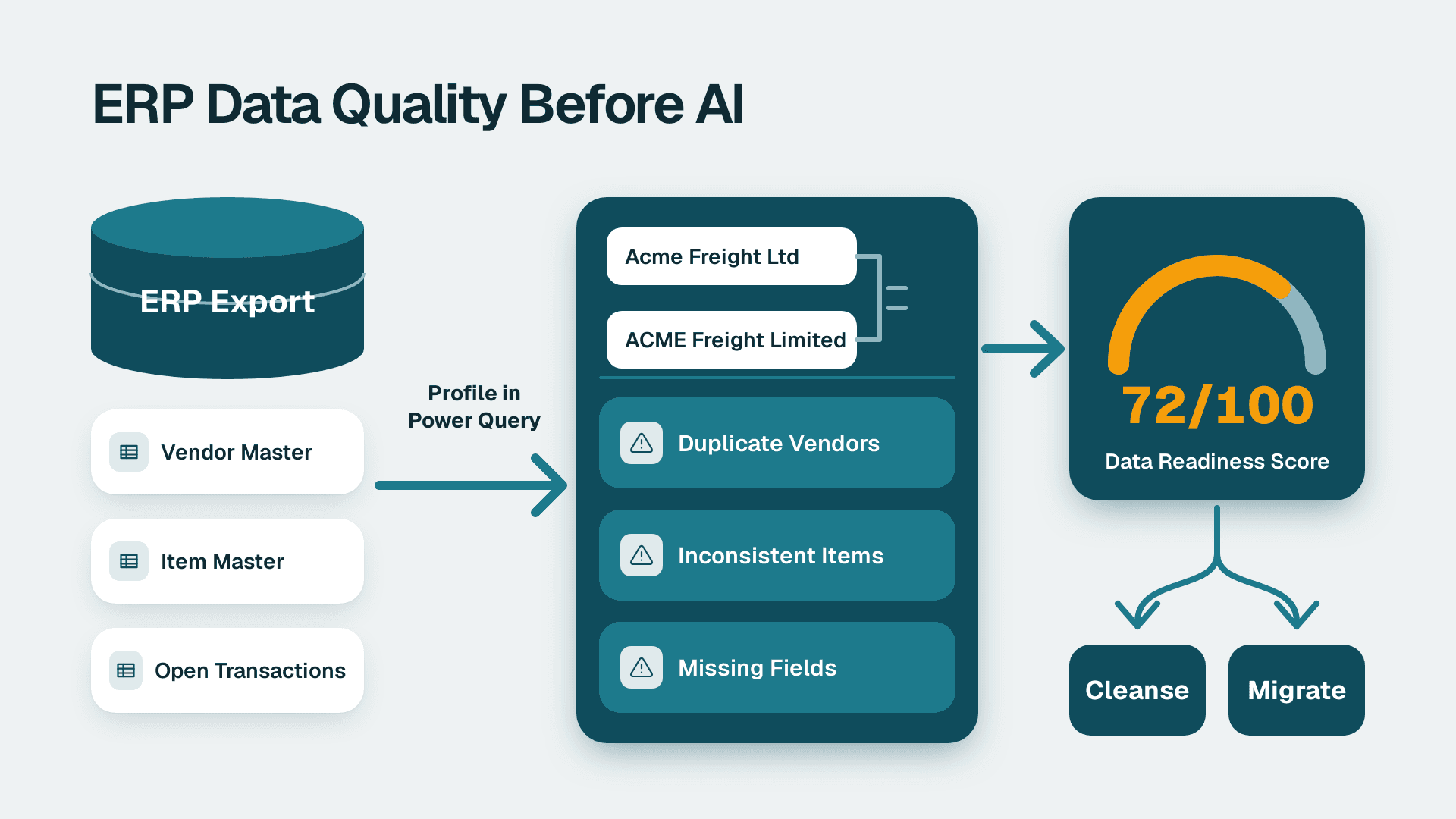
Adoption problems that look like technology failures are almost always data quality failures. If a rep opens a contact from Outlook and sees outdated or missing information - wrong phone number, blank company name, empty deal stage - they stop trusting the integration within days and revert to spreadsheets. Resolve duplicate records, missing required fields, and incorrect email addresses before the full rollout, not after complaints start arriving.
A US healthcare organization rolling out Zoho CRM for a referral management team faces an additional adoption challenge: staff trained on EMR-native workflows need to see an immediate advantage in the CRM view before they log activity there consistently. Designing the Outlook add-in to surface referral status and next follow-up dates in the reading pane - without requiring a tab switch - is typically the deciding factor in whether adoption takes hold in the first 30 days.
---
About Lets Viz: Lets Viz is a data analytics and CRM consulting firm serving US healthcare, UK fintech, Canadian manufacturing, and global SaaS organizations since 2020. The team holds a 5.0 rating on Clutch and specializes in Zoho implementations, Microsoft stack integrations, and compliance-grade BI deployments for mid-market organizations in regulated industries.
Ready to connect Zoho CRM to your Microsoft 365 environment without the field-mapping guesswork? Our Zoho CRM consulting team handles integration design, compliance configuration, and user adoption planning so your first-run sync delivers what your team needs.