Power BI RLS for HIPAA PHI Data Protection: Admin Guide
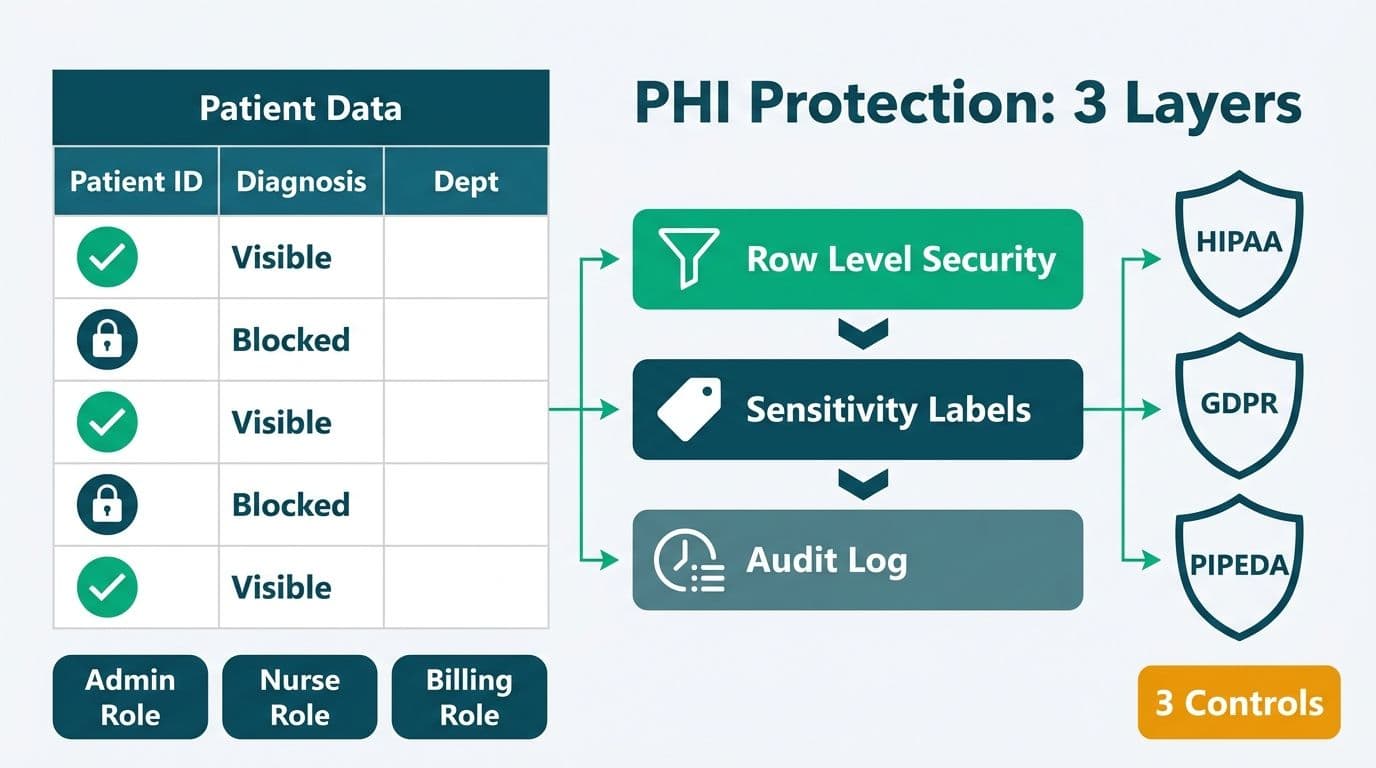
Power BI Row Level Security (RLS), Microsoft Purview sensitivity labels, and the Microsoft 365 unified audit log together form the three-layer technical control stack healthcare BI administrators need to protect Protected Health Information (PHI). Configured correctly, these controls address the access, encryption, and accountability requirements of HIPAA (US), GDPR and UK GDPR (EU and UK), and PIPEDA (Canada) within a single BI platform.
Key Takeaways
- RLS enforces row-level access at the Analysis Services engine layer - it cannot be bypassed by downloading the PBIX file or connecting via a third-party tool.
- Sensitivity labels from Microsoft Purview propagate to exported files (Excel, PDF), maintaining PHI protection after data leaves the Power BI service.
- The Microsoft 365 unified audit log is the primary evidence source for HIPAA audit trail requirements and GDPR accountability obligations.
- Canadian organisations must set their Power BI capacity region to Canada Central or Canada East before processing personal health information.
- All three regulations require documented role definitions, periodic access reviews, and an on-demand audit trail - Power BI supports all three when correctly configured.
What Is Power BI Row Level Security and Why Does It Matter for PHI?
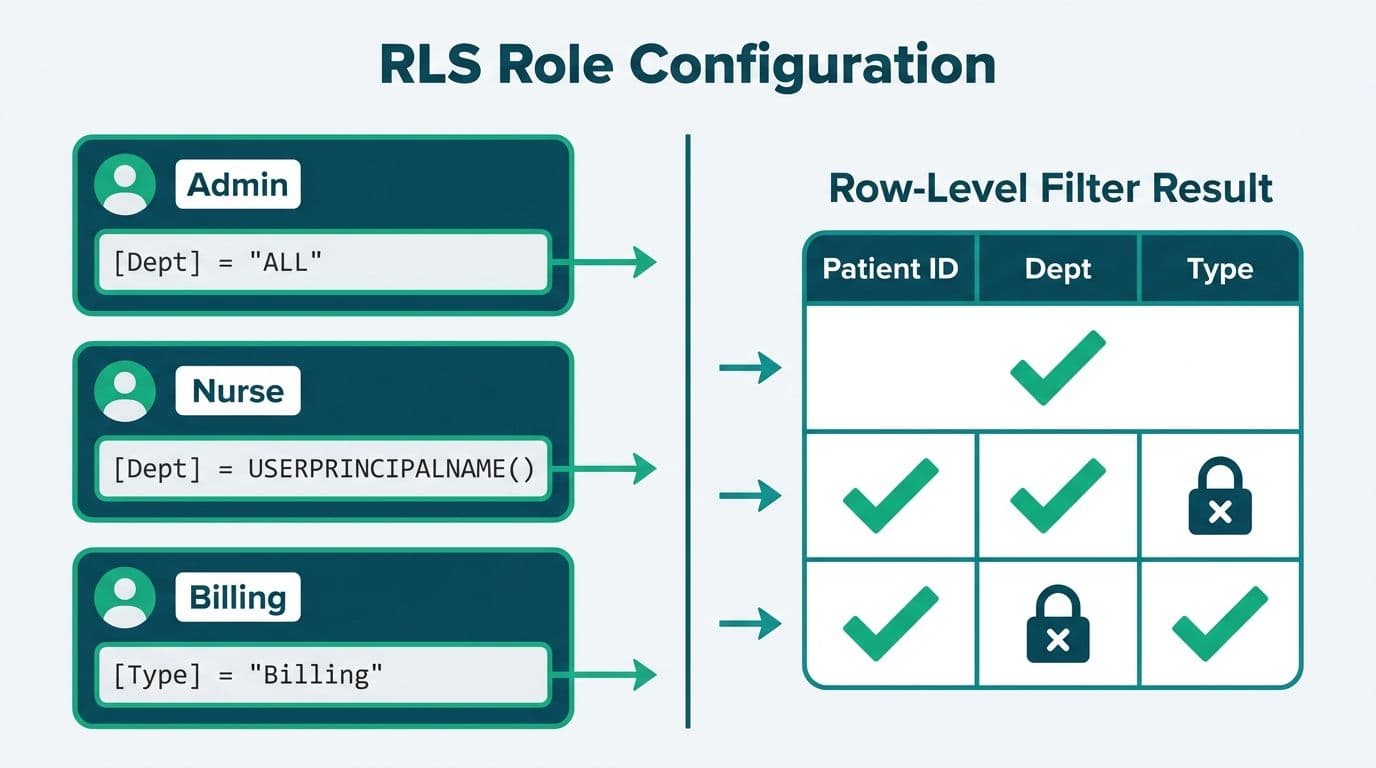
RLS is a Power BI feature that filters the rows a user receives at query time, based on DAX rules embedded in the data model. A clinician querying a patient census report sees only their assigned patients - not records belonging to other care teams. This is not a UI-level filter that a determined user can remove; it runs server-side in the Analysis Services engine that underpins Power BI, so it cannot be circumvented by downloading the PBIX file or connecting via an external query tool.
For HIPAA compliance, the Minimum Necessary standard (45 CFR §164.502(b)) requires covered entities to limit PHI access to only what a role requires. RLS is the technical implementation of that principle inside your BI layer. A deployment without RLS gives every report viewer implicit read access to all rows in every connected dataset - a condition that will fail any formal HIPAA risk assessment and any GDPR data minimisation review under Article 5(1)(c).
The configuration complexity and the cost of getting it wrong vary significantly by environment. Before beginning implementation, use the Instant project cost calculator to scope the configuration and validation work for your organisation's specific setup.
How Do You Configure Power BI RLS for HIPAA Compliance?
RLS configuration happens in Power BI Desktop before the model is published to the Power BI service. There are two modes: static RLS (a fixed filter per role, suited to small teams with stable data partitions) and dynamic RLS (the authenticated user's identity drives the filter at query time). Healthcare deployments almost always require dynamic RLS because staff assignments, patient panels, and departmental access rights change frequently.
Define Roles in Power BI Desktop
Open your PBIX file, navigate to Modeling > Manage Roles, and create a role - for example, "Clinician", "Department Head", or "Compliance Auditor". Apply a DAX filter expression to the relevant table:
```
[DepartmentID] = LOOKUPVALUE(
Staff[DepartmentID],
Staff[Email],
USERPRINCIPALNAME()
)
```
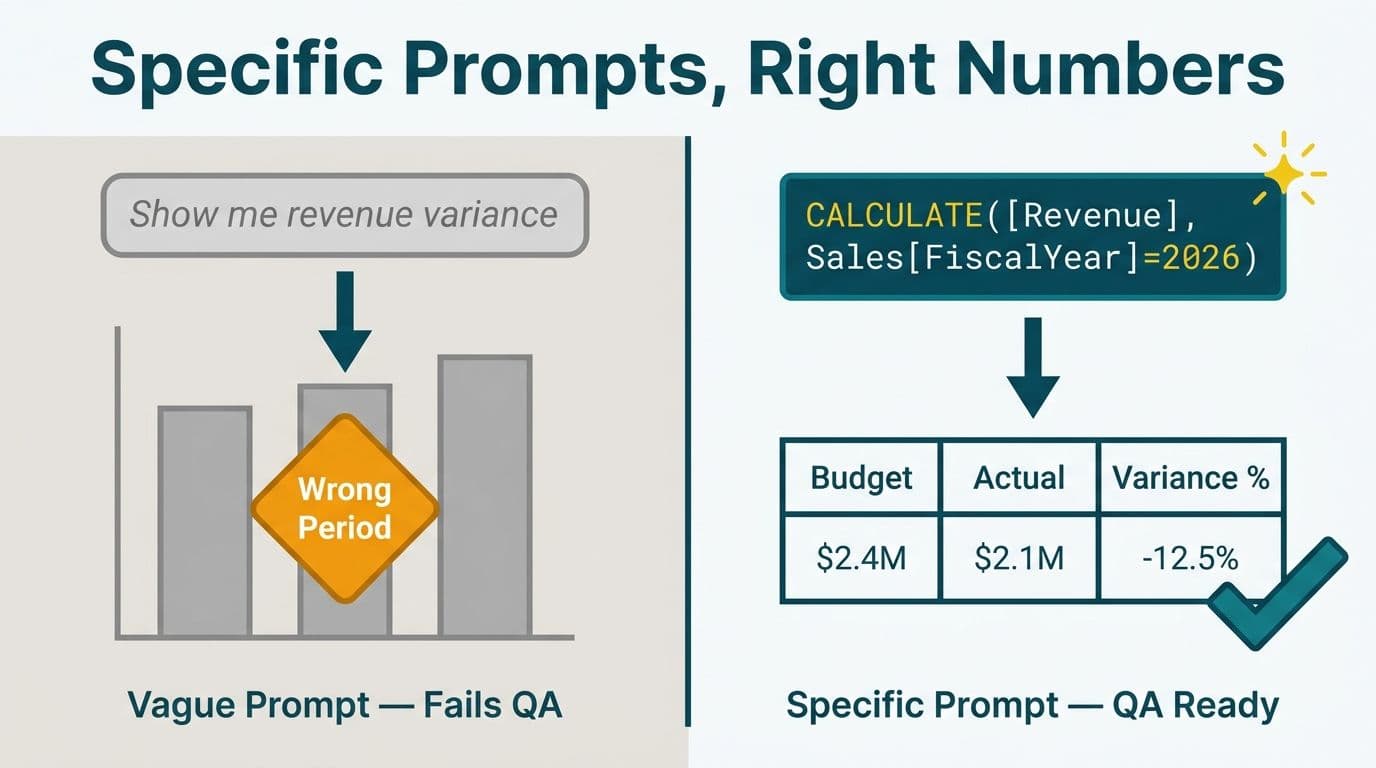
The USERPRINCIPALNAME() function returns the Azure Active Directory email of the authenticated user at query time. This drives the row filter dynamically without hardcoding any credentials into the model. When you need more granular control - for example, allowing Department Heads to view aggregated totals across departments while still restricting patient-level row access to their own unit - the CALCULATE function in Power BI DAX lets you modify filter context selectively, applying the row restriction to detail measures while letting summary-level calculations evaluate across a broader scope.
Assign Users and Groups in the Power BI Service
After publishing, open dataset settings > Security and assign Azure Active Directory security groups to each role. Never assign individual email addresses directly. When a nurse joins the cardiac unit, you update Active Directory - not your Power BI model. This decouples access control from BI maintenance and keeps your audit trail clean.
A critical safeguard: workspace Admin and Member roles in Power BI bypass RLS entirely, giving those users full read access to all rows regardless of any role assignment (documented in Microsoft's Power BI Security Whitepaper, 2025). Restrict these workspace roles to data engineers and report developers. Clinical end users must be assigned the Viewer workspace role, with an RLS role explicitly assigned on the dataset.
Validate Before Go-Live
Use "View as role" in the Power BI service to impersonate each role and confirm that row filters behave exactly as intended. Document these test results with screenshots and sign-off. HIPAA security rule requirements (45 CFR §164.312(a)(1)) expect evidence that technical safeguards were tested and validated prior to activation. A UK NHS trust or EU private hospital documenting Technical and Organisational Measures (TOMs) under GDPR Article 25 can use the same test evidence for their data protection by design records.
How Do Sensitivity Labels Protect PHI in Power BI Reports?
Sensitivity labels from Microsoft Purview govern what users can do with data after they see it - specifically, whether they can export, print, or share reports outside the controlled environment. While RLS controls which rows appear in a query result, sensitivity labels control where that data can travel once a user has it.
In the Power BI admin portal (Admin Portal > Tenant settings), enable "Allow users to apply sensitivity labels for Power BI content." Microsoft's documentation (2025) confirms that a sensitivity label applied to a Power BI dataset propagates automatically to all downstream reports and dashboards connected to it, and to any files exported from those reports.
The most important healthcare scenario is export restriction. A dataset labelled "Confidential - PHI" can be configured in Microsoft Purview to apply automatic encryption when a user exports to Excel, so the resulting file can only be opened by users who hold the matching label rights. For a US health system, this directly addresses the HIPAA encryption requirements for PHI in transit and at rest (45 CFR §164.312(a)(2)(iv) and §164.312(e)(2)(ii)) and removes the gap that exists when users download data to local spreadsheets.
For a Canadian hospital network governed by PIPEDA and provincial health privacy legislation such as Ontario's PHIPA or Alberta's HIA, label-based encryption ensures that a spreadsheet forwarded to a third-party contractor cannot be opened without authorised decryption rights - a practical control for the accountability principle under Schedule 1 of PIPEDA, which requires adequate safeguards regardless of whether data is processed internally or by a service provider.
A UK integrated care board or private clinic under UK GDPR can cite sensitivity label configurations and their audit trails as evidence of appropriate technical measures under Article 32 during an ICO inspection, particularly where the processing involves special category health data under Article 9.
For how sensitivity labels fit within a broader governance architecture covering workspace permissions, certified datasets, and change management, the Power BI Governance Best Practices: 12-Point Checklist covers label taxonomy design, mandatory labelling enforcement, and the user training required to make labelling stick in practice.
How Do You Enable Audit Logging for HIPAA, GDPR, and PIPEDA Compliance?
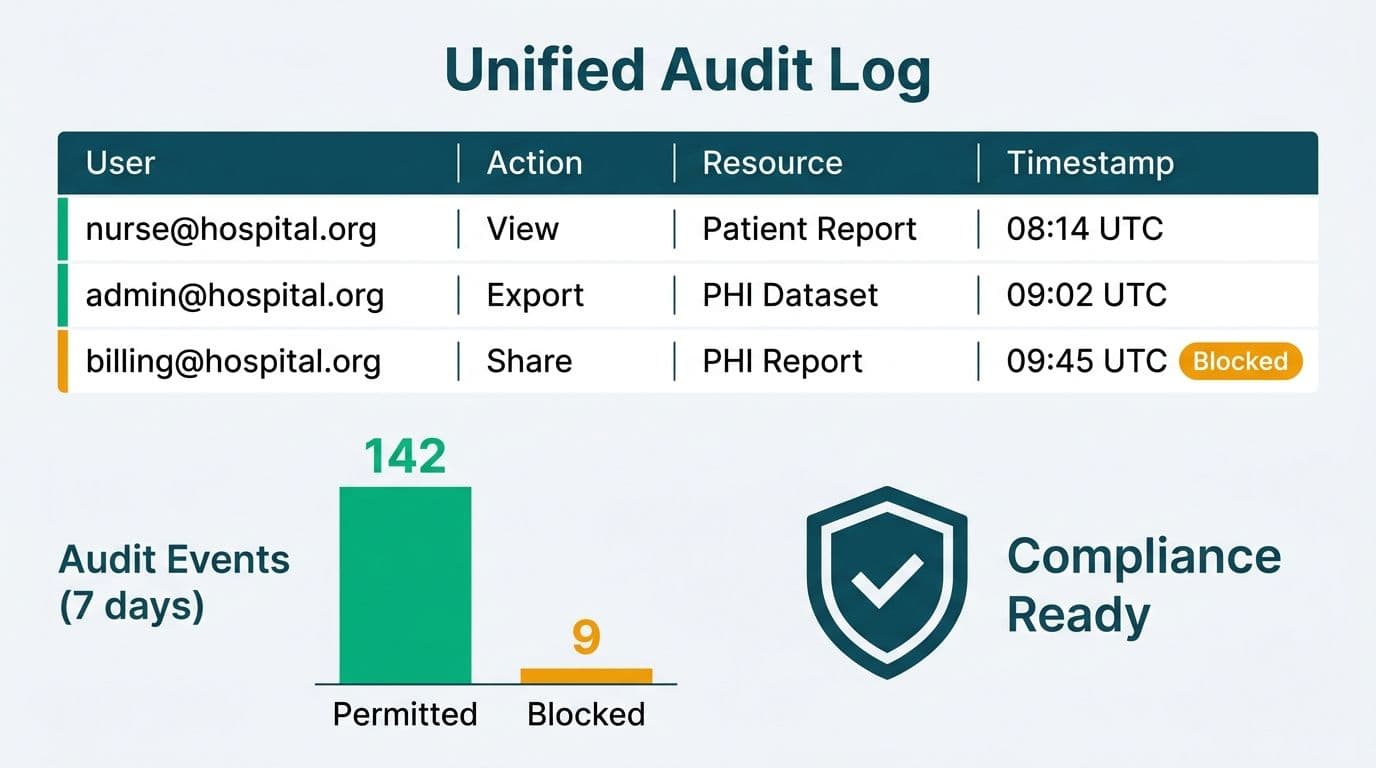
All three regulations require organisations to demonstrate who accessed PHI or personal data, when, and from which system. Power BI audit events are captured in the Microsoft 365 unified audit log, accessible at compliance.microsoft.com > Audit.
Events most relevant to healthcare compliance include:
- ViewReport - a user opened a report containing PHI
- ExportReport - a user exported data to CSV, PDF, or Excel
- ShareReport - a report was shared with another user or externally
- CreateOrUpdateDataset - the underlying dataset was modified
- DeleteReport - a report was removed
HIPAA requires covered entities and their Business Associates to retain audit documentation for a minimum of six years (45 CFR §164.530(j)). By default, Microsoft 365 audit logs are retained for 90 days on E3 licences and 180 days on E5 licences - far short of the HIPAA threshold. To reach six years, configure one of the following:
1. Microsoft Purview Audit (Premium) - extends in-product retention to one year; pair this with an automated export to Azure Blob Storage with a lifecycle management policy set to retain for the remaining five years.
2. Azure Monitor Diagnostic Settings - stream Power BI audit events to a Log Analytics workspace and set a data retention policy of six years at the workspace level.
For GDPR (EU and UK), there is no fixed statutory retention period for audit logs prescribed by the regulation itself. ICO and EDPB guidance suggests retaining logs long enough to investigate any reported breach - typically 12 to 24 months is defensible, though NHS Data Security and Protection Toolkit requirements may be more prescriptive for UK NHS organisations.
PIPEDA does not specify a federal audit log retention period. However, PHIPA in Ontario requires health information custodians to retain records of access for ten years. Confirm the applicable provincial requirement before sizing your Azure storage allocation.
Organisations migrating from Power BI Premium licences to Microsoft Fabric capacity (F-SKU) should note that compliance configurations - including RLS assignments, sensitivity labels, and audit log routing - must be revalidated after workspaces are migrated to Fabric. The underlying security model is compatible, but the workspace migration changes the audit event context, which can create logging gaps if not explicitly tested before cutover.
HIPAA vs GDPR vs PIPEDA: What Does Each Regulation Require from Your BI Stack?
The three frameworks share core access and accountability principles but diverge on several operationally significant details. The table below maps the requirements a Power BI administrator must address.
| Requirement | HIPAA (US) | GDPR / UK GDPR (EU / UK) | PIPEDA (Canada) |
|---|---|---|---|
| Access control standard | Minimum Necessary (§164.502(b)) | Data minimisation (Art. 5(1)(c)) | Limiting collection (Principle 4) |
| Encryption at rest | Addressable safeguard (§164.312(a)(2)(iv)) | Appropriate technical measures (Art. 32) | Safeguards (Principle 7) |
| Audit log retention | 6 years minimum (§164.530(j)) | No fixed period; evidence-based | No fixed federal period; provincial law may extend |
| Breach notification window | 60 days to HHS OCR | 72 hours to supervisory authority | As soon as feasible to OPC |
| Data residency | No mandatory jurisdiction; BAA required | EU / UK adequacy controls govern transfers | Data should stay in Canada where practical |
| Individual data rights | Patient access to own PHI (§164.524) | Right of access, erasure, portability (Art. 15-20) | Right of access (Principle 9) |
| Regulatory body | HHS Office for Civil Rights (OCR) | ICO (UK); national DPAs (EU) | Office of the Privacy Commissioner (OPC) |
Data residency in practice is where the three frameworks diverge most sharply for Power BI administrators. For a US health system, HIPAA does not mandate a specific geographic jurisdiction for data storage, but the Microsoft Business Associate Agreement (BAA) must be in place before any PHI is loaded into the Power BI service. Microsoft provides a BAA covering Power BI as part of the Online Services Terms (2025), available through the Volume Licensing Service Center or your Microsoft account team. For an EU-based private hospital group, the Power BI Premium or Fabric capacity must sit within an EU region - West Europe (Netherlands) or North Europe (Ireland) are the standard choices - to satisfy GDPR restrictions on data transfers outside the European Economic Area. For a Canadian healthcare organisation, Canada Central (Toronto) or Canada East (Quebec City) capacity regions are required to keep personal health information within Canada's borders, satisfying PIPEDA and provincial health privacy legislation expectations.
For contexts where multiple regulatory frameworks apply to a single dataset - common in multi-site clinical research - the Clinical Trial Data Reporting in Power BI: A GCP & GDPR Guide covers how to layer GCP, GDPR, and HIPAA controls on a shared Power BI environment.
What Are the Most Common RLS Mistakes Healthcare BI Admins Make?
Even experienced Power BI administrators make predictable errors when configuring RLS for PHI environments. These five account for the majority of audit findings and breach-adjacent incidents.
1. Applying RLS at the report layer instead of the dataset layer. RLS defined as a report-level filter is bypassed by any user connecting directly to the underlying dataset - through a third-party BI tool, an Excel PivotTable connected to the Analysis Services endpoint, or a second report built on the same model. RLS must be defined at the semantic model (dataset) layer in Power BI Desktop, not at the report level.
2. Allowing workspace Admin or Member roles for clinical users. These workspace roles bypass RLS unconditionally - they receive all rows regardless of any role assignment. Clinical and administrative staff who only need to consume reports must be assigned the Viewer workspace role, combined with an explicit RLS role assignment on the dataset.
3. Hardcoding email addresses into DAX filter expressions. Embedding individual email addresses into role definitions means every staff change requires republishing the model. Build dynamic rules using USERPRINCIPALNAME() against a staffing dimension table maintained in your data warehouse, so access changes flow through HR systems rather than BI deployment pipelines.
4. Overlooking the on-premises data gateway service account. If PHI resides in an on-premises SQL Server accessed via the Power BI On-premises Data Gateway, remember that RLS in Power BI filters the rows returned by the gateway - it does not restrict what the gateway service account queries at the source database. A poorly scoped gateway service account with broad SELECT permissions at source negates the intent of your RLS configuration. Lock the gateway service account to the minimum schema and table access it needs.
5. No documented periodic access review. HIPAA, GDPR, and PIPEDA all require a documented, repeatable process for reviewing and revoking access. A quarterly reconciliation of Power BI RLS role assignments against current HR records is the minimum defensible posture. The Power BI Healthcare Reporting: Implementation Cost Guide helps organisations budget for this ongoing compliance maintenance as a recurring operational line item rather than a one-time project cost.
For connecting Power BI access reviews to a broader ITSM change management and incident response workflow, the ServiceNow ITSM for Healthcare IT Teams: HIPAA, GDPR and PIPEDA guide covers how to link access provisioning tickets, periodic review tasks, and breach response workflows in a single auditable system.
---
Configuring Power BI RLS, sensitivity labels, and audit logging for PHI protection is a multi-layer technical project with direct regulatory consequences. Use the Instant project cost calculator to get a rapid estimate of the scoping, configuration, and validation work for your organisation's environment.
---
About Lets Viz: Lets Viz has delivered analytics and BI governance engagements since 2020 across US healthcare, UK fintech, Canadian manufacturing, and global SaaS organisations. Our team holds a 5.0 Clutch rating and has helped clients implement technically defensible access controls in regulated Power BI environments - from initial RLS design and sensitivity label taxonomy through audit log architecture and compliance documentation.