How to Use DAX Studio to Find and Fix Slow Measures
DAX Studio is an open-source tool for writing, running and profiling DAX queries against a Power BI model outside the report canvas. This guide takes you from installation to a timed, repeatable benchmark of one slow measure. Allow about 45 minutes the first time and about 10 minutes on later runs.
Key Takeaways
- DAX Studio connects to a live model and shows you where query time goes, which the report canvas cannot.
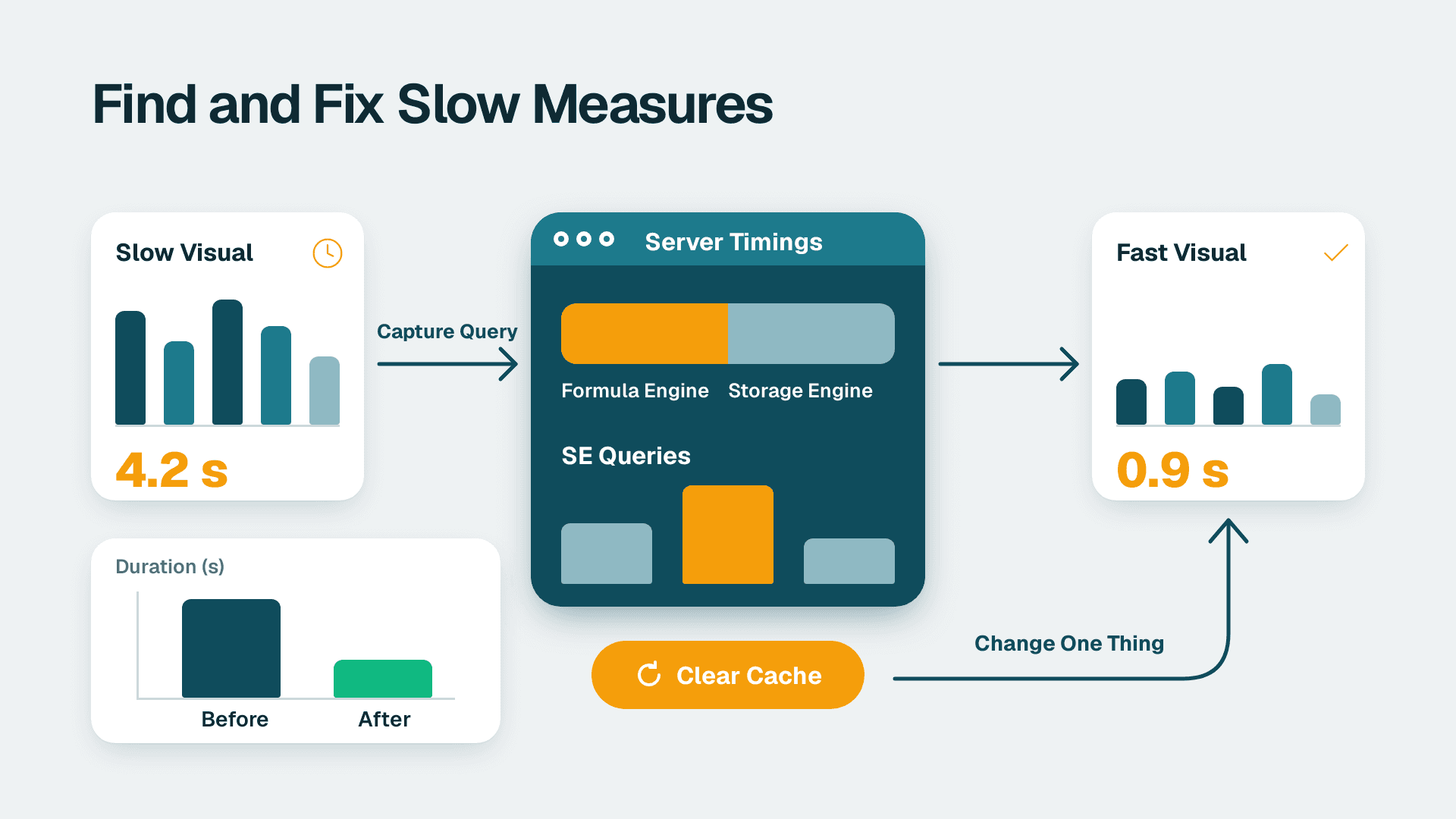
- The core loop is: capture the query, run it with Server Timings on, change one thing, run it again.
- Always clear the cache before each timed run, or you are measuring the cache and not your measure.
- Read-only access to a workspace is enough to profile a model, so you do not need to hand out edit rights to audit it.
Lets Viz delivers Managed Power BI services for healthcare and finance teams -- fully managed analytics, from data model to decision-ready dashboard.
What Is DAX Studio, and Is It Free to Use?
DAX Studio is a tool to write, execute and analyze DAX queries in Power BI Desktop, Power Pivot for Excel and Analysis Services Tabular. It includes an Object Browser, query editing and execution, formula and measure editing, syntax highlighting and formatting, integrated tracing and query execution breakdowns. Darren Gosbell is the original author and maintainer, and the project is open source on GitHub.
On cost: it is an open-source project, and the official download page offers the installer and a portable zip directly, with no purchase step. That matters for finance directors who ask whether this is another license line. Your Power BI licensing is a separate question and is unaffected.
What is DAX used for?
Data Analysis Expressions (DAX) is a formula expression language used in Analysis Services, Power BI and Power Pivot in Excel. Microsoft documents DAX formulas in measures, calculated columns, calculated tables and row-level security. In practice, every number on a finance or clinical operations dashboard is a DAX measure, so a slow or wrong measure shows up as a slow or wrong report. If your issue is a wrong number rather than a slow one, start with why Power BI reports disagree with the general ledger and return here for the performance work.
What You'll Need
- A Windows PC where you can install software, or where you can unzip the portable build if installation is restricted by IT policy.
- The DAX Studio download: the download page lists version 3.6.1 as DaxStudio_3_6_1_setup.exe and DaxStudio_3_6_1_portable.zip.
- Power BI Desktop, with the .pbix file you want to profile open on the same machine.
- One slow visual you can name, for example a monthly revenue matrix that takes several seconds to render.
- For service-side work only: a workspace on Premium or Fabric capacity with the XMLA endpoint enabled, and at least read access to that workspace.
| Target | Supported | Typical use |
|---|---|---|
| Power BI Desktop | Yes | Tuning a model during development |
| Power Pivot for Excel | Yes | Legacy workbook models |
| Azure Analysis Services | Yes | Enterprise tabular models |
| Power BI Premium XMLA endpoint | Yes | Profiling a published model |
The supported targets above come from the DAX Studio site. If your security team is wary of unsigned installers, note that SQLBI provides the EV code signing certificate and appears as the publisher, so the download installs without SmartScreen warnings.
Step 1: How Do I Install DAX Studio?
1. Open daxstudio.org and go to the download section.
2. Choose DaxStudio_3_6_1_setup.exe for a normal install, or DaxStudio_3_6_1_portable.zip if you cannot install software. Check the page for the current version number before you download.
3. Close Power BI Desktop, then run the setup file and accept the defaults.
4. Reopen Power BI Desktop and open your .pbix file.
5. Select the External Tools tab on the ribbon.
What you should see: a DAX Studio button on the External Tools ribbon. If you used the portable zip, you will not see the button; launch DaxStudio.exe from the unzipped folder instead and connect manually in Step 2.
The interface supports a light and a dark mode, so pick whichever suits you under the application options.
Step 2: How Do I Connect DAX Studio to a Power BI Model?
Option A: From Power BI Desktop
1. With your .pbix open, click External Tools > DAX Studio.
2. DAX Studio launches and connects to the open model automatically.
Option B: From the DAX Studio start screen
1. Launch DAX Studio from the Start menu.
2. In the Connect dialog, select PBI / SSDT Model.
3. Pick your open file from the drop-down list.
4. Click Connect.
What you should see: the Metadata pane on the left, listing your tables, columns and measures in the Object Browser, and an empty query editor on the right. The status bar at the bottom shows the connection and a ready state. If the metadata pane is empty, the connection did not complete; reconnect before going further.
Step 3: How Do I Run My First DAX Query?
DAX Studio runs queries, not bare measures. A query always begins with the keyword EVALUATE and returns a table. Type the following in the editor, replacing the names with a real measure and column from your model:
```
EVALUATE
SUMMARIZECOLUMNS(
'Date'[Month],
"Revenue", [Total Revenue]
)
ORDER BY 'Date'[Month]
```
1. Click inside the editor and paste or type the query.
2. Press F5, or click Run on the Home ribbon.
3. Look at the Results tab at the bottom of the window.
What you should see: a grid with one row per month and a Revenue column. The status bar shows the row count and the duration in milliseconds. If you see a red error banner instead, check the table and measure names, because DAX Studio is strict about quoting table names with spaces.
If you have used LOOKUPVALUE in your model, test it the same way. Our LOOKUPVALUE examples with multi-column lookups are a good source of queries to try.
Step 4: How Do I Capture the Exact Query a Slow Visual Runs?
Guessing at the query is how people tune the wrong thing. Capture what the visual really sends.
1. In Power BI Desktop, open View and enable Performance Analyzer, then click Start recording.
2. Click Refresh visuals and find the slow visual in the list.
3. Expand the visual's entry and click Copy query.
4. Switch to DAX Studio, clear the editor, and paste.
5. Press F5 to confirm it returns the same data you see in the report.
What you should see: a longer query than the one you wrote by hand, usually starting with a block of VAR statements. That is normal and is what the engine actually executes. Keep it unedited; this is your baseline.
Step 5: How Do I Read Server Timings?
Server Timings splits total duration into two engines, and which one dominates tells you what kind of fix to try.
1. On the Home ribbon, click Server Timings so the button is highlighted.
2. Click Clear Cache on the Home ribbon. A cold cache gives a fair measurement.
3. Press F5.
4. Open the Server Timings tab at the bottom of the window.
What you should see: a total duration, then a split between the Formula Engine and the Storage Engine, plus a list of individual storage engine queries with their durations and row counts.
| Pattern | Likely meaning | First thing to try |
|---|---|---|
| Formula Engine time dominates | Row-by-row iteration or nested logic in the measure | Rewrite iterators, use variables, reduce context transitions |
| Many Storage Engine queries | The measure fans out into repeated scans | Combine calculations so the table is scanned once |
| Storage Engine queries with huge row counts | Large materialization | Filter earlier, check relationships and column cardinality |
The DAX Studio site lists Server Timings, View Metric and Benchmarking as its performance tuning features. Use View Metrics next to inspect column sizes in the model; a single high-cardinality text column is a common reason a model is large and slow.
For a deeper read, click Query Plan before running. Since 3.5.0 you can expand and collapse query plan nodes, which makes long plans manageable.
Step 6: How Do I Change One Thing and Prove It Helped?
This is the discipline that separates tuning from folklore.
1. Note the baseline total duration from Step 5.
2. Make exactly one change to the measure, for example replacing a repeated expression with a VAR.
3. To test without editing the model, define the measure locally at the top of the query:
```
DEFINE
MEASURE 'Sales'[Total Revenue] =
VAR _rev = SUM('Sales'[Amount])
RETURN _rev
```
4. Place that DEFINE block above your pasted EVALUATE statement, click Clear Cache, and press F5.
5. Compare the new duration and the Formula Engine and Storage Engine split to the baseline.
What you should see: a lower duration, or a different engine split, in the Server Timings tab. If the duration is the same, your change did not matter and you can revert it without touching the model. Once a version is faster and returns identical results, copy the definition back into Power BI Desktop.
Before you ship a changed measure on finance reporting, run a validation pass. Our AI dry run for Power BI finance reporting validation walks through that check.
Step 7: How Do I Benchmark and Profile a Published Model Safely?
A single run can be noisy. Benchmarking repeats it so you can trust the number.
Benchmark in the editor
1. On the Advanced ribbon, click Benchmark.
2. Choose the number of cold-cache and warm-cache runs.
3. Click Run.
What you should see: a summary of average durations for cold and warm runs. Record these in a change log next to the measure name and date. Version 3.6.0 also added a benchmark command to dscmd, the command-line companion, which suits scheduled regression checks.
Connect to a published model with least privilege
For a model already in the service, use the workspace XMLA endpoint.
1. In the Power BI service, open the workspace and choose Workspace settings > License info to confirm it sits on Premium or Fabric capacity.
2. Copy the workspace connection string from Workspace settings > Premium.
3. In DAX Studio, click Connect, choose Tabular Server, paste the connection string and sign in with your Entra account.
4. Select the dataset from the drop-down and connect.
What you should see: the same metadata pane as before. Running queries needs only read access, which fits a least-privilege approach to Fabric workspace read-only auditing: give your tuner or your managed service provider a Viewer-level role with build permission on the dataset, not Member or Admin. For the broader access model, see our guide on migrating a Power BI workspace to Microsoft Fabric.
Version 3.6.0 also added a dscmd auth command for caching, listing and validating Entra accounts without exposing access tokens, which helps if automation runs under a shared account. Treat the Delta Analyzer and Browse Workspaces features in that release as previews and test them before relying on them in a compliance workflow.
Common Mistakes
- Timing a warm cache. The first run looks slow, the second is instant, and you conclude your change worked. Click Clear Cache before every timed run, and benchmark cold and warm separately.
- Changing three things at once. You cannot tell which edit helped. Change one expression, measure, then decide.
- Profiling a hand-written query instead of the visual's query. Your tidy query hides the filters and slicers the report really applies. Copy the query from Performance Analyzer as in Step 4.
- Tuning on a tiny sample file. A model with a fraction of production rows hides the scans that hurt. Profile against a full-size copy, de-identified where it holds patient or account data.
- Giving the tuner Admin rights. Profiling needs read and build access only. Grant the narrowest role and remove it when the engagement ends.
Troubleshooting
- The DAX Studio button is missing from External Tools. The portable build does not register itself, or Power BI Desktop was open during installation. Reinstall with Desktop closed, or launch DaxStudio.exe manually and connect through PBI / SSDT Model.
- Sign-in fails when connecting to a published model. The usual causes are a workspace not on Premium or Fabric capacity, the XMLA endpoint set to off by your tenant admin, or an old build. Version 3.5.1 fixed an authentication error on the myorg service connection, so update first.
- Server Timings is empty after running. The trace was not enabled before the run, or you lack permission to start a trace on that dataset. Enable Server Timings first, then press F5 again.
Where This Fits in a Wider Cleanup
A tuned measure is only one part of a healthy estate. Duplicate datasets and abandoned reports also slow refreshes and confuse users, so pair this work with our guide to finding duplicate workbooks and unused dashboards. If your team lacks the time to keep this up, a managed service provider in business intelligence can own tuning, monitoring and access reviews against an agreed SLA.
If you want a team to run this routine for you, see our Managed Power BI services.
---
About Lets Viz: Lets Viz is a data analytics consulting firm that has delivered Power BI, Fabric and reporting work since 2020 for healthcare and finance organizations in the US and Canada. We hold a 5.0 rating on Clutch.
Sources
Facts and prices checked October 2026.