How to Set Up a ServiceNow CMDB That Stays Accurate
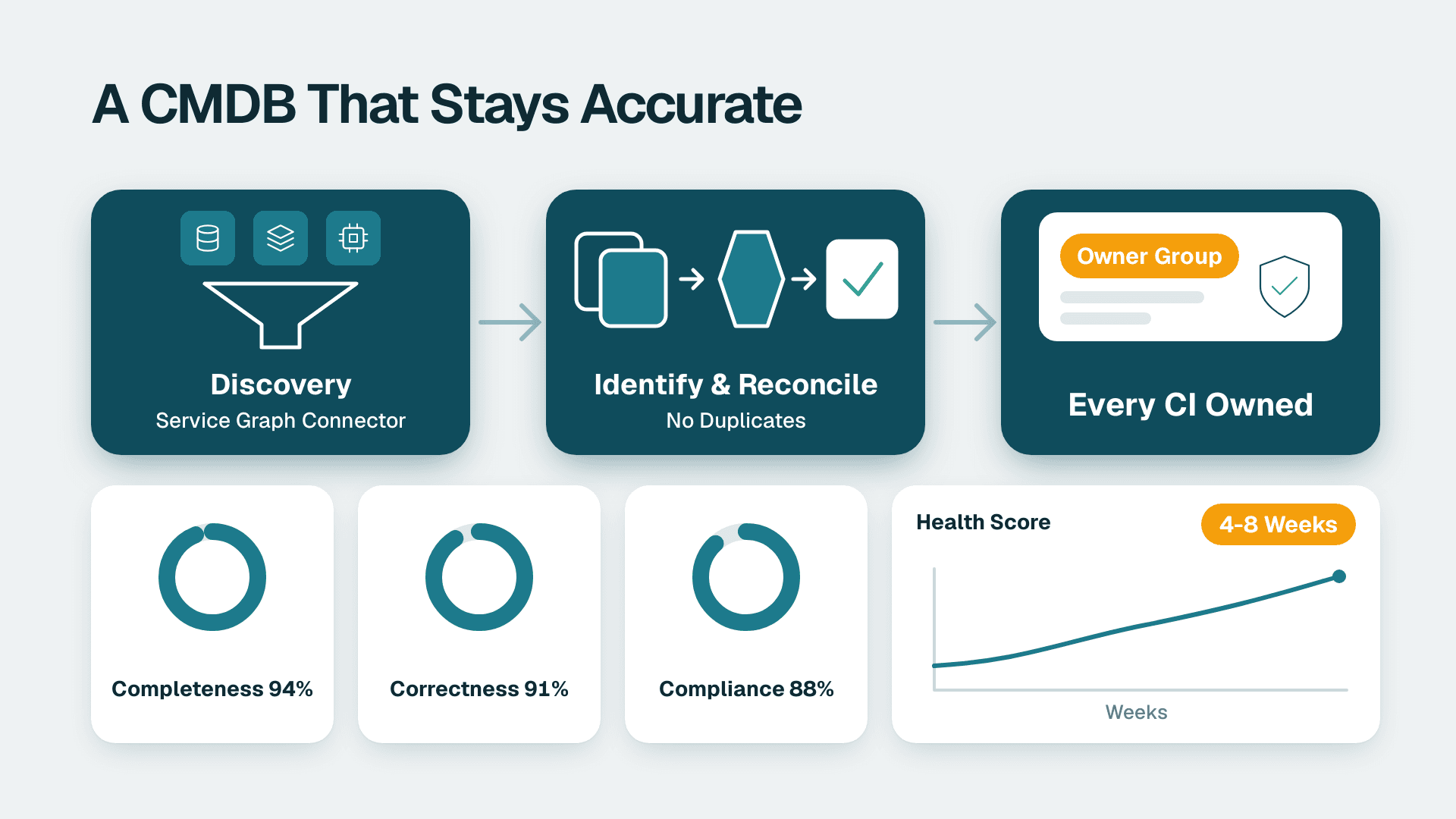
You can set up a ServiceNow CMDB that stays accurate by scoping it to a few services, populating it with Discovery or a Service Graph Connector, assigning an owner to every CI, and monitoring CMDB Health. For a mid-market team, plan roughly 4-8 weeks to a trustworthy first version, then a weekly review habit.
Key Takeaways
- Start with the questions the CMDB must answer, not with the number of CIs you can load.
- Automated population plus the Identification and Reconciliation rules prevents most duplicates.
- Every CI needs a named owner group, or the data decays within a quarter.
- Track completeness, correctness and compliance in CMDB Health from week one.
Lets Viz provides ServiceNow consulting led by a 15-year platform consultant -- ITSM and HRSD implementation, plus ServiceNow data connected into Power BI and Tableau for decision-ready reporting.
What You'll Need
- A ServiceNow instance (a sub-production instance for the first build is safest) and a user with the admin role, plus the itil role for testing.
- Access to the CMDB Workspace and CI Class Manager from the filter navigator.
- Network credentials for Discovery: read-only SSH or WMI accounts, SNMP community strings, and cloud read-only roles, all stored in Discovery > Credentials.
- A MID Server installed in each network segment you want to scan, with outbound HTTPS to your instance.
- A list of your top 5-10 business services and the teams that run them.
- An agreed owner for the CMDB program, usually an operations lead, with authority to chase other teams for data.
If you are still weighing whether the platform fits your budget and scope, read ServiceNow Implementation Cost 2026: A Mid-Market Breakdown first. For the wider platform picture, see What Is ServiceNow? A CIO's Complete Platform Guide.
Step 1: Decide What Your ServiceNow CMDB Must Answer
The ServiceNow Configuration Management Database (CMDB) is a system of record for the hardware, software and services you run, and for the relationships between them, as described in the official CMDB documentation. That is different from ITSM. ITSM is the process layer (incidents, changes, requests). The CMDB is the data those processes rely on, so a change record can show which services a server supports.
Before you touch the instance, write down three to five questions the CMDB has to answer. Typical examples:
1. If this server fails, which business services are affected?
2. Who do we call about this application at 2 a.m.?
3. What is running on end-of-life operating systems?
Then pick the first scope: the 5-10 business services from your prerequisites list. A CMDB scoped to services you actually support beats a million-row inventory nobody trusts. If you want help sizing this scope, our ServiceNow consulting services team runs this scoping workshop for mid-market IT.
What you should see: a one-page scope document listing your questions, your in-scope services, and a named program owner.
Step 2: Choose Your CI Classes in CI Class Manager
CIs live in a class hierarchy. The base tables start with `cmdb` and `cmdb_ci`, and specialized child classes inherit properties from their parents. A Linux server, for example, inherits from the generic server class, which inherits from the base CI table.
1. In the filter navigator, type CI Class Manager and open it.
2. Browse the hierarchy under Hardware, Application and Business Service to see the classes that ship out of the box.
3. For each in-scope service, list the classes you need. Most mid-market teams get far with these:
| Class group | Typical use | Populated by |
|---|---|---|
| Business Service | What the business consumes | Manual or service mapping |
| Application | Software running on servers | Discovery or connector |
| Server (Windows, Linux, virtual) | Infrastructure hosting apps | Discovery |
| Network gear | Switches, routers, firewalls | Discovery (SNMP) |
| Cloud resources | VMs, databases, storage | Service Graph Connector |
4. Resist creating custom classes at this stage. Use the out-of-the-box class that fits, and add custom attributes only when a reporting need demands it.
What you should see: a short list of classes, each tied to a service and a population method. Anything without a population method is a future data-quality problem, so cut it or assign a manual owner.
Step 3: Populate the CMDB With Discovery and Connectors
ServiceNow Discovery and Service Graph Connectors are the automated tools that populate and update CMDB infrastructure data. Use Discovery for what sits on your own network, and connectors for cloud and other systems that already hold the data.
Configure Discovery
1. Go to Discovery > Credentials and add one credential per protocol, using read-only accounts.
2. Go to MID Server > Servers and confirm each MID Server shows Status: Up and Validated: true.
3. Open Discovery > Discovery Schedules and select New.
4. Set Discover to CIs, choose your MID Server, and set a range under IP Address Ranges that covers only your in-scope segments.
5. Run it once manually with Discover now before scheduling it.
What you should see: a Discovery Status record that moves to Active, then Completed, with CIs listed under the Discovery Log and new rows in `cmdb_ci_server`.
Add connectors for cloud and other sources
For cloud accounts and other systems of record, use the relevant Service Graph Connector from the ServiceNow Store. Connectors write through the same identification logic as Discovery, which matters for Step 4. Do not load data with raw import sets that bypass it.
Capture relationships
Relationships between CIs are tracked in the `cmdb_rel_ci` table, for example an application running on a specific virtual server. After your first scan, open a business service in CMDB Workspace and check its dependency view. If a service map shows a server with no application above it, Discovery found the host but not the software. Check credentials for that host first.
Step 4: Stop Duplicates With Identification and Reconciliation
This is where most reporting problems start. Two sources report the same server under slightly different names, and you end up with two CIs and double-counted licences.
The Identification and Reconciliation Engine (IRE) decides whether an incoming record matches an existing CI, using identifier rules, and which source wins when two disagree, using reconciliation rules.
1. In the filter navigator, open CMDB > Identification/Reconciliation (the exact path can vary by release) and review the CI Identifiers for each class.
2. For servers, confirm the identifying attributes are hardware-level values such as serial number, not the host name, which changes.
3. Under reconciliation, set a data source precedence for key attributes. For example, let Discovery own `operating_system` and let your asset process own `asset_tag`.
4. Make sure every integration writes via the IRE rather than inserting directly into `cmdb_ci` tables.
What you should see: after a second Discovery run, the CI count for scanned servers does not rise. If it jumps, you have a duplicate source or a weak identifier.
Step 5: Assign Ownership on Every CI
Automation tells you what exists. It cannot tell you who is accountable. Without owners, nobody fixes a CI flagged as stale.
1. Open CMDB Workspace or a class list such as `cmdb_ci_server.list`.
2. Personalize the list columns to show Owned by, Managed by, Support group, Install Status and Operational status.
3. Fill the owner fields by service first. Assign the owning group on the Business Service and application CIs, then inherit down to servers through relationships or a bulk update.
4. Add a rule that new CIs without a Support group are flagged for review.
| Field | Who it identifies | Why it matters |
|---|---|---|
| Owned by | Accountable person or manager | Approves retirement and cost |
| Managed by | Day-to-day operator | Receives data-quality tasks |
| Support group | Team for incidents | Powers routing on incident forms |
What you should see: a filtered list for in-scope servers where the blank-owner count trends toward zero.
The same discipline applies to any data foundation. Our guide on running an ERP data quality check before AI implementation uses the same owner-first logic.
Step 6: Turn On CMDB Health and Track the Three C's
CMDB Health and Data Manager are built-in features that monitor data completeness, correctness and compliance, and manage CI lifecycle maintenance. These are the "three C's" people ask about: completeness (required fields are filled), correctness (no duplicates or orphans) and compliance (CIs follow your audit and certification rules).
1. Open CMDB Workspace and go to the health view, or use CMDB > CMDB Dashboard in the filter navigator.
2. Confirm the health jobs are active under CMDB > Health > Scheduled Jobs (names vary by release).
3. Define which fields count as required for each in-scope class.
4. Set a target for each C and review the trend weekly, not just the score.
What you should see: a health score per class and a list of failing CIs you can assign back to the owners from Step 5.
Use Data Manager policies to handle the lifecycle: for example, retire or flag a CI that Discovery has not seen for a defined number of days. Choose that period from your own scan frequency rather than copying a number from someone else.
Step 7: Wire the CMDB Into Daily Work and Reporting
A CMDB stays accurate when people use it, because errors get noticed. Connect it to the processes where mistakes cause pain.
1. On the Incident form, make Configuration item a visible field and require it for priority 1 and 2 incidents.
2. On Change Request, use the impact analysis to show affected services before approval.
3. Create a report on `cmdb_ci_server` grouped by Operational status to confirm the numbers match your asset records.
4. Schedule a 30-minute monthly review: top failing health items, new unowned CIs, and Discovery errors.
If you feed CMDB data into external dashboards, apply the same checks you would use for any financial or operational feed. Our walkthrough on why reports disagree with the general ledger shows a reconciliation habit that transfers directly.
What you should see: incidents and changes carrying a CI, and a report whose totals you can explain line by line.
How Do I Go to the CMDB in ServiceNow?
In the filter navigator, type CMDB to find CMDB Workspace, CI Class Manager and the dashboards. To see raw records, type a table name followed by `.list`, such as `cmdb_ci.list`. Your admin controls which of these menus your role can see, and the product's CMDB management documentation covers the standard navigation.
Common Mistakes
- Loading everything on day one. A huge, unowned inventory hides real problems. Fix: restrict the first scan to in-scope services and expand only after health scores hold.
- Using host name as the identifier. Renamed machines create duplicates. Fix: identify servers by hardware attributes in the IRE rules, as in Step 4.
- Direct imports that bypass the IRE. Spreadsheet loads into CI tables skip duplicate checks. Fix: route all sources through connectors or IRE-aware import methods.
- No owner, no retirement process. Decommissioned servers stay as live CIs and distort reports. Fix: set Install Status rules and a monthly review with the owner groups.
- Customizing classes too early. Heavy custom attributes make upgrades painful. Fix: use out-of-the-box classes and add only attributes tied to a named report.
Troubleshooting
- Discovery completes but finds few CIs. Likely cause: the credentials fail on the target hosts, or firewalls block the MID Server. Check the Discovery Log for authentication errors and test one host manually.
- CI counts rise after every scan. Likely cause: weak identifier rules or two sources writing the same device under different keys. Review the IRE rules for that class and the source precedence.
- Health scores look good but reports are wrong. Likely cause: the health rules check fields that exist, not whether they are right. Spot-check a sample of CIs against your asset records and tighten the correctness rules.
Ready to Get Your CMDB Right?
If you want a second pair of eyes on your class design, Discovery scope or ownership model, our ServiceNow consulting services team can review it with you and help your team put the first version into production.
---
About Lets Viz: Lets Viz has delivered analytics and platform consulting since 2020 for mid-market teams in industries including finance, healthcare, distribution and professional services. We hold a 5.0 Clutch rating from client reviews.
Sources
- ServiceNow CMDB: key features and architecture
- Configuration Management Database (CMDB) documentation
- Configuration Management documentation
Facts and prices checked October 2026.