How to Import Data in Zoho Analytics in Just 3 Steps
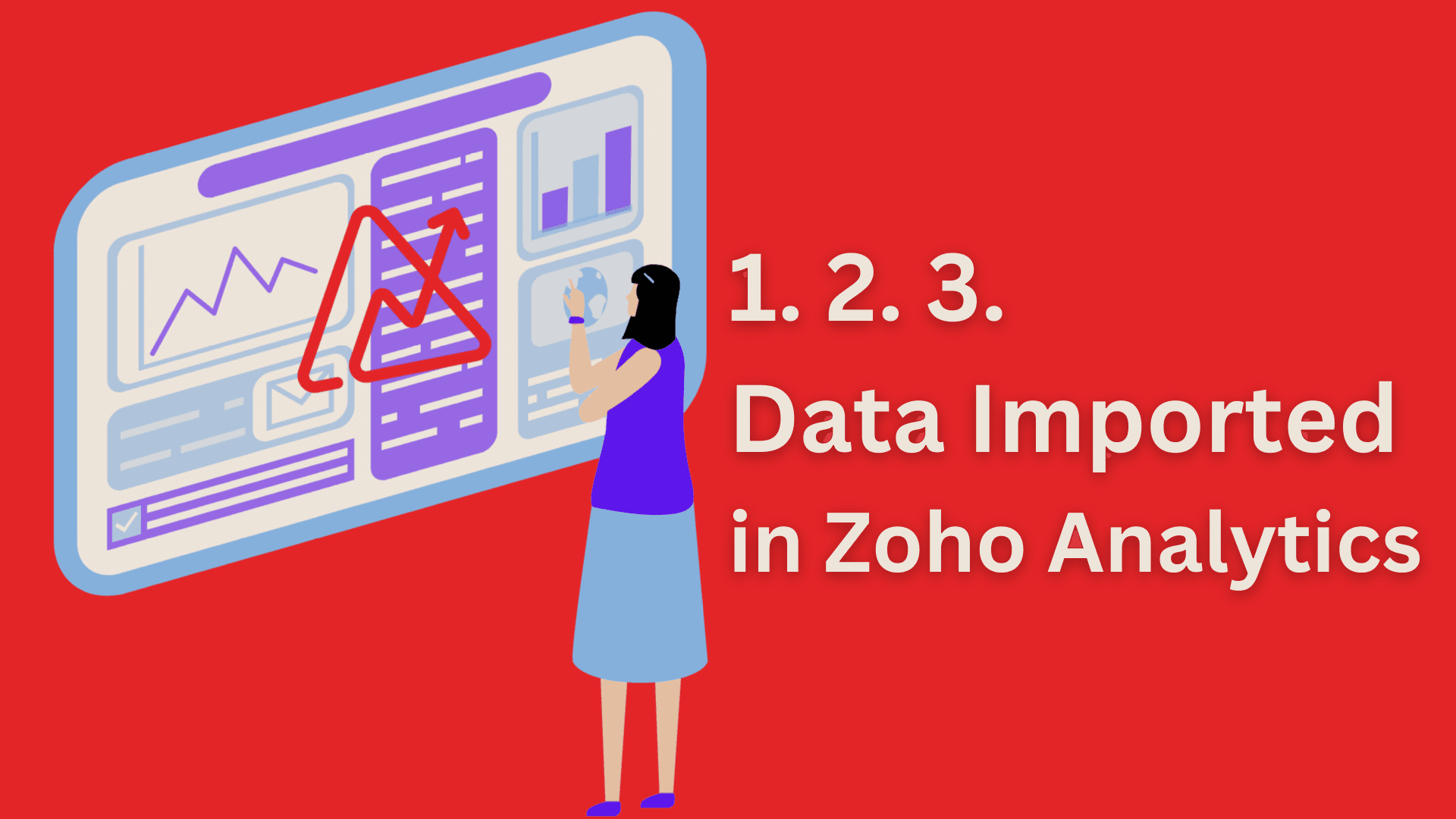
For your in-depth analysis and reporting, Zoho Analytics offers a variety of options for importing the data you have in local files, Web URLs, Cloud drives (Google Spreadsheets, Google Docs, etc.), Local/Cloud databases, well-known business applications, and from your custom applications into Zoho Analytics Workspaces.
Steps to Follow for Import Data in Zoho Analytics
1. Open Your Zoho Analytics Account
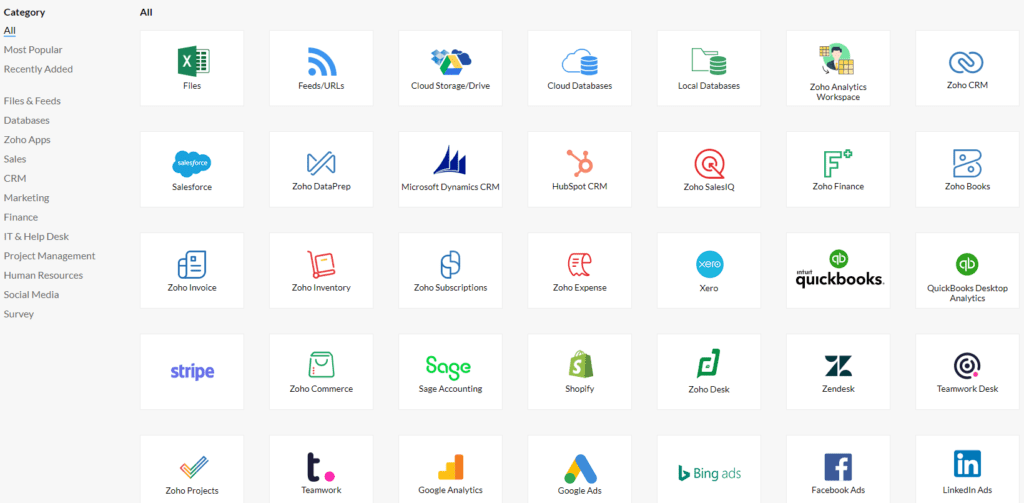
2. Chose your preferred Data Source
On the “Import Data” page, provide the necessary information about the data source, such as the name of the dataset, the type of data, and the location of the data. (this Option are varies based on your choice of data source).
On the “Import Data” page, review the data import options and choose the option that best suits your needs. Click “Next” to begin the data import process.
3. using of Zoho DataPrep
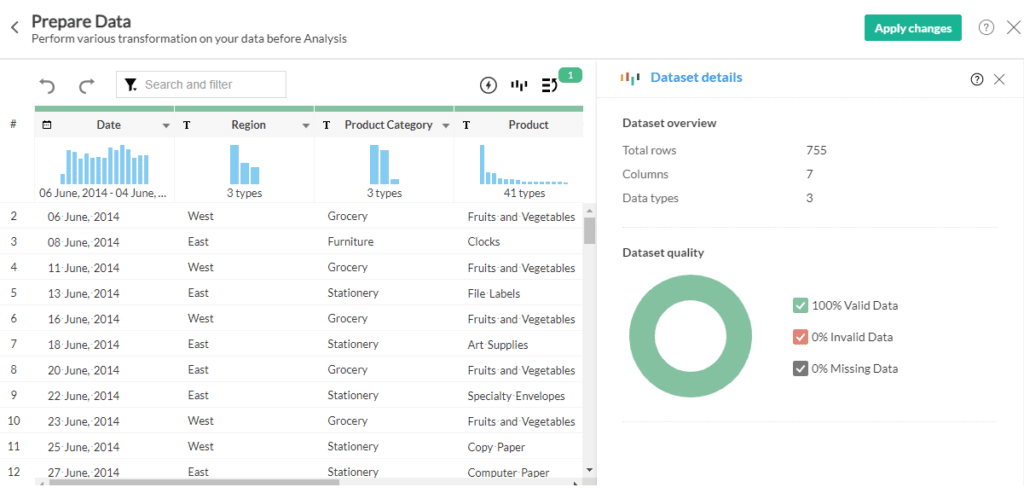 Once You are done Click “Finish” to close the “Import Data” page.
You have successfully Imported your Data.
Once You are done Click “Finish” to close the “Import Data” page.
You have successfully Imported your Data. As you can see, business intelligence has a lot to offer businesses of all sizes across all industries. If you’re not already using BI in your decision-making process, now is the time to start!
Follow us on Twitter, Facebook, Linkedin, and Tableau Public to stay updated with our latest blog and what’s new in Tableau.

If you are looking forward to getting your data pipeline built and setting up the dashboard for business intelligence, book a call now from here.