Understanding Execution and Cycles in Make.com: A Hands-On Guide
When I first started using Make.com, I kept coming across two words that sounded similar but actually meant very different things: execution and cycle. It took me a while (and a few confused scenarios) to really understand how they work together. Once I got it, though, my automations became smoother, easier to debug, and way more efficient. In this blog, I’ll walk you through how I think about executions and cycles in Make, with practical examples and a few lessons I learned the hard way.
Execution in Make.com
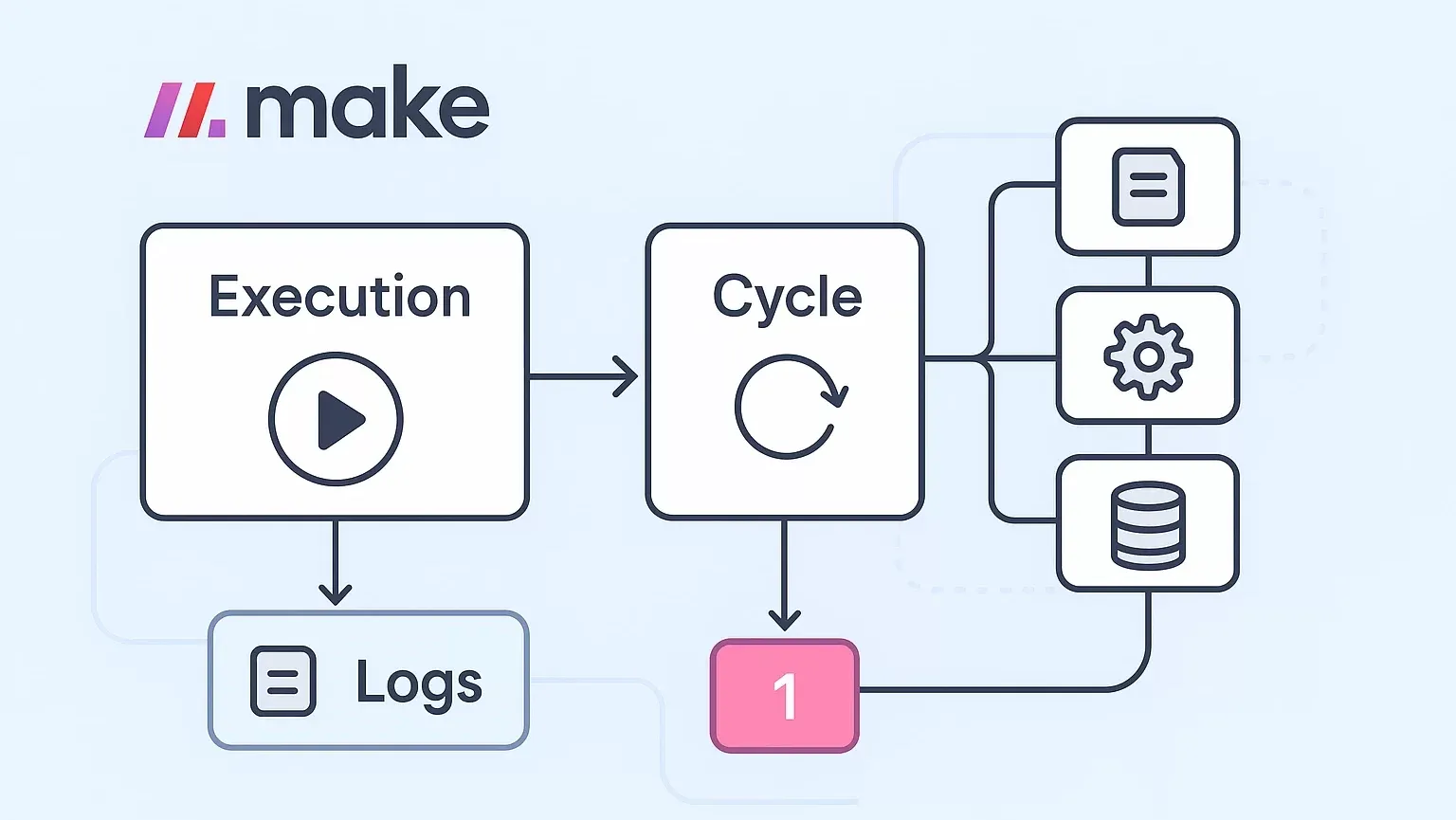
Let’s start with the basics: an execution is one complete run of a scenario. It’s like pressing play on a song—once you hit start, the whole thing runs until it’s done.
How an Execution Starts
Manually: You can kick things off using the Run once button. I usually do this while testing new scenarios.
Automatically: Most of the time, your scenarios will run based on a trigger—like a schedule or a webhook.
Trigger Settings
This is where the timing magic happens:
You can define how often a scenario runs. On the free plan, the minimum is every 15 minutes. On paid plans, it can be as frequent as every 1 minute.
There are also advanced settings, where you can:
Choose a start and end date
Restrict certain days of the week
Fine-tune intervals for very specific use cases
Execution History
Every execution is tracked in the history tab. I can’t tell you how many times I’ve relied on this when debugging.
The icons are super helpful:
▶️ (play) = manual execution
⏰ (clock) = scheduled execution
⚡ (lightning) = instant trigger/webhook
Logs show everything that happened: inputs, outputs, errors, duration, operations count, and even data transfer size.
If something fails, incomplete executions are saved. This means you can still review what happened without losing all the details.
For me, execution history is like a black box recorder—when something goes wrong, it tells me exactly where to look.
Cycles in Make.com
Now, onto cycles. If an execution is one full playthrough of a scenario, then a cycle is like a loop inside that execution.
What Triggers a Cycle
Cycles happen when a module outputs multiple bundles of data. Every downstream module then runs once per bundle.
Example: Imagine pulling 10 rows from Google Sheets. That module outputs 10 bundles. Each bundle then passes through the rest of your scenario, meaning downstream modules will run 10 times in that single execution.
Controlling Cycles
You can set a limit with the “max cycles per execution” setting. This is a lifesaver if you’re testing and don’t want your scenario to spiral out of control with hundreds of bundles.
Manual vs. Automatic Executions
Here’s a fun quirk: cycles only run during automatic executions. If you hit “Run once” manually, Make processes just one cycle. This is why sometimes a test run looks different from a scheduled one.
Variables and Cycles
One of the trickiest parts about cycles is handling variables. Variables in Make can behave differently depending on their scope.
Lifetime Options
One cycle: The variable resets with each new cycle.
Execution: The variable persists across all cycles within the same execution.
Counters
There’s also a built-in increment function for variables, which you can reset:
Never
After each execution
After each cycle
This is incredibly useful when you want to track:
How many times data is processed
Whether something happens on an odd/even cycle
When to reset certain logic
Get Variable Module
Another underrated tool is the Get Variable module. It lets you fetch variable values across branches and cycles, even if the original module wasn’t re-run. This has saved me from creating messy workarounds more than once.
Key Takeaways
Here’s the way I keep it straight in my head:
Execution = one run of the scenario (manual or automatic).
Cycle = a loop within that execution (modules running once per bundle).
Variables can reset per cycle or persist across an entire execution.
Execution history is your best friend for debugging, error tracking, and performance analysis.
Understanding cycles is key to avoiding overwriting variables and ensuring efficient data handling.
Final Thoughts
When I didn’t fully understand cycles, I would often overwrite data without realizing it, or my counters would behave unpredictably. Now, I think of executions as the big container and cycles as the repeated steps inside it. Once you get this mental model, everything in Make starts to make more sense.
Ready to start building? Sign up for Make.com today and discover the power of agentic automation for yourself.
📩 Contact us today to schedule a free consultation and see how automation can help you keep more customers, protect revenue, and grow stronger.
Check out other helpful Make.com Workflow Automate Blogs
- Connections, Webhooks, and Filters in Make.com: A Practical Guide
- Transforming Data in Make.com: A Professional Guide to Using Functions for Business Automation
- An Introduction to Aggregators in Make: How I Learned to Group, Combine, and Simplify Data
- AI Agents in Make.com: The Future of Business Automation
- Mastering Dates and Time in Make.com: A Practical Guide for Automation Builders
- How to Use HTTP Module in Make.com: My Complete Guide to Custom API Magic
An execution is one full run of a scenario, while a cycle is a loop inside that execution triggered by multiple bundles of data.
Manual runs are designed for testing, so they only handle one cycle. Automatic executions handle all cycles.
Check the execution history. The logs will show multiple bundle outputs being processed.
Yes, with the “max cycles per execution” setting, you can prevent endless loops or test more safely.
Variables can reset each cycle or persist across the execution, depending on how you configure them.
Absolutely. Large numbers of cycles mean more operations, longer runtime, and potentially higher costs if you’re on a paid plan.
Use execution history and logs, combined with variable scoping and counters, to see exactly how many times your data passes through the scenario.

If you are looking forward to getting your data pipeline built and setting up the dashboard for business intelligence, book a call now from here.
#analytics #data #business #artificialintelligence #machinelearning #startup #deeplearning #deeplearning #datascience #ai #growth #dataanalytics #india #datascientist #powerbi #dataanalysis #businessanalytics #businessanalyst #businessandmanagement #dataanalyst #businessanalysis #analyst #analysis #powerbideveloper #powerbidesktop #letsviz