Guide to Iterators, Aggregators, and Data Bundles in Make.com
If you’ve ever built complex automations in Make.com, you’ve probably noticed that data doesn’t always arrive in neat, single-item packages. Sometimes it comes in lists, arrays, or collections — like multiple emails, attachments, or rows from a spreadsheet.
Early on in my Make.com journey, I realized that mastering how to split, process, and reassemble data was the difference between a basic automation and an enterprise-ready workflow.
In this post, I’ll walk you through Iterators, Aggregators, and Data Bundles — three core building blocks for handling multiple data items efficiently in Make.com. Whether you’re an automation professional or a business process owner, by the end of this guide you’ll be comfortable managing large datasets like a pro.
Understanding Data Bundles in Make.com
Let’s start with the basics — data bundles.
In Make.com, every piece of data processed is called a bundle. Think of a bundle as a single data unit: one email, one record, one file, one event.
When an API call returns multiple results — say, ten rows from Airtable or five messages from Gmail — Make wraps each result as an individual bundle. These bundles then move through your scenario one at a time (or in batches, depending on your module configuration).
Examples:
Fetching 4 emails → 4 bundles
Iterating through 7 attachments → 7 bundles
Bundles are the foundation of how data moves through Make. But to control them, we use two powerful modules — Iterators and Aggregators.
The Iterator Module: Splitting Arrays Like a Pro
When I first discovered the Iterator, it completely changed how I approached automation design.
What It Does
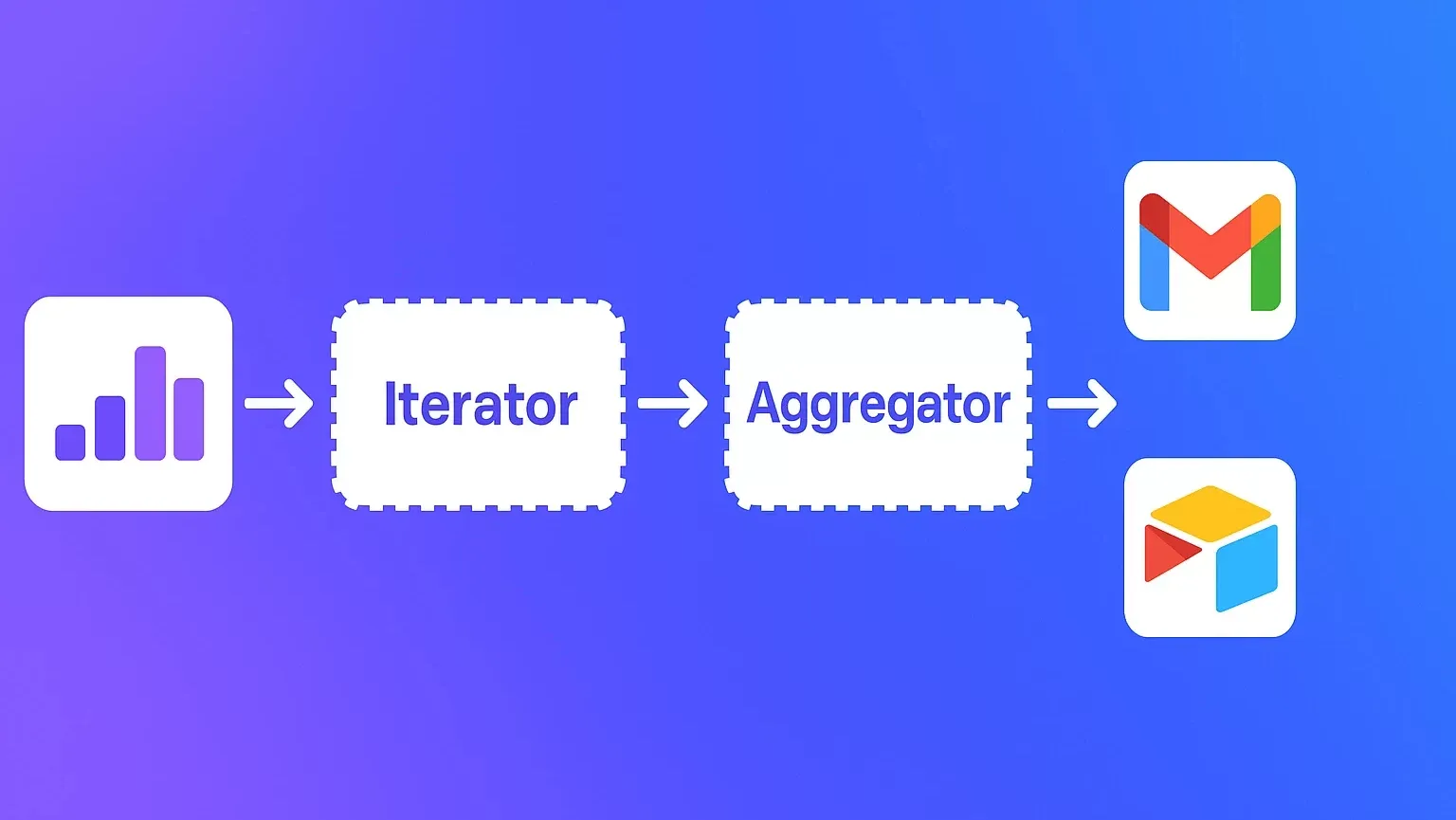
The Iterator takes an array (a list of items) and splits it into multiple bundles — one for each item. This means you can process each element individually, run logic on it, and apply filters or transformations before moving to the next.
You’ll find it under:
Flow Control → Tools → Iterator
Example
Imagine you have an array like:
[1, 2, 3, 4]
When you pass it through the Iterator, Make creates 4 separate bundles — one for each value.
Each bundle contains:
value: the actual item (1, 2, 3, or 4)index: the position of the item in the arraytotal number of bundles: total items (4 in this case)
This is especially useful when you need fine-grained control, such as processing only the last item or skipping certain entries.
Creating Arrays for Iteration
Not all data comes pre-packaged as arrays. Sometimes, you need to create your own array before you can iterate through it.
One simple way is by using Make’s split() function.
Example:
split("test1,test2,test3", ",")
Input:
"test1,test2,test3"Separator:
,Output:
["test1", "test2", "test3"]
Once you have this array, feed it into an Iterator, and Make will process each element as its own bundle.
Real-World Example: Iterating Email Attachments
Here’s one of my favorite practical examples.
Scenario:
I want to process multiple email attachments individually — upload them to Google Drive, rename them, and then store the links in Airtable.
Step-by-Step
Trigger: Gmail “Watch Emails” module.
Iterator: Split the “Attachments” array.
Process each bundle:
Upload the attachment to Google Drive.
Rename each file dynamically using
{{bundleOrderPosition}}.Generate a shareable link for each uploaded file.
Each file is handled independently — no duplicates, no confusion. Once processed, I can use an Aggregator to merge everything back together.
The Aggregator Module: Combining Data Back Together
Where the Iterator splits data apart, the Aggregator brings it back together.
You’ll use this module when you’ve processed multiple bundles and now want to combine them into a single array.
Common Use Case
Continuing our email example:
We iterated through 7 attachments and uploaded each to Google Drive.
Now we want to combine all 7 URLs into a single Airtable record.
Setup Steps
Add the Array Aggregator module.
Select your Source Module — usually the Iterator that created the bundles.
Choose the fields you want to aggregate (like filenames, URLs, or IDs).
⚠️ Pro tip: Always double-check your Source Module.
If you pick a module that runs multiple times (like the Iterator), you’ll end up with multiple aggregated arrays.
To create one combined result, choose a module that runs once — such as your Gmail trigger.
Aggregator Source Logic Explained
Here’s how source selection affects your output:
| Source Module | Runs | Aggregator Output |
|---|---|---|
| Gmail (runs once) | 1 | 1 aggregated array |
| Iterator (runs 7 times) | 7 | 7 aggregated arrays |
This distinction is crucial. When building Make.com scenarios, I always check how many times each module executes. It prevents messy duplicate data later in the process.
Building Arrays for Upload or Storage
Once I’ve aggregated my data — like URLs or file names — I can send them to another platform, such as Airtable or Notion.
Example workflow:
Upload files to Google Drive.
Collect shareable URLs.
Use Array Aggregator to merge all URLs.
Map the resulting array into Airtable’s “Attachments” field.
This produces a single Airtable record with all attachment links neatly stored together.
Accessing Variables Inside and Outside Aggregation
Here’s something that confused me early on: variables behave differently inside an Aggregator.
Variables created within the Aggregator sequence aren’t available outside it, because they get compressed into a single output.
Rule of Thumb
Variables inside aggregation → available only inside.
Variables outside aggregation → accessible globally.
So if you need to retain context (like an email subject), ensure it comes from a module that executes once — like your original trigger — and not from inside an iterative loop.
Useful Built-In Iterator Variables
Make.com automatically provides two handy system variables when you work with Iterators:
| Variable | Purpose |
|---|---|
bundleOrderPosition | Indicates the current item’s order number |
totalNumberOfBundles | Shows how many total bundles exist |
You can use these in filters or conditional logic.
Example:
To process only the last item, set a filter like:
bundleOrderPosition = totalNumberOfBundles
Grouping Data with the Aggregator
Grouping is one of those underrated features that makes your automations smarter.
With the Group By option in the Aggregator, you can categorize data by a specific parameter — like file type, user, or even the first word of a file name.
Example Formula:
split(fileName; " ")[1]
This splits the file name by space and groups bundles based on the first word.
Example in Practice:
If you have files named:
test-report1.json
test-report2.json
blueprint-a.json
You’ll get two groups:
Group 1 → “test” files
Group 2 → “blueprint” files
This is great for batch processing, reporting, or organizing data by project or client.
Using Keys in Grouping
Every grouped array includes a key — the parameter you grouped by.
You can reference this key later for naming conventions, filtering, or even conditional paths.
I often use grouping keys strategically to preserve context, like retaining an email subject or project ID when combining related data.
Other Aggregator Types You Should Know
Beyond the standard Array Aggregator, Make.com offers several specialized versions that can make your automations shine:
| Aggregator Type | Purpose | Common Use Case |
|---|---|---|
| Array Aggregator | Merges bundles into one array | Combine multiple results into a single record |
| Table Aggregator | Formats data into an HTML table | Generate reports or email summaries |
| Text Aggregator | Joins text with a separator | Create readable summaries or bullet lists |
| Number Aggregator | Adds or averages numerical values | Calculate totals, averages, or metrics |
Understanding these different types expands your automation toolkit — especially for reporting or analytics workflows.
Summary Table
| Function | Purpose | Common Use Case |
|---|---|---|
| Iterator | Splits arrays into multiple bundles | Process each attachment, email, or record individually |
| Aggregator | Combines bundles into one array | Store combined URLs or summaries in a single record |
| Grouping | Organizes data by key parameter | Group files by type, project, or user |
| Table Aggregator | Converts arrays to HTML tables | Email reports or dashboards |
Key Takeaways from Working with Iterators & Aggregators
After years of building Make.com scenarios for clients, I’ve learned a few universal truths:
Iterators = Split; Aggregators = Combine.
Always double-check your source module to prevent duplicates.
Leverage system variables like
bundleOrderPositionandtotalNumberOfBundlesfor advanced control.Use Group By keys to manage structured aggregation and retain reference data.
You can chain iterators and aggregators together for complex data transformations — like converting nested arrays into summarized reports.
Real-World ROI: Why This Matters for Businesses
When you understand how to manipulate bundles efficiently, you can design workflows that handle thousands of records with precision.
For one of my clients — a digital marketing agency — optimizing bundle handling reduced their daily Airtable record sync time from 2 hours to under 10 minutes. Another e-commerce client automated attachment uploads and report compilation, saving 30+ manual hours each month.
That’s the beauty of Make.com: when used well, it turns repetitive, data-heavy processes into seamless automations.
If you’re exploring broader automation strategies, check out my post on AI Automation for Small Businesses or book a session with our Custom AI Automation Agency to design enterprise-grade workflows.
Iterators and aggregators power most of the AI automation for small business teams that we build — from simple data merges to multi-step reporting pipelines.
Common Issues & Professional Tips
Here are a few lessons I’ve learned through trial and error:
Configuration Errors: Always validate your array structure before passing it to the Iterator.
Data Format Issues: When APIs return unexpected fields, use the JSON Parse module for cleanup.
API Limitations: Watch for pagination or rate limits when working with large datasets.
Performance Optimization: Combine filters with Iterators to skip unnecessary bundles and reduce module runs.
Ready to start building? Sign up for Make.com today and discover the power of agentic automation for yourself.
📩 Contact us today to schedule a free consultation and see how automation can help you keep more customers, protect revenue, and grow stronger.
Check out other helpful Make.com Workflow Automate Blogs
- Understanding Execution and Cycles in Make.com: A Hands-On Guide
- Connections, Webhooks, and Filters in Make.com: A Practical Guide
- Transforming Data in Make.com: A Professional Guide to Using Functions for Business Automation
- An Introduction to Aggregators in Make: How I Learned to Group, Combine, and Simplify Data
- AI Agents in Make.com: The Future of Business Automation
- Mastering Dates and Time in Make.com: A Practical Guide for Automation Builders
An Iterator splits an array into multiple bundles so you can process each item individually, while an Aggregator combines multiple bundles back into one array.
Yes — you can chain multiple Iterators to handle nested arrays, like processing emails that contain lists of attachments.
It’s likely your Source Module runs multiple times. Choose a module that executes once (like your trigger) to combine everything into one output.
Only variables from modules outside the Aggregator are accessible afterward. Data inside aggregation becomes compressed into a single object.
The Array Aggregator merges structured data, while the Text Aggregator joins plain text strings — perfect for summaries or lists.
No, grouping is optional, but it’s extremely useful for organizing or summarizing large datasets efficiently.

If you are looking forward to getting your data pipeline built and setting up the dashboard for business intelligence, book a call now from get in touch with our Make.com experts.
#analytics #data #business #artificialintelligence #machinelearning #startup #deeplearning #deeplearning #datascience #ai #growth #dataanalytics #india #datascientist #powerbi #dataanalysis #businessanalytics #businessanalyst #businessandmanagement #dataanalyst #businessanalysis #analyst #analysis #powerbideveloper #powerbidesktop #letsviz